
Create Custom Templates
Table of Contents
1. Features
Create a new shipping slip print layout here. Creating it takes two steps: first fill in the Template Name, choose the Applicable Channels and the Paper Size, then edit the layout content — you can use "AI Assistant" to adjust the layout through conversation, and the right side of the page always shows a live preview so you can confirm how it prints before saving. Once created, orders from the bound channels apply this layout when printed.
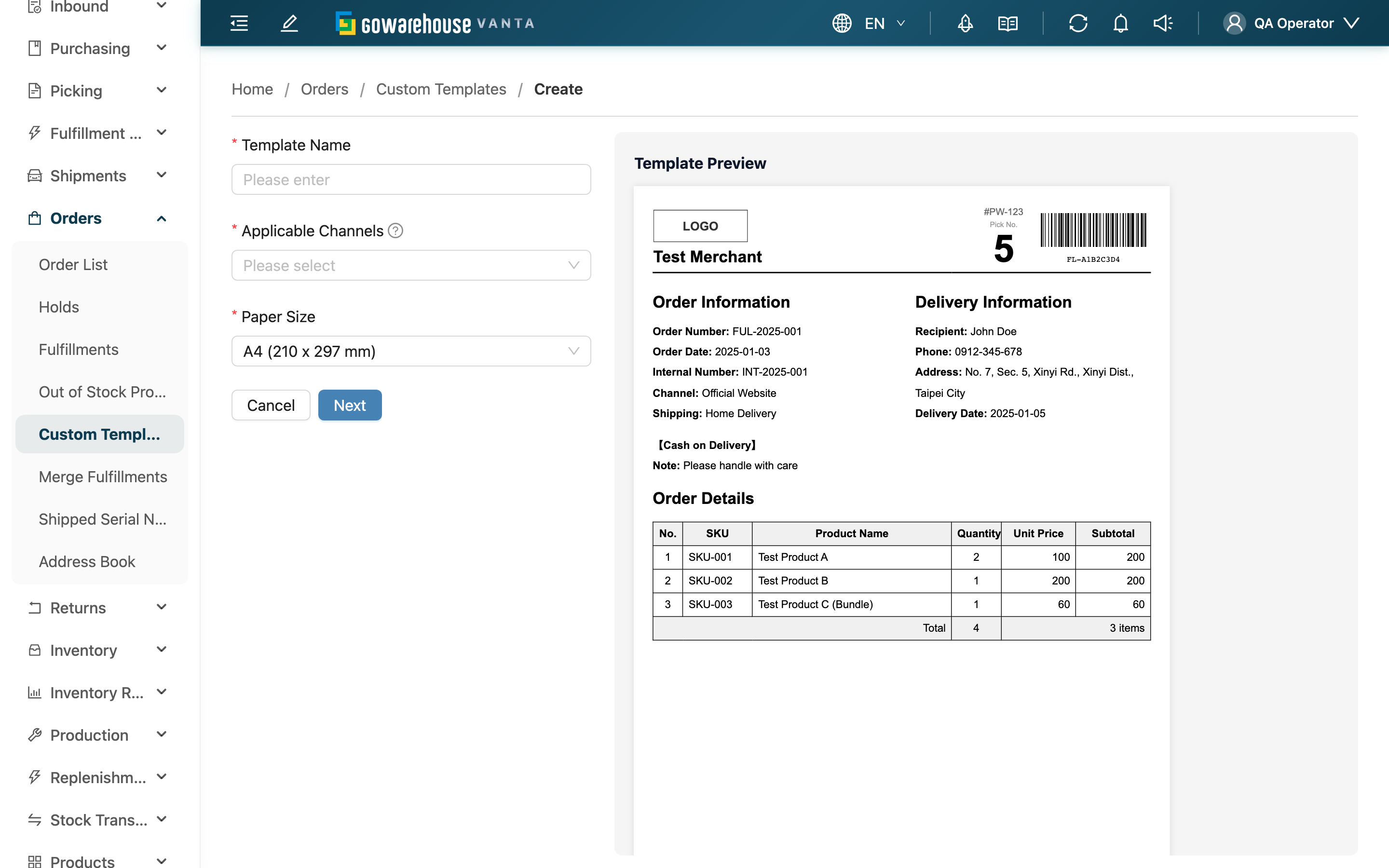
After opening the page, first select a 貨主; the Applicable Channels only list channels under that merchant.
Quick Links: Step 1: Basic Info | Step 2: Edit Content | Live Preview
1.1 Step 1: Basic Info
Fields marked with * are required
| Field | How to Fill | Notes |
|---|---|---|
| *Template Name | Enter an easily recognizable name | Including the channel name (e.g. "Shopee Shipping Slip") helps you identify it later in the list |
| *Applicable Channels | Select the channels this layout applies to; multi-select | If a channel is missing, first check the 貨主 above is correct; a channel applies only one template at a time, so selecting a channel already bound elsewhere rebinds it to this one |
| *Paper Size | Choose A4 (210 x 297 mm), A5 (148 x 210 mm), or Custom Size | When choosing Custom Size, also enter Paper Width (mm) and Paper Height (mm) |
Once filled, click "Next" to move to content editing.
1.2 Step 2: Edit Content
After entering step two, the system has already loaded a built-in default layout that you can adjust directly. Three tools are available:
| Tool | Purpose |
|---|---|
| AI Assistant | Adjust the layout by describing your needs in conversation, e.g. "mask the middle four digits of the recipient's phone", "add a total item count column", "increase the font size of the item list" |
| Edit HTML | Edit the layout's raw content directly, suited for fine adjustments |
| View Variables | View the list of variables you can place in the layout (order info, merchant, channel, logistics, items, etc.); searchable and copyable |
You can also fill in a Description to note the layout's purpose. When done, click "Save"; to create several in a row, click "Save and Add Another", which clears the form back to step one so you can build the next one.
1.3 Live Preview
The right side of the page always shows the "Template Preview", rendering the layout with sample order data in real time and updating immediately as you edit. When actually printing, the sample data is replaced with real order data while the layout and styling stay the same, so what you see before saving is how it will print later.
2. FAQ
2.1 FAQ
▪ How does the layout show order data?
The layout uses variables to represent order data. You can find the available variables under "View Variables"; once placed in the layout, the system replaces them with actual order data when printing.
▪ Do I have to select channels to save?
Yes. Applicable Channels is required, so you must select at least one channel to save. After saving, orders from those channels apply this layout when printed.
▪ What can "AI Assistant" do for me?
It adjusts the layout through conversation — for example rearranging fields, adding or removing fields, changing fonts and spacing, or adjusting table formatting. After you describe what you need, it updates the layout directly and the preview on the right updates with it.
▪ Will the preview match the actual print?
The layout and styling are the same. The preview uses sample order data, while the actual print replaces it with real order information; the appearance stays consistent.
▪ How do I set up a "Custom Size"?
After choosing Custom Size for Paper Size, two extra fields appear — Paper Width (mm) and Paper Height (mm) — where you enter the values in millimeters.
▪ Can I modify it after saving?
Yes. After saving you land on the template's detail page; click edit to adjust the layout again or rebind channels.
2.2 Notices
⚠️ Important
- The layout content must keep the reserved barcode area variable, or it cannot be saved; "AI Assistant" keeps it automatically, but do not delete it when editing the HTML manually.
- If you select a channel already bound to another template, that channel is rebound to this new template and the previous one no longer applies to it.
💡 Tip: Use "AI Assistant" to tweak the default layout first, checking the preview on the right as you go, and save once it looks right.
3. Related Features
| Feature | Description | Link |
|---|---|---|
| Custom Templates | Manage all shipping slip print layouts | Go |
| Order List | View and print orders | Go |