
Stock Adjustments
Table of Contents
1. Use Cases
Quick links: Shelf count doesn't match the system | Write off damaged or expired goods | Trace why one product keeps going short
Case 1: The physical count on the shelf doesn't match the system
Situation: While working a location, you find a product has only 8 units on the shelf, but the system keeps showing 10. You don't need to recount the whole shelf with a full stock take — you just want to fix this one already-confirmed discrepancy so the book matches reality.
Use this feature: Create a stock adjustment, pick this inventory, enter the actual quantity, and the system works out the difference for you. See Create Stock Adjustment for how.
Result: The adjustment goes to pending first; once a colleague with approval rights checks it and approves, the system quantity is corrected from 10 to 8, and the correction is fully logged.
Case 2: Deduct damaged or expired goods and record why
Situation: A box of three units gets damaged in transit, or a batch has passed its expiry date and can no longer ship. These goods are effectively unsellable, but the system still counts them as available. You need to deduct them and clearly state why, so it can be traced later.
Use this feature: Create an adjustment, deduct the damaged or expired items, and pick a reason (such as Damaged or Expired) for each line.
Result: After approval, those quantities are deducted from stock with their reasons on record. If you later need to investigate a product's losses, you can trace who applied, who approved, and why.
Case 3: Find out why one product keeps going short
Situation: A warehouse supervisor notices a fast-moving product keeps needing deductions and suspects fragile packaging, a handling problem, or frequent short-counts at receiving. You need one place to see the adjustment history and the reason behind each one.
Use this feature: In the list, use the reason filter to pull out adjustments for a specific reason (such as Damaged), and open them one by one to see which products and which locations keep causing trouble.
Result: You can see where the losses concentrate — by product and by reason — and use that to improve packaging or workflow, rather than quietly topping the numbers back up each time.
2. Features
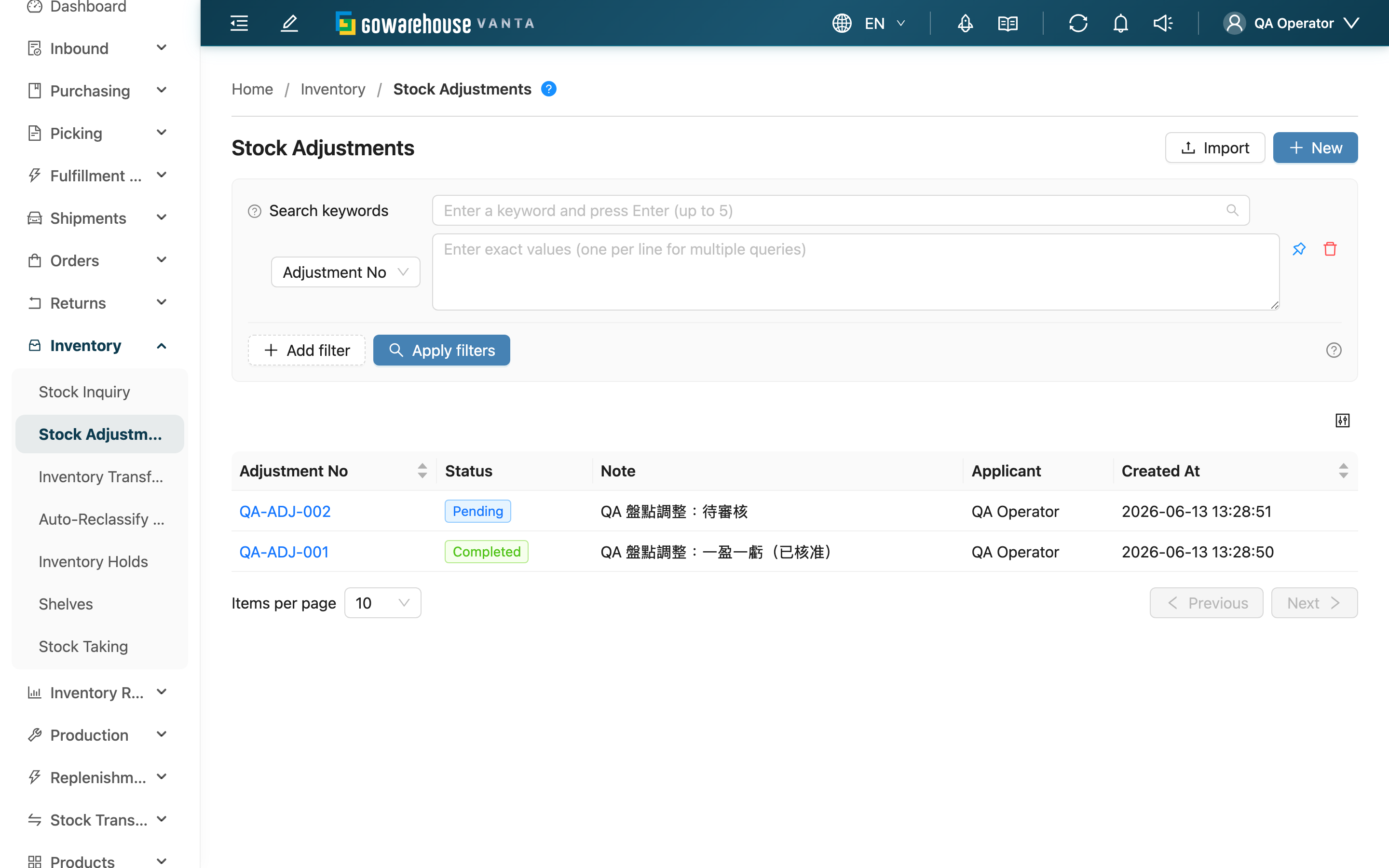
When the stock quantity recorded by the system doesn't match what's physically on the shelf — count discrepancies, damaged or expired goods, earlier keying errors, failed quality checks — come here to create a stock adjustment and bring the book directly in line with reality. It differs from a stock take: a stock take recounts an entire shelf and settles it, whereas an adjustment directly corrects a single, already-confirmed item. Every adjustment must be submitted and reviewed before it actually changes stock.
Quick jump: Search & Filter | List Columns | Status & Reasons | Create & Approve
2.1 Search & Filter
The search box at the top finds adjustments by keyword in "Adjustment No" or "Note"; press Enter after typing.
| Filter | How to use |
|---|---|
| Status | Multi-select dropdown. To find adjustments awaiting your review, choose "Pending" |
| Adjustment Reason | Select reasons (such as Damaged or Expired) to surface adjustments containing those line reasons — used to trace a specific source of loss |
| Created At | Pick a date range to filter adjustments created within a period |
"Adjustment No" can also be used as a filter (supports multiple values, pinned by default).
2.2 List Columns
| Column | Description |
|---|---|
| Adjustment No. | Click to open the adjustment's detail; sortable |
| Status | A colored tag showing current progress; see Status & Reasons |
| Note | The whole-adjustment note entered at creation |
| Applicant | The person who created this adjustment |
| Created At | Sortable, newest first by default |
2.3 Status & Reasons
Status
| Status | What it means |
|---|---|
| Pending | Submitted, stock not yet changed, awaiting review. Still editable or can be rejected at this point |
| Completed | Approved, stock has actually changed, can no longer be edited |
| Rejected | Rejected, stock did not change |
Adjustment Reasons
Every line item must have a reason, which makes loss analysis traceable later:
| Reason | When it applies |
|---|---|
| Damaged | Goods damaged, unsellable |
| Expired | Goods past their expiry date |
| Count Error | Actual quantity doesn't match the system |
| Data Entry Error | An earlier keying error to correct |
| Quality Check Failed | Failed quality inspection |
| Other | Other reasons; explaining in the note is recommended |
2.4 Create & Approve
▸ Create an adjustment
The "New" button at the top right opens the create page, where you pick inventory, enter actual quantities, choose reasons, and submit. See Create Stock Adjustment for the full walkthrough.
▸ Import adjustments
To handle a large number of items at once, "Import" at the top right lets you download a template, fill it in, and upload. You need import-related permission to see this button. After submitting, check the result in the "Background Tasks" panel.
▸ Approve an adjustment
Click the "Adjustment No" to open the detail page for review — verify the items and reasons, then approve or reject. Approving actually changes stock and cannot be undone; for the steps and resulting effects, see Stock Adjustment Detail.
3. FAQ
3.1 FAQ
▪ What's the difference between a stock adjustment and a stock take?
A stock take recounts an entire shelf and settles it in one batch; an adjustment directly and individually corrects a single, already-confirmed item. To quickly handle a known situation like "three units in this box are broken," an adjustment is fastest. For full counts, use Stock Takes.
▪ A batch number or expiry date was recorded wrong — do I use an adjustment too?
No. An adjustment only changes "quantity." For attributes like batch number, expiry date, or inventory type recorded in error, use a Stock Transformation; don't deduct and re-add stock with an adjustment.
▪ Why must it be submitted first and then reviewed before taking effect?
Adjusting stock is the same as directly editing the books — it affects sellable quantity and cost. A second pair of eyes prevents slips and mis-entries, and leaves a record of "who applied, who approved, and why" for every adjustment so it can be reconciled later.
▪ What if I can't see the "New" button or the approval buttons?
Creating and importing need stock-edit permission, while approving and rejecting need review permission — the two are separate. If you can't see the relevant button, ask your administrator to confirm your permissions.
▪ Where do I confirm that stock actually changed after an adjustment?
Check the latest quantities in Inventory List, or look up the movement records sourced from stock adjustments in Inventory Movements.
3.2 Notes
⚠️ Important
- No turning back after approval: stock truly changes the moment you approve and cannot be undone; to correct it, you can only create a reversing adjustment. Verify carefully on the detail page before approving.
- Don't use an adjustment for attribute errors: for batch number, expiry date, or inventory type errors, use a Stock Transformation instead.
💡 Tip: Before adjusting, check Inventory Movements to see where the discrepancy came from, so you don't simply patch the number and mask a real workflow problem.
4. Related Features
| Feature | Description | Link |
|---|---|---|
| Inventory List | Confirm the latest stock quantities after adjustment | Go |
| Stock Takes | Recount a whole shelf and settle the difference | Go |
| Stock Transformations | Change attributes like batch / expiry / inventory type without changing quantity | Go |
| Inventory Ledger | View the full history of stock increases and decreases | Go |