
New Consumable
Table of Contents
1. Features
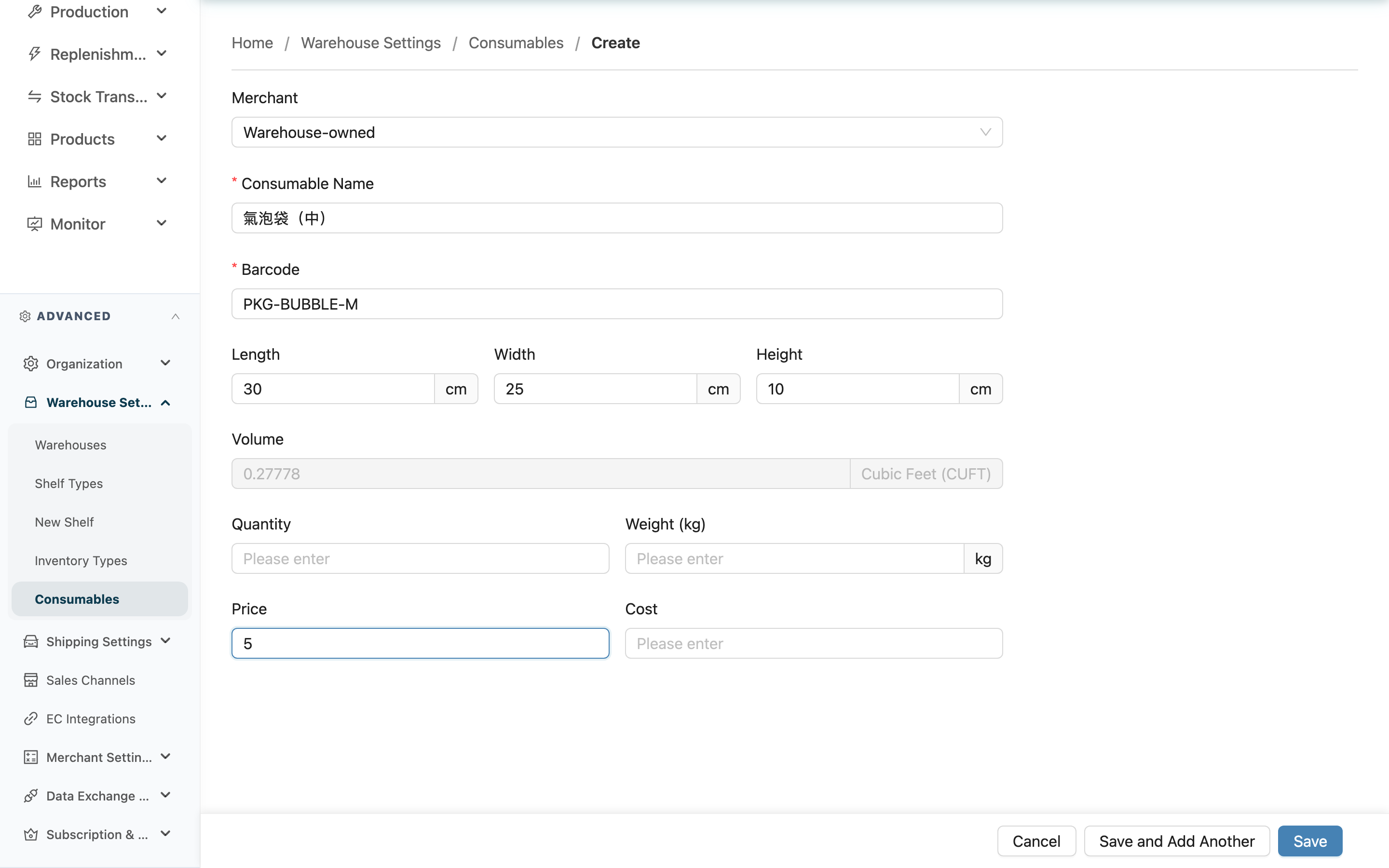
On this page you register a new packaging material (such as a carton, tape, or bubble bag), entering its barcode, dimensions, and current stock. Once registered, when you scan this packaging's barcode while packing during shipping, the system automatically deducts the used amount from stock, and you can check the remaining quantity anytime on the Consumables list. Each packaging must have a unique barcode so the correct packaging can be scanned during shipping.
Quick jump: Filling in Fields | Saving
1.1 Filling in Fields
Fields marked with * are required.
| Field | How to fill in | Notes |
|---|---|---|
| Merchant | Select the merchant this packaging belongs to from the dropdown; if it is generic packaging shared by all merchants, choose "Warehouse-owned" | Defaults to "Warehouse-owned". Once assigned to a merchant, only that merchant's shipments can scan it |
| *Consumable Name | Enter an easily recognizable name, e.g. "Size-60 double-wall carton" | Required |
| *Barcode | Enter this packaging's barcode | Required; cannot be duplicated under the same merchant (or both warehouse-owned) |
| Use as Shipping Volume Basis | Whether this packaging is the outer carton used for shipping. When checked, shipping uses this consumable's length, width, and height as the parcel's volume instead of summing product dimensions | Checking it makes Length / Width / Height required |
| Length / Width / Height | Enter the box's outer dimensions in centimeters (cm) | Once all three are filled, the Volume below is calculated automatically; required when "Use as Shipping Volume Basis" is checked |
| Volume | Automatically calculated from length, width, and height; cannot be edited manually | The unit follows the warehouse's volume-unit setting (cubic meters, Sai, or cubic feet) |
| Quantity | Enter the current stock quantity as the initial stock | Shipping scans deduct it automatically afterward, so no further manual upkeep is needed |
| Weight (kg) | Enter the weight of a single piece of packaging, in kilograms (kg) | Optional |
| Price / Cost | Enter this packaging's price and cost | Optional |
1.2 Saving
After filling in the form, there are two ways to save:
- Create: After saving, go straight to this packaging's detail page.
- Save and Add Another: After saving, clear the form and stay on this page so you can register the next packaging right away — handy for creating several at once.
2. FAQ
2.1 Questions
▪ Do I have to calculate the volume myself?
No. Once you fill in Length, Width, and Height, the Volume is calculated automatically and cannot be edited manually. The unit is shown as "cubic meters", "Sai", or "cubic feet" depending on the warehouse's volume-unit setting.
▪ When should I check "Use as Shipping Volume Basis"?
Check it when this consumable is the actual outer carton used to ship goods. Once checked, shipping uses this consumable's length, width, and height directly as the parcel's volume, instead of summing product dimensions — that estimate usually understates the volume (it ignores empty space and carton walls inside the box), which can cause volume tiers to collect nothing. Don't check it for cushioning materials or bubble bags, even if they also have fixed dimensions. During QC packing, only one checked consumable can be scanned per parcel — scanning a second one is blocked.
▪ Is the barcode required? Can I leave it blank?
It is required. The Barcode is what gets scanned and matched when packing during shipping; without a barcode, this packaging cannot be matched during shipping.
▪ I get a "barcode duplicated" message when saving — what do I do?
It means another packaging under the same merchant (or both "Warehouse-owned") already uses the same barcode. Use a different barcode, or check whether you are registering a duplicate. Different merchants may each use the same barcode independently.
▪ Do I have to select a merchant?
No. It defaults to "Warehouse-owned", meaning generic packaging usable by all merchants' shipments. Only assign it to a specific merchant when the packaging is for that merchant's exclusive use.
▪ What quantity should I enter for stock?
Just enter the current actual stock as the starting value. After registration, every shipping scan of this packaging deducts it automatically, so this number will change automatically with shipping afterward and needs no manual upkeep.
2.2 Notices
⚠️ Important
- Packaging assigned to a merchant can only be scanned for that merchant's shipments; to share it across all merchants, choose "Warehouse-owned".
💡 Tip: When registering several packaging types at once, use Save and Add Another to register them in a row — faster than returning to the list and re-entering the new page after each save.
3. Related Features
| Feature | Description | Link |
|---|---|---|
| Consumables | Return to the packaging list to view and manage all consumables | Go |
| Consumable Detail | View the full record of a single consumable | Go |