
Purchase Order Detail
Feature Not Yet Available
Purchase order management (purchase orders and suppliers) is not currently available on any plan — the corresponding menu items and this page are hidden. Existing data is unaffected and remains intact in the system. This feature will be offered later as an add-on module, at which point the workflow described on this page will apply as-is.
Table of Contents
1. Features
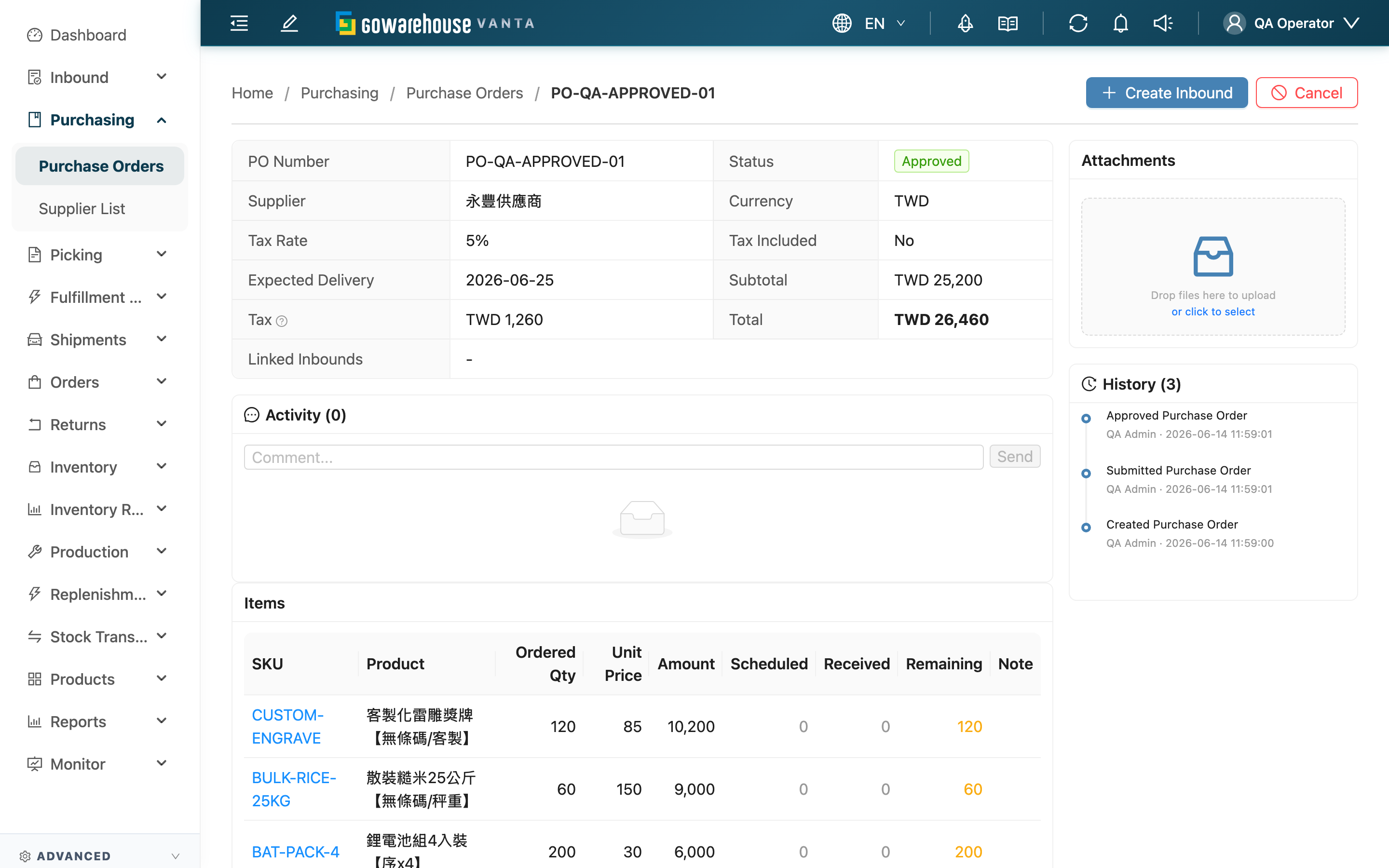
The purchase order detail is a single order's command center: view its full content and delivery progress here, and run the actions that match its current status — submit for review, approve or reject, create inbounds to receive goods, cancel, or close. Receiving progress (how much received, how much remaining) is also shown in the item details on this page.
Quick jump: Order info | Item details | Action buttons | Create inbound | Invoices, attachments & comments | Cancel purchase order
1.1 Order Info
The upper part of the page shows the order's basic information in a table: "PO Number", "Status", "Supplier", "Currency", "Tax Rate", "Tax Included", "Expected Delivery", plus the amounts "Subtotal", "Tax", and "Total". The "Linked Inbounds" field lists all inbounds linked to this order and their statuses; click to open the corresponding inbound. If the order was closed early, "Close Reason" is also shown.
1.2 Item Details
The "Items" table lists every product on this order and its receiving progress:
| Column | Description |
|---|---|
| SKU | Product SKU; click to open the product detail |
| Product | Product name |
| Ordered Qty | The ordered quantity for this purchase |
| Unit Price | Unit price |
| Amount | Line subtotal (quantity × unit price) |
| Scheduled | Quantity already scheduled for receiving by linked inbounds |
| Received | Quantity actually received into the warehouse |
| Remaining | Quantity not yet delivered (ordered − received) |
| Note | Line note |
A summary row at the bottom totals the ordered and received quantities, so you can see the order's overall completion at a glance.
💡 "Scheduled" is the quantity "an inbound has been created and scheduled to receive", while "Received" is the quantity "the warehouse actually received". The gap between them is what has an inbound created but isn't fully received yet.
1.3 Action Buttons
The action buttons at the top right change with the order's current status:
| Current status | Available actions |
|---|---|
| Draft | "Edit" to modify content, "Submit" to submit for review, "Cancel" to cancel |
| Submitted | "Approve" to approve, "Reject" to reject back to draft, "Cancel" to cancel (approve / reject need approval permission) |
| Approved | "Create Inbound" to create an inbound for receiving, "Cancel" to cancel |
| Partial Received | "Create Inbound" to keep receiving the rest, "Cancel" to cancel, "Short Close" to close early |
| Received | "Close" to close |
Effects and limits of each action:
- Submit: Sends the draft for review; status becomes "Submitted". An order must have at least one item to be submitted.
- Approve / Reject: After approval the status becomes "Approved" and the approver and time are recorded; rejection returns it to "Draft" for further editing. Both require approval permission.
- Cancel: Voids the order; status becomes "Canceled", and cancellation is irreversible. An order with linked inbounds can also be canceled — unreceived inbounds are canceled along with it, and received ones must first be reassigned to another purchase order; see Cancel purchase order.
- Short Close (early close): For when, after partial delivery, the supplier won't supply more and the remaining items won't be tracked. You can fill in a close reason; the status becomes "Closed" and the remaining undelivered items are no longer tracked.
- Close (close): After full delivery, close manually; the status becomes "Closed" and no further inbounds can be added.
1.4 Create Inbound
When an order is "Approved" or "Partial Received" and still has undelivered items, click "Create Inbound". In the dialog, choose which "Warehouse Name" to receive into and the expected arrival date, and enter the "Inbound Qty" to receive this time for each item, to create an inbound linked to this order. The dialog lists only items with remaining quantity, defaults this batch's quantity to the remaining quantity, and won't allow more than the remaining quantity. After the warehouse receives against that inbound, the order's "Received" updates accordingly and the status advances automatically to partially or fully received.
1.5 Invoices, Attachments & Comments
The detail page also brings together this order's surrounding data:
- Invoices: Record supplier invoices and payments, summarizing invoiced, paid, and outstanding amounts — handy for tracking payables.
- Attachments: Upload files related to this order (such as quotations or contracts); to view one, click its file name and it opens in a new tab — if your browser blocks pop-ups, a message asks you to allow them and click again.
- Activity: Team discussion comments on this order.
- History: Automatically records every status change of this order (create, submit, approve, reject, receive, close, cancel), preserving a complete audit trail.
1.6 Cancel Purchase Order
An order in "Draft", "Submitted", "Approved", or "Partial Received" status can be canceled with "Cancel". The confirmation dialog differs based on the linked inbounds:
- No linked inbounds (or all already canceled): Confirm and the order is canceled directly.
- With unreceived linked inbounds: The dialog lists them under "The following unreceived inbounds will also be canceled"; on confirmation these inbounds are canceled together with the order and can no longer be resumed.
- With received linked inbounds: You must pick a reassign-target purchase order in the dialog before you can confirm. Only orders with the same supplier in "Approved" or "Partial Received" status can be picked, and the target's items and remaining quantities must be able to accommodate everything on those inbounds. On confirmation, the receipt records and received quantities move to the target order first, and only then is the original order canceled; the received quantities and statuses of both orders are recalculated automatically.
💡 Tip: When goods are already being received but the order needs to be reissued (e.g. the original terms were wrong), create and approve the new purchase order first, then come back to cancel the original and reassign its receipts to the new one — nothing already received is lost.
📌 Canceling an order does not touch its recorded invoices; if there are any, handle them separately in "Invoices".
2. FAQ
2.1 FAQ
▪ Why are my action buttons different from what the docs say?
Action buttons appear by the order's current status, and different statuses allow different actions (see Action buttons). For example, only a draft has "Edit", and only an approved order has "Create Inbound". Approve and reject additionally require approval permission, and won't appear without it.
▪ What's the difference between "Scheduled" and "Received"?
"Scheduled" is the quantity scheduled to be received via a created linked inbound; "Received" is the quantity the warehouse actually received. The scheduled quantity rises when you create an inbound, and the received quantity rises only after the warehouse actually receives the goods.
▪ Are the order statuses changed manually?
Submit, approve, reject, cancel, and close are triggered manually; but "Partial Received" and "Received" are advanced automatically by the receiving progress of linked inbounds — no manual switching needed.
▪ Can an order that already has an inbound be canceled?
Yes. Unreceived linked inbounds are canceled together with the order on confirmation; inbounds that already have receipt records require you to pick a reassign-target purchase order in the dialog — their receipts move there before the original order is canceled (see Cancel purchase order). If the supplier simply won't supply more and the remaining items won't be tracked, "Short Close" is enough — no need to cancel the whole order.
▪ What if there's no reassign-target purchase order to pick when canceling?
The reassign target list only shows orders with the same supplier in "Approved" or "Partial Received" status. An empty list means no order currently qualifies — go to the purchase order list to create and approve a new order first, then come back to cancel this one.
▪ What's the difference between "Short Close" and "Close"?
"Close" (close) is for a normal wrap-up after full delivery; "Short Close" (early close) is for when only part of the goods arrived and the rest won't be tracked, and lets you enter a close reason. After either, the order enters "Closed" and no further inbounds can be added.
▪ Why are some items missing from the list when creating an inbound?
The create-inbound dialog lists only items that still have remaining quantity. Items already received in full (remaining is 0) no longer appear, because they don't need any more receiving.
▪ Can I fix a wrong received quantity here on the purchase order?
No. "Received" comes from the actual receiving result of the linked inbound. To correct it, go to the corresponding inbound; the purchase order will reflect the change.
2.2 Notices
⚠️ Important
- Cancel and close (including early close) are both irreversible; once an order enters these statuses it cannot return to a previous one
- When canceling, unreceived linked inbounds are canceled together and cannot be resumed; inbounds with receipts must be reassigned to another purchase order before the original is canceled (see Cancel purchase order)
- After closing, no further inbounds can be added; make sure the remaining items truly won't be tracked before closing
💡 Tip: For multi-batch deliveries, create one inbound per batch; the order accumulates each batch's received quantity and advances automatically from partially to fully received.
3. Related Features
| Feature | Description | Link |
|---|---|---|
| Purchase Order List | Back to the overview of all purchase orders | Go |
| Edit Purchase Order | Edit a purchase order still in draft status | Go |
| Inbound | The inbound created from the order to actually receive goods | Go |