
New Label Template
Table of Contents
1. Feature Overview
Create a new label layout here: give the template a name, choose a paper size, and arrange the product information you want to print. The right side shows a live preview—edit on the left and immediately see what the label looks like, without printing a test. The finished template can later be chosen on a product page and applied for printing. When the new page opens it is pre-filled with a default starter layout, so you can adjust it directly instead of starting from blank.
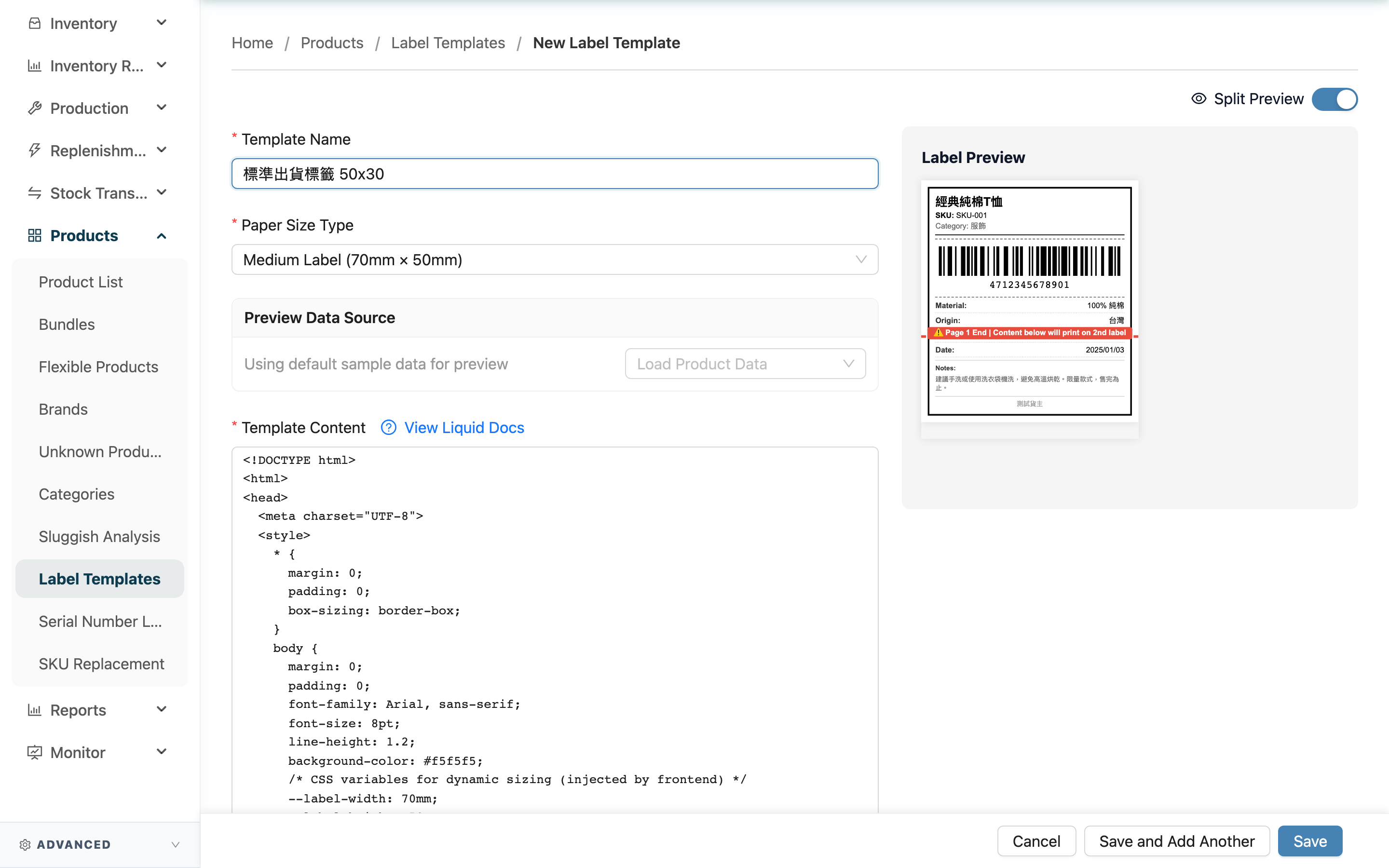
Quick jump: Fill in fields | Preview data source | Preview the label | Save
1.1 Fill in fields
Fields marked with * are required.
| Field | How to fill | Notes |
|---|---|---|
| *Template Name | Enter an easily recognizable template name, e.g. "Medium label – with barcode" | Required |
| *Paper Size | Choose a sticker size: small, medium, large label, A4, A5, or custom | A built-in size fills in width and height automatically; only "custom" needs manual entry |
| Paper Width (mm) / Paper Height (mm) | Appears only for "custom"; enter the sticker's actual width and height | Must be greater than 0 |
| *Template Content | Arrange the label layout—decide which fields to print and how | Required; can use the data listed in Printable product fields |
| Is Default | Check to set it as this merchant's default template | A merchant can have only one default; a duplicate check is blocked |
| Description | Add notes about the template's purpose for later reference | Optional |
The template content uses Liquid syntax for layout, and a "View Liquid Docs" link next to the field provides syntax reference. The new page is pre-filled with a complete starter layout as an example; add or remove fields on top of it.
1.2 Preview data source
The preview uses a set of sample product data by default. To see how the layout looks with a real product, use "Load Product Data" in "Preview Data Source" to pick an actual product, and the preview switches to that product's data. Click "Reset to Sample Data" to switch back to sample data. This choice only affects the preview, not the template itself.
1.3 Preview the label
The Split Preview on the right is on by default and updates live as you edit; you can collapse it with the toggle at the top right to give the editing area more room. Clicking "Preview" opens a larger preview window for examining the layout in detail.
1.4 Save
Once arranged, click the save button at the bottom; on success you go straight to the template's detail page. To create several in a row, click "Save and Add Another" instead—after the current one is saved, the form is cleared and re-filled with the starter layout so you can build the next one.
2. FAQ
2.1 FAQ
▪ How do I arrange the template content?
The template content uses Liquid syntax for layout—place the product fields you want to print into it (available fields are in Printable product fields). Watch the right-side preview as you arrange, and adjust until you are satisfied. If you are unfamiliar with the syntax, use the "View Liquid Docs" link next to the field.
▪ Why can't I save—it says there is already a default template?
Each merchant can have only one default template. If you checked "Is Default" but the merchant already has another default, the system blocks it. Unmark the default on that older template first, then save.
▪ What if the sticker size I want isn't in the list?
Choose "Custom Size" and enter the sticker's actual width and height (in millimeters); both must be greater than 0.
▪ Does "Load product data" change the template?
No. It only switches the preview to a real product's data so you can check the layout, and the template content and settings are completely unaffected.
▪ The preview looks off—can I still save?
The template content is required, and it cannot pass if the layout syntax has errors. We recommend confirming there is no obvious overflow or blank space in the right-side preview before saving.
2.2 Notices
⚠️ Important
- Template name, paper size, and template content are required; saving fails if any is missing.
- Each merchant can have only one default template; a duplicate is blocked.
- For a custom size, both width and height must be greater than 0.
💡 Tip: Load a real product with complete data using "Load Product Data" before laying out, so it's easier to spot whether the layout fits all the fields.
3. Related Features
| Feature | Description | Link |
|---|---|---|
| Label Templates | Return to the list of all templates | Go |
| Product List | Choose a template on a product and print labels | Go |