
New Order
Table of Contents
1. Features
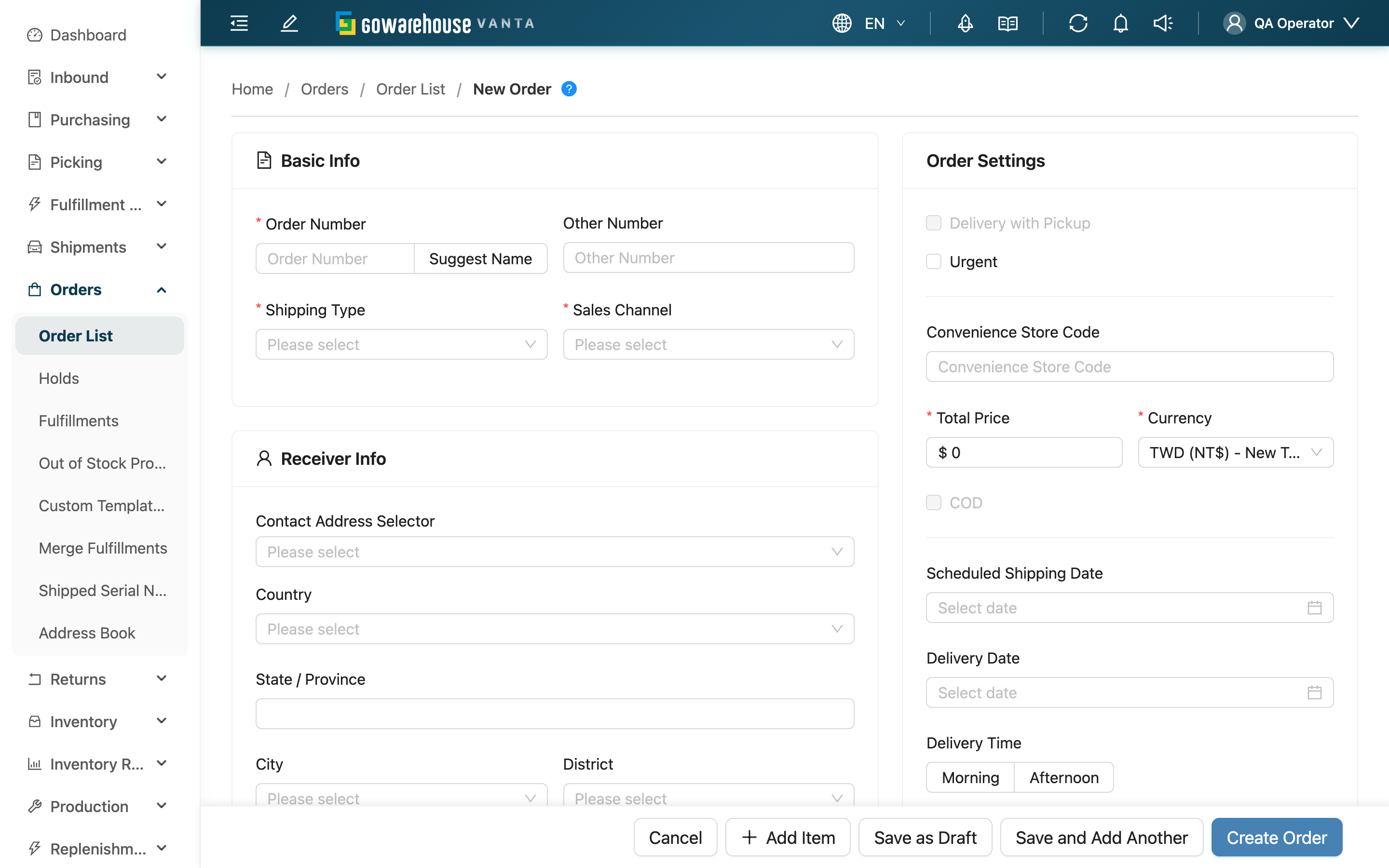
New Order lets you create an order directly without waiting for the e-commerce platform to sync. It's commonly used for phone-in orders, offline sales, or when the platform misses an order that needs to be entered by hand. A created order enters the allocation and fulfillment flow just like a platform-synced one. The form is split into four sections — basic info, recipient info, order options, and product list — and fields marked * are required.
Quick jump: Select merchant | Fill the form | Add products
1.1 Select Merchant
When you open the New Order page, first select the merchant this order belongs to at the top. The merchant determines the available sales channels, shipping types, inventory types, and product list, so you must pick the right merchant first for the fields below to show the correct options. The shipping warehouse is filled automatically with the warehouse you're currently in — no need to enter it.
1.2 Fill the Form
Fields marked * are required.
Basic Info
| Field | How to fill | Notes |
|---|---|---|
| *Order Number | Enter this order's number | Must be unique within the merchant; click "Suggest Name" to have the system generate a suggested number, which is checked for availability in real time |
| Other Number | Enter an external system reference for reconciliation | At most 255 characters; shorten longer references before saving |
| *Shipping Type | Pick a shipping type from the list | If the option is missing, set it up in shipping settings first; selecting a COD-related method reveals the COD amount field |
| *Sales Channel | Pick a sales channel from the list | If the option is missing, create the sales channel for this merchant first |
Receiver Info
| Field | How to fill | Notes |
|---|---|---|
| *Receiver Name | Enter the recipient's name | Required |
| *Phone | Enter the contact phone | Required; convenience-store pickup methods (SF store pickup excepted) need a 10-digit mobile number starting with 09 |
| Address | Enter the delivery address | Required for home-delivery shipping types, optional for convenience-store pickup; for Taiwan addresses, after selecting Taiwan as country, city, district and postal code link automatically |
| Convenience Store Code | Enter the pickup store's code | Required for convenience-store pickup shipping types, optional for all others |
Address and Convenience Store Code sit one after the other in the recipient section and are always both visible; only whether they are required changes, switching live with the Shipping Type selected above. Values you already typed are never cleared when you change the shipping type.
When you pick an SF Express shipping type (home delivery and store pickup alike), Postal Code becomes required as well: SF treats the postal code as a mandatory field of its own when it issues the waybill, so without it no tracking number comes back, however complete the address is. For Taiwan addresses it fills in automatically once you have selected City and District.
The remaining recipient fields (Email, Country, City, District, Postal Code) are entered by name.
Order Settings
| Field | How to fill | Notes |
|---|---|---|
| *Total Price | Enter the order amount | Required |
| *Currency | Select the currency | Required; defaults to the merchant's default currency |
| COD | Check to mark this order as cash on delivery | When checked, fill the COD Amount; it must be greater than 0 and not exceed the order amount |
| Urgent | Check to mark as urgent | Urgent orders show a red badge next to the order number in the list |
| Scheduled Shipping Date | Pick the scheduled shipping date | Past dates cannot be selected |
The remaining options (Delivery Date, Delivery Time, Note) are filled as needed.
1.3 Add Products
In the product list section, type a product name, SKU, or bundle name in the search box to add it; at least one product is required to create the order. For each product you can fill:
| Field | How to fill | Notes |
|---|---|---|
| *Expected Quantity | Enter the quantity to ship | At least 1 |
| Inventory Type | Select the inventory type | Defaults to the first inventory type |
| Batch / Expiration Date / Manufacturing Date | Fill when you want to ship a specific batch of stock | These auto-fill and lock once the specified stock is chosen, no manual changes needed |
After adding a bundle, it automatically expands into its component products, and the set quantity can be adjusted. The remaining fields (Unit Price, Identifier, Custom Attributes, etc.) can be filled after enabling them in column settings. Click Save to create the order.
Supply unit price
When selling through a channel and recording both the consumer selling price and your supply price, enable "Supply unit price" in the item column settings. Enter the agreed supply amount per item. For example, if your cost is 400, you supply the platform at 650, and it sells at 900, enter 650 as the supply unit price and 900 as Unit Price. The supply price does not change the system-calculated inventory cost.
Leave the supply price blank when unknown; zero means free supply. The allowed range is 0–99,999,999.99 with two decimal places, in the order currency. Use the source transaction's agreed tax-inclusive or tax-exclusive basis; the system neither converts tax nor deducts platform fees. Entering a supply price does not automatically change Total Price or COD Amount.
1.4 Invoice details
This optional advanced section is collapsed by default. Select Invoice details to expand it. Collapsing the section preserves entered values; validation errors automatically expand it for correction.
Enter the buyer and invoice delivery instructions for this order. The buyer may differ from the recipient, so recipient details are not copied automatically. Leave the fields blank when instructions have not been provided.
Carrier type, Carrier ID, and Donation code appear only when the merchant’s organization country is Taiwan, regardless of the recipient country, currency, or interface language. For other or unspecified countries, the tax field is labelled Buyer tax ID. Hiding fields does not clear saved values.
| Field | How to fill it in | Notes |
|---|---|---|
| Buyer type | Select “Individual” or “Business” | Business buyers must provide Buyer name / company name and Buyer tax ID |
| Buyer name / company name, Buyer tax ID | Enter the name and tax ID confirmed by the buyer | Leading zeros are preserved; the recipient name is not used as a substitute |
| Buyer address, Invoice email, Buyer phone | Enter the buyer’s invoice address and contact details | These can differ from the delivery address and recipient’s contact details |
| Carrier type, Carrier ID | Enter a pair supported by your invoicing service | Fill in or clear both fields together; do not also enter Donation code |
| Donation code | Enter the designated code to donate the invoice | Clear both carrier fields before switching to donation |
After saving, review the information on the order’s “Invoices” tab. These fields record instructions only; they do not issue an invoice. Changing the instructions does not alter issued invoices.
2. FAQ
2.1 FAQ
▪ The sales channel / shipping type below is empty and I can't select anything?
Usually you haven't selected a merchant yet, or this merchant hasn't set up that option. First select the right merchant; if the options are still empty, create the merchant's sales channel or shipping type on the corresponding settings page first.
▪ Do I have to make up the order number myself?
You can enter one yourself, or click "Suggest Name" to have the system generate one. The system checks availability in real time and, on a duplicate, warns you and links to the existing order.
▪ After checking cash on delivery, how do I fill the COD amount?
After checking COD, the COD Amount field appears; the amount must be greater than 0 and not exceed the Total Price.
▪ For a convenience-store pickup order, do I fill the address or the store code?
When you pick a convenience-store pickup shipping type (7-ELEVEN, FamilyMart, Hi-Life, Myship B2C, SF store pickup, and the like), Convenience Store Code becomes required and Address becomes optional — the parcel goes to a store, so there is no delivery address. Home delivery and every other shipping type are the opposite: address required, store code optional. Both fields stay on screen the whole time, and you may fill in both.
▪ Why does Postal Code become required for SF Express?
SF treats the recipient's postal code as a mandatory field of its own when it issues the waybill: leave it empty and the request is rejected and no tracking number comes back, however complete the address is. So whenever you pick SF Express (including SF store pickup at 7-ELEVEN or FamilyMart), the form asks you to fill in Postal Code first. For Taiwan addresses it fills in automatically once you select City and District.
▪ Why won't a convenience-store pickup order save with a landline?
Once the parcel reaches the store the carrier texts the receiver to come and collect it. A landline cannot receive that text, so the parcel sits at the store until it expires and is returned. That is why Phone must be a 10-digit mobile number starting with 09 for 7-ELEVEN, FamilyMart, Hi-Life, Myship B2C and similar convenience-store pickup methods; a landline is rejected right under the field. Even when the form is bypassed (platform imports, API-created orders), the same check runs again on save. SF store pickup does not notify by text and is exempt.
Type the digits as one unbroken run — 0912-345-678 and +886912345678 are rejected too. Among home-delivery shipping types only PAYUNi T-Cat (including chilled and frozen) demands a 09 mobile as well; the form gives no warning up front, but saving with a landline fails. Every other home-delivery shipping type checks no format at all, so a landline is still fine there.
▪ How do I ship a specific batch of stock (batch / expiration)?
Choose the specific stock to ship on the product, and the system auto-fills and locks that batch's batch number, expiration, and manufacturing date, ensuring allocation hits the correct batch.
▪ Do I need to choose a shipping warehouse?
No. When warehouse staff create an order, the system fills in the warehouse you're currently in automatically.
▪ Can I remove a product I added by mistake?
Yes. Just remove it from the product list; adjustments before creation don't affect stock.
2.2 Notices
⚠️ Important Notice
- The order number must be unique within a merchant; a duplicate is blocked and the order can't be created.
- At least one product is required to create an order.
- The COD amount must be greater than 0 and not exceed the order amount, or it can't be submitted.
💡 Tip: Select the right merchant first, and the other dropdown options will show the correct content; the wrong merchant shows empty or incorrect options.
3. Related Features
| Feature | Description | Link |
|---|---|---|
| Order List | Back to the order list | Go |
| Import Orders | Import orders in bulk from a file instead | Go |
| Orders Details | View the created order's details | Go |