
Edit Supplier
Feature Not Yet Available
Purchase order management (purchase orders and suppliers) is not currently available on any plan — the corresponding menu items and this page are hidden. Existing data is unaffected and remains intact in the system. This feature will be offered later as an add-on module, at which point the workflow described on this page will apply as-is.
Table of Contents
1. Features
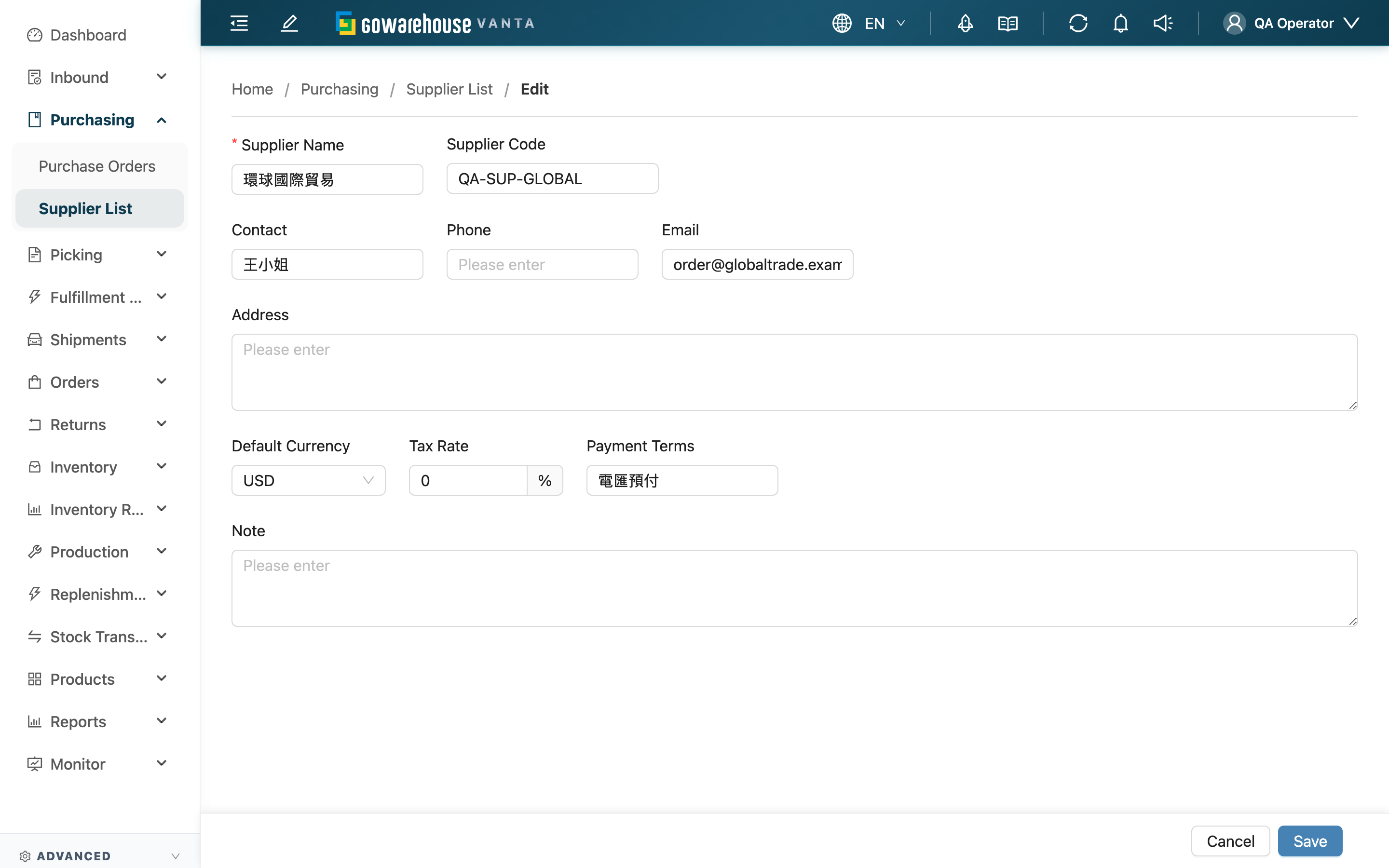
Edit Supplier is for modifying an existing supplier's record. The form fields are identical to Create Supplier; the difference is that here you modify existing data rather than create a new supplier.
Quick jump: Form fields | Save
1.1 Form Fields
The editable fields are the same as when creating: "Supplier Name" (required), "Supplier Code", "Contact", "Phone", "Email", "Address", "Default Currency", "Tax Rate", "Payment Terms", and "Note".
The merchant a supplier belongs to is fixed at creation and does not change during editing. For how to fill each field and its limits, see the corresponding notes in Create Supplier.
1.2 Save
After editing, click "Save"; once saved, it returns to the Supplier Detail.
2. FAQ
2.1 FAQ
▪ Does changing "Default Currency" or "Tax Rate" affect existing purchase orders?
No. The default currency and tax rate only fill in automatically when you pick this supplier on a new purchase order; existing purchase orders keep the values entered at the time and won't change because you later edited the supplier record.
▪ Can I change which merchant the supplier belongs to here?
No. A supplier's merchant is fixed at creation, and the edit page doesn't allow changing it. If you created it under the wrong merchant, delete it and recreate it under the correct one.
▪ Can I deactivate a supplier on the edit page?
The edit page only modifies record fields, not deactivation. To deactivate (remove from the list), go to the Supplier Detail and click "Delete".
▪ Does renaming a supplier affect old purchase orders?
Old purchase orders' displayed supplier follows the record update (a purchase order references the supplier itself, not a name snapshot at the time). To preserve the historical name, create a new supplier instead of renaming.
▪ Where do I land after saving?
After a successful save, you return to this supplier's detail page, where you can confirm your changes took effect.
2.2 Notices
⚠️ Important
- Supplier names must be unique within the same merchant; renaming to match another supplier can't be saved
- If an email is filled, it must be a valid format to save
- Editing the default currency / tax rate only affects purchase orders created afterward, not existing ones
3. Related Features
| Feature | Description | Link |
|---|---|---|
| Supplier Detail | View a supplier, delete (deactivate) | Go |
| Create Supplier | Create a new supplier (field notes same as this page) | Go |
| Supplier List | View and maintain all suppliers | Go |