
Merchants
Table of Contents
1. Use Cases
Quick Links: Set up an account before a new client's goods arrive | Different billing and service terms per client | Give one client multiple logins
Scenario 1: Set up an account before a new client's goods arrive
Situation: Sales just signed a new brand client, and their first shipment is arriving next week. Before receiving any goods, the warehouse must first create a dedicated Merchant account in the system so that this client's products, inbounds, orders, and inventory have somewhere to belong.
Use this feature: Click New here to create a Merchant, filling in the name, default currency, and the warehouses it may use (see New Merchant). Once created, all of this client's records are automatically isolated under its own ledger.
Result: The client account is ready, so the moment the first shipment arrives you can open an inbound and receive it, without mixing it up with any other client's inventory.
Scenario 2: Different billing and service terms per client
Situation: The warehouse serves several brands at once, but every contract is different — some charge storage by pallet, others by piece; some require a shipping time guarantee (SLA), and some need order personal data de-identified after shipping to meet data-protection rules.
Use this feature: Each Merchant has its own independent settings. Open a client's detail page to separately configure its Storage Billing Mode, SLA shipping deadlines, de-identification policy, and sender information (see Merchant Details & Settings).
Result: Every client runs on its own contract — storage billing, shipping deadlines, and personal-data handling stay independent, so you never have to touch one client's settings to accommodate another.
Scenario 3: Give one client multiple logins
Situation: A brand client wants its e-commerce staff to log into the backend to check orders and its support team to track logistics, requiring several accounts rather than sharing one password.
Use this feature: Open the Invitations tab on that Merchant's detail page and send an invitation to each of their people one by one (see Merchant Details & Settings).
Result: Each contact on the client side gets their own login that only shows data belonging to this brand, so the warehouse never has to operate on their behalf or share credentials.
2. Features
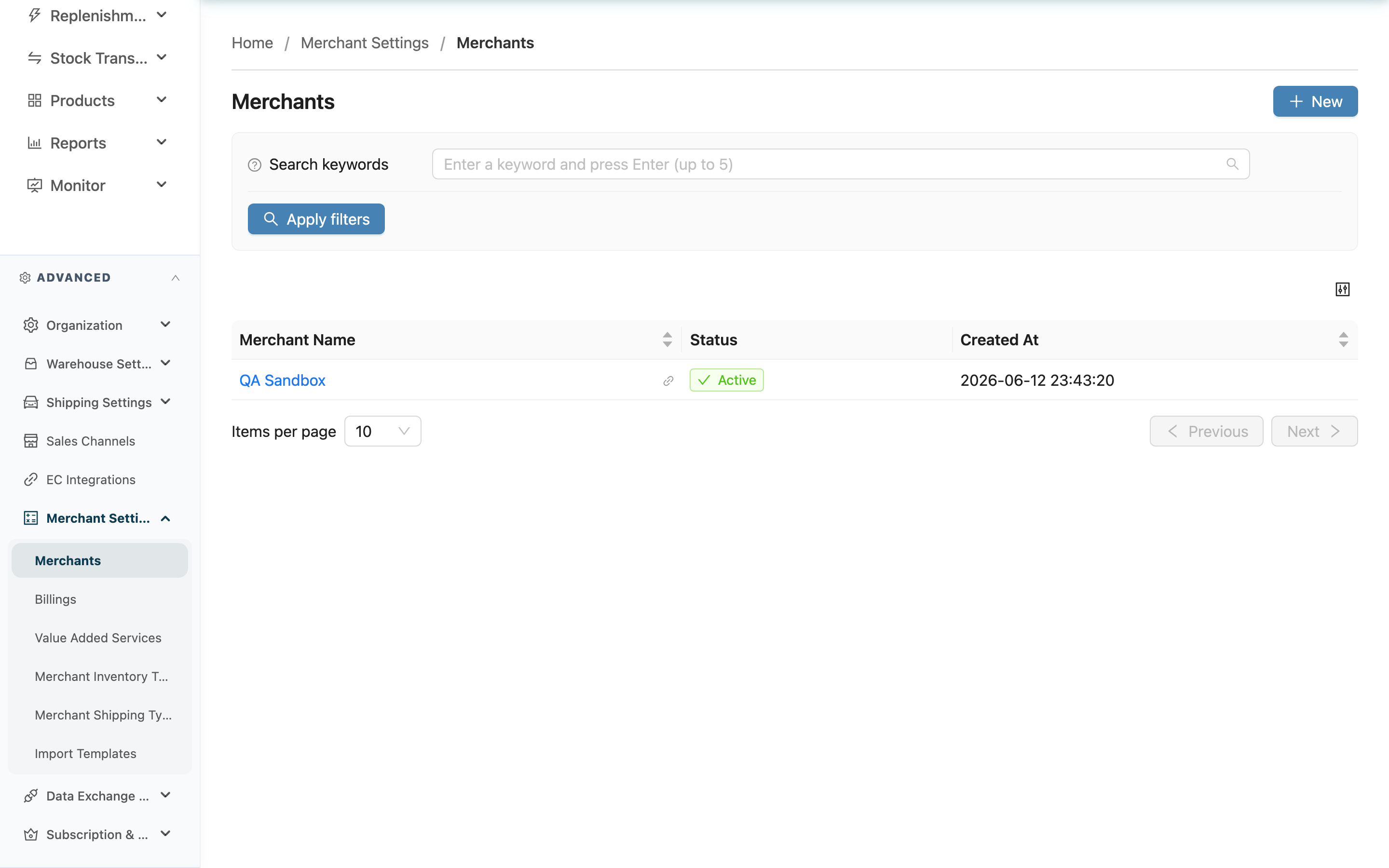
A Merchant is each brand client your warehouse serves. One Merchant is an independent ledger — its products, inventory, inbounds, orders, and billing are all isolated under its own name and cannot see each other's data. This page is your entry point for managing all client accounts: view the clients you currently serve, click New to add a new client, and open any row to view and adjust that client's detailed settings.
Quick Jump: Search | List Columns | Create & View
2.1 Search
The search box at the top of the page lets you find a client by Merchant Name keyword, matching in real time against names that contain the keyword. When you have many clients, use this box to quickly locate the one you need.
2.2 List Columns
The list shows the clients you can currently access. The columns are:
| Column | Description |
|---|---|
| Merchant Name | Client name. Click to open that client's detail page to view and edit settings |
| Status | Shows Active or Inactive; inactive clients stay in the list but no longer take on new operations |
| Created At | The date this client account was created |
Click the name in the Merchant Name column to open the detail page, where you can view the full settings and switch to edit mode (see Merchant Details & Settings).
2.3 Create & View
The New button at the top right creates a new client account (see New Merchant). Every row in the list can be clicked by name to open the detail page, where all follow-up configuration is done.
This page only supports creating and viewing — there is no delete. When you stop working with a client, open the detail page and switch Status to Inactive rather than deleting, because deleting would also remove all of that client's products, inventory, and document history.
3. FAQ
3.1 FAQ
▪ Why can't I see a particular client in the list?
The list only shows clients assigned to you. If a client is not assigned to your account, it won't appear here. Ask your supervisor to confirm whether the client has been assigned to you.
▪ Can I delete a client?
No. There is no delete here. A client accumulates products, inventory, and document history, and deleting would lose all of it. When you stop working together, open the detail page and switch Status to Inactive.
▪ What happens after I deactivate a client?
Deactivating simply marks the client as Inactive; the data stays intact, remains searchable in the list, and can be reactivated anytime. The point is to stop new operations for a paused or ended client without losing history.
▪ Where do I set storage billing and shipping deadlines after creating a client?
The create page only takes the basic fields. After creation, the system takes you to the client's detail page, where storage billing mode, SLA shipping deadlines, de-identification, and sender information are all configured (see Merchant Details & Settings).
▪ I can't find the New button — what now?
Creating and editing clients requires merchant management permission. If you don't see the New button, ask your administrator to confirm your permissions.
3.2 Notices
⚠️ Important
- This page has no delete. A client's products, inventory, inbounds, and orders are permanently tied to it; to stop working together, deactivate instead.
- Each client's settings are independent. Adjusting one client's storage billing or shipping deadlines does not affect other clients.
💡 Tip: When you have many clients, type a name keyword into the search box to locate one — far faster than paging through the list.
4. Related Features
| Feature | Description | Link |
|---|---|---|
| New Merchant | Create a new client account | Go |
| Merchant Details & Settings | View and adjust a single client's full settings | Go |
| Billings | Generate client invoices based on the storage billing mode | Go |
| Merchant Inventory Types | Configure which inventory types a client may use | Go |
| Merchant Shipping Settings | Configure which shipping types a client may use | Go |