
Product Inventory
Table of Contents
1. Features
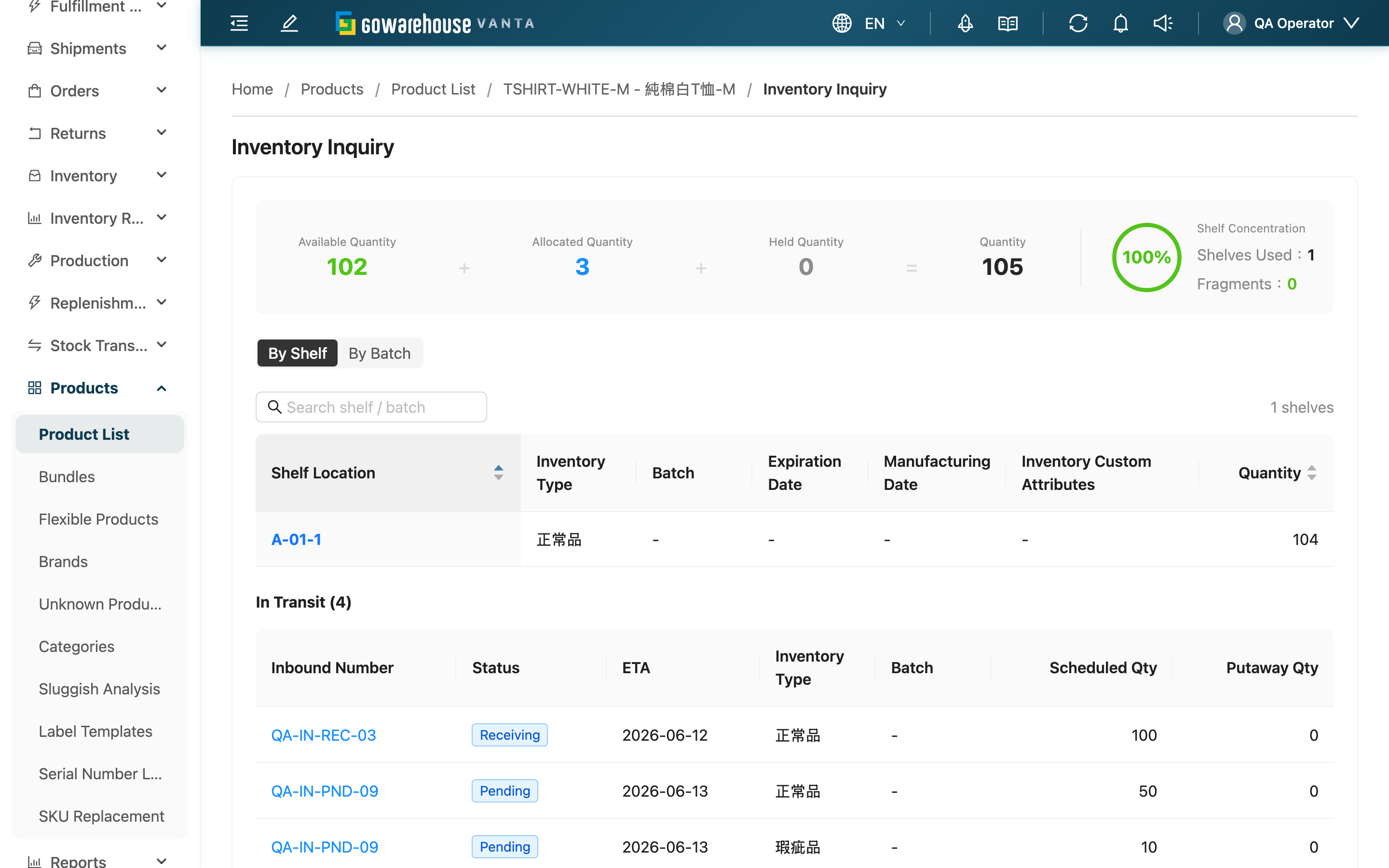
This page answers two stock questions about a single product: "which shelves is it on now, and how many on each" and "is any stock on the way (in transit)". Enter it from Product Detail by clicking "Inventory". The top gives a stock summary, the middle lets you switch between the "By Shelf" and "By Batch" views, and the bottom lists in-transit stock not yet received. Whether picking can't find goods, you need to confirm a batch's expiry, or you want to know when replenishment arrives, check here.
Quick jump: Stock Summary | Shelf Distribution & Stock Batches | In-Transit Stock
1.1 Stock Summary
The very top summarizes the product's overall stock status, letting you grasp total and available quantities at a glance before looking at the detail below.
1.2 Shelf Distribution & Stock Batches
The toggle in the middle offers two views, defaulting to "By Shelf" — what this page most needs to show is "where the goods are and how many on each":
| View | What you see | When to use |
|---|---|---|
| By Shelf | Which shelves this product is on, and how much on each | Which slot to pick from, which slots to count |
| By Batch | Each stock record's batch, expiry, available quantity, and other detail | Confirming a batch's expiry, or handling batch / expiry issues |
1.3 In-Transit Stock
The bottom lists this product's quantity that "hasn't completed inbound" — that is, the part for which an inbound order has been created but not yet fully put away:
| Column | Description |
|---|---|
| Inbound Number | The corresponding inbound order; click to open the inbound detail |
| Status | The inbound order's current status |
| ETA | Estimated arrival date |
| Inventory Type | The inventory type this record will be received as |
| Batch | The batch this record will be received as |
| Scheduled Qty | The quantity scheduled on the inbound order |
| Putaway Qty | The quantity already put away |
Only items where "scheduled quantity exceeds put-away quantity" appear here — meaning this portion is genuinely still on the way or not yet fully received.
2. FAQ
2.1 FAQ
▪ The picking list tells me to pick from a shelf, but that slot is empty?
Switch to "By Shelf" to see which shelves this product is actually on and how much on each, then pick from a shelf that has stock. If the per-shelf quantities clearly mismatch the system, that shelf may need a stock-take.
▪ What's the difference between "By Shelf" and "By Batch"?
Shelf distribution answers "where it is and how many", suited to picking and stock-take location; stock batches answer "each stock record's batch, expiry, and available quantity", suited to handling expiry and batch issues. They are the same stock viewed from two angles.
▪ In-transit stock lists a record, but I don't actually see the goods yet?
In transit means the inbound order has been created but not yet fully put away. Click the inbound order on that row to see its status and estimated arrival date. Once received and put away, the record moves from in-transit to in-stock.
▪ Why are "Scheduled Qty" and "Putaway Qty" different in the in-transit columns?
Scheduled quantity is what the inbound order originally intended to receive; put-away quantity is what has actually been received and put away so far. The difference is the part not yet fully received that still counts as in-transit; once fully received and put away, it no longer appears in the in-transit list.
▪ Does the stock seen here reconcile with the list page's "Total Stock"?
Yes. The list page shows the aggregated total, while this page spreads the same stock across shelves and batches; in-transit stock is a separately counted "not yet received" quantity and is not included in the in-stock total.
2.2 Notices
⚠️ Important
- In-transit stock is the quantity "not yet fully received", not the quantity already in stock and pickable — for picking, rely on the in-stock shelf distribution.
💡 Tip: To quickly judge whether a product can still ship, look at the available quantity in the summary at the top; to go pick on the floor, switch to shelf distribution and find the slot with stock.
3. Related Features
| Feature | Description | Link |
|---|---|---|
| Product Detail | Back to this product's settings page | Go |
| Product List | Back to the product list | Go |
| Stock Inquiry | Cross-product overall inventory lookup | Go |
| Inbound | View the inbound activity for in-transit stock | Go |