
New Address
Contents
1. Feature Guide
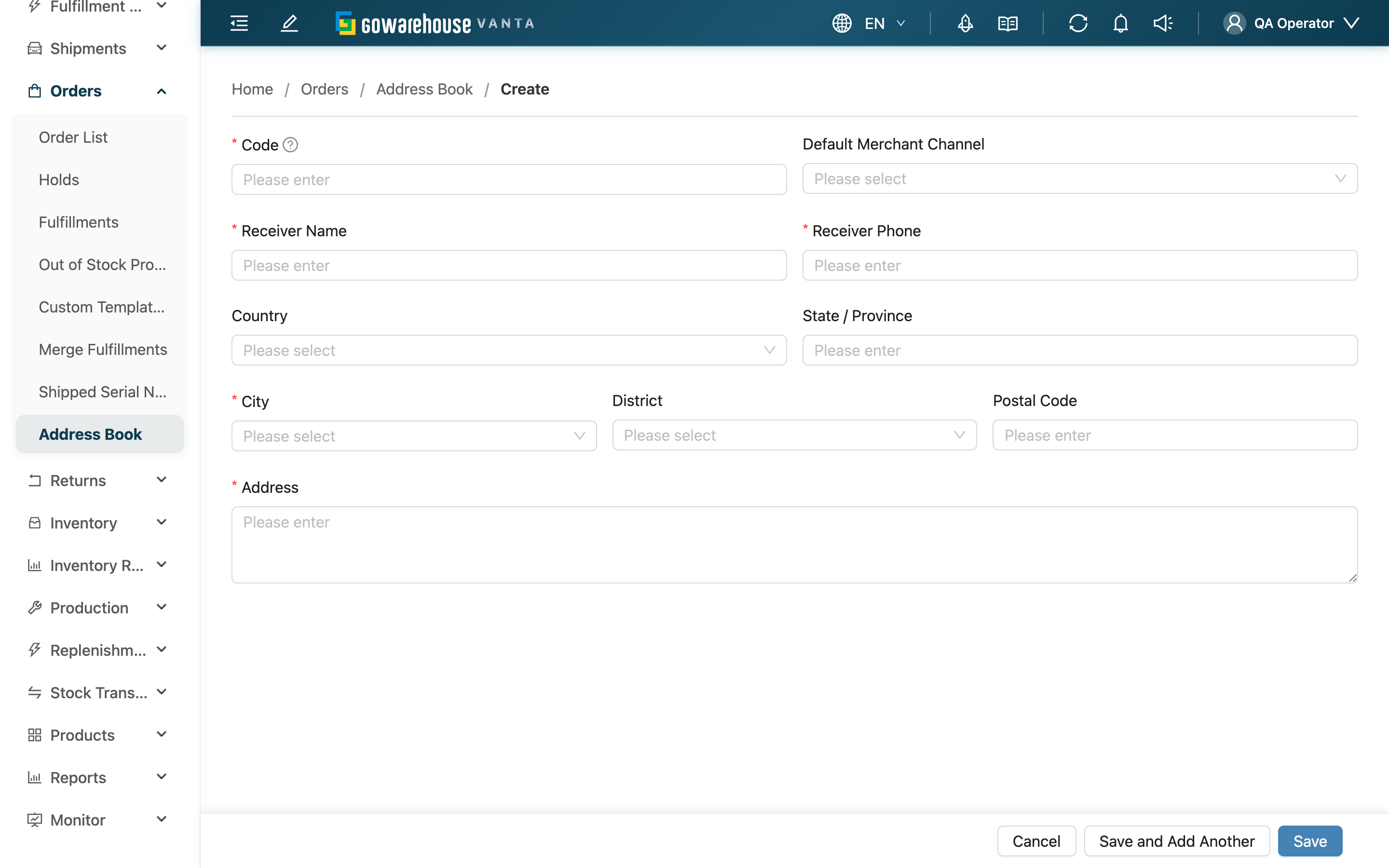
When you have a frequently used destination to record, create an entry here. After filling in the receiver, phone, and address, you can pick this entry in the recipient section when creating orders manually instead of retyping it every time. Give the address an easy-to-recognize Code, and optionally associate a Default Merchant Channel.
Quick Jump: Form Fields | Action Buttons | When Saving Fails
1.1 Form Fields
Before entering this page, select the Merchant this address belongs to at the top of the page; the owning merchant cannot be changed after creation.
Fields marked with * are required
| Field | How to Fill | Notes |
|---|---|---|
| *Code | Enter an easy-to-recognize, easy-to-search identifier | Max 50 characters, unique within the same merchant |
| Default Merchant Channel | Select from the dropdown | Options are limited to the selected merchant's channels; when set, orders for that channel can auto-fill this address |
| *Receiver Name | Enter the contact person for delivery | Max 100 characters; a department or desk name (e.g., "Returns Desk") is fine |
| *Receiver Phone | Enter a reachable phone number | Max 20 characters |
| Country | Select from the dropdown | Treated as a Taiwan address when left blank |
| State / Province | Enter the state or province for overseas addresses | Max 50 characters; can be left blank for Taiwan addresses |
| *City | For Taiwan addresses, select from the dropdown; for overseas, type directly | Max 50 characters |
| District | For Taiwan addresses, select the district/township from the dropdown; for overseas, type directly | Max 50 characters |
| Postal Code | For Taiwan addresses, auto-filled after selecting city and district and can't be edited by hand; for overseas, enter it yourself | Max 10 characters |
| *Address | Enter the street, number, floor, etc. | Max 500 characters; you can add special notes (e.g., "back entrance") |
📌 Note: When you choose Taiwan (or leave Country blank), City and District are Taiwan administrative-area dropdowns, and the Postal Code fills in automatically; when you choose another country, City and District switch to free text and you enter the postal code yourself.
1.2 Action Buttons
| Button | Function | Description |
|---|---|---|
| Save | Create the address | Jumps to the address's detail page after saving |
| Save and Add Another | Create continuously | Clears the form after saving and stays on this page to enter the next one — handy when creating many at once |
| Cancel | Discard creation | Saves nothing and returns to the previous page |
1.3 When Saving Fails
When saving fails, the system shows the reason below the relevant field or as a message. Three common types:
- A required field is empty: Fill in the highlighted fields (Code, Receiver Name, Receiver Phone, City, Address) and save again.
- A field exceeds its character limit: Shorten the content; see the limits in the table above.
- Duplicate Code: The same code already exists within the merchant — change to an unused code and try again.
2. FAQ
2.1 FAQ
▪ Why do I have to select a Merchant first, and can I change it if I'm wrong?
Every address belongs to one merchant, so you choose it at the top of the page before creating. Once created, the owning merchant is fixed and can't be changed; if you picked the wrong one, create a new entry under the correct merchant.
▪ Do I need to look up the Postal Code for a Taiwan address myself?
No. When Country is Taiwan (or left blank), after you select the City and District the system fills in the matching Postal Code, and the field can't be edited by hand. Only overseas addresses need you to enter it.
▪ How do I enter an overseas address?
First select the destination country in "Country". The City and District fields switch to free text, you can fill in the "State / Province", and you enter the Postal Code in the local format.
▪ Is the Default Merchant Channel required, and why can't I find some channels in the dropdown?
It isn't required; leave it blank for shared or return addresses that aren't tied to a specific channel. The dropdown only lists the channels of the merchant you selected at the top of the page, so not seeing another merchant's channels is normal.
▪ Is there a faster way to create many addresses at once?
Two ways: use "Save and Add Another" on this page to enter them one after another; or go back to the Address Book and use "Import" to create a whole batch from Excel.
▪ Can I use it on orders right after creating it?
Yes. It takes effect immediately after saving. When creating an order manually, search the address selector in the recipient section by Code or receiver to pick it.
2.2 Notices
⚠️ Important Reminders
- Pick the right merchant first: The owning merchant can't be changed after creation; a wrong choice means recreating.
- A Code must be unique within a merchant: A consistent naming rule makes it easier to recognize and search.
3. Related Features
| Feature | Description | Link |
|---|---|---|
| Address Book | View all addresses, or create many at once via import | Go |
| Address Details | View the full contents of one address | Go |
| Edit Address | Modify the contents of an existing address | Go |