
Shipping Integrations
目錄
一、使用情境
快速連結:Connect a courier to print labels directly | Route heavy parcels to a dedicated account | Restrict an account to specific merchants
情境 1:Connect a courier so the system can print waybills directly
狀況:Your warehouse has signed a monthly-billing contract with HCT, and the courier gave you a customer code and password. When shipping, you no longer want to log into the courier's website and create labels one by one — you want a single click on the order to print a waybill that already has a tracking number.
用這個功能:Add a shipping account on this page, pick the carrier, and fill in the customer-code details the courier gave you (see 2.3 Add and edit a shipping account). Once connected, this account can be selected during fulfillment and the system will request tracking numbers and print labels automatically.
結果:When shipping, the system calls the courier to generate the waybill number directly — no more manually creating labels in the courier's portal, dramatically speeding up dispatch.
情境 2:Open two accounts with one courier so heavy parcels route to a dedicated account
狀況:You have signed both a "standard" and an "oversized" rate contract with T-Cat. Light parcels should use the cheaper standard rate and heavy parcels should use the oversized rate, but you don't want staff deciding which account to use on every shipment.
用這個功能:Create the two contracts as two separate shipping accounts. Leave the weight threshold blank on the standard account and enter a threshold weight (for example 5) on the oversized account. The system picks the matching account by parcel weight at shipping time.
結果:A 3 kg parcel automatically uses the standard account and an 8 kg parcel uses the oversized account — no manual sorting, and no overcharges from picking the wrong rate account.
情境 3:Make one account available only to a specific merchant
狀況:Your warehouse serves several merchants, and one of them has its own dedicated courier contract and customer code that the other merchants must not be able to use.
用這個功能:When adding the account, assign the authorized merchant in the merchant field. Only the selected merchant can use this account during fulfillment.
結果:Each merchant's courier contracts stay isolated, shipments only ever select the account a merchant is authorized for, and billing ownership stays clear.
二、功能介紹
物流串接 (Shipping Accounts) is where you "connect" your warehouse to your courier companies. A shipping account records one set of contract details for talking to a courier (customer code, password, and so on). With it, the system can request waybill numbers and print labels directly from the courier when shipping, saving you from creating each label manually on the courier's website. This page is your entry point for managing every connected account: add new accounts, edit contract details, temporarily disable an account, or delete one you no longer use.
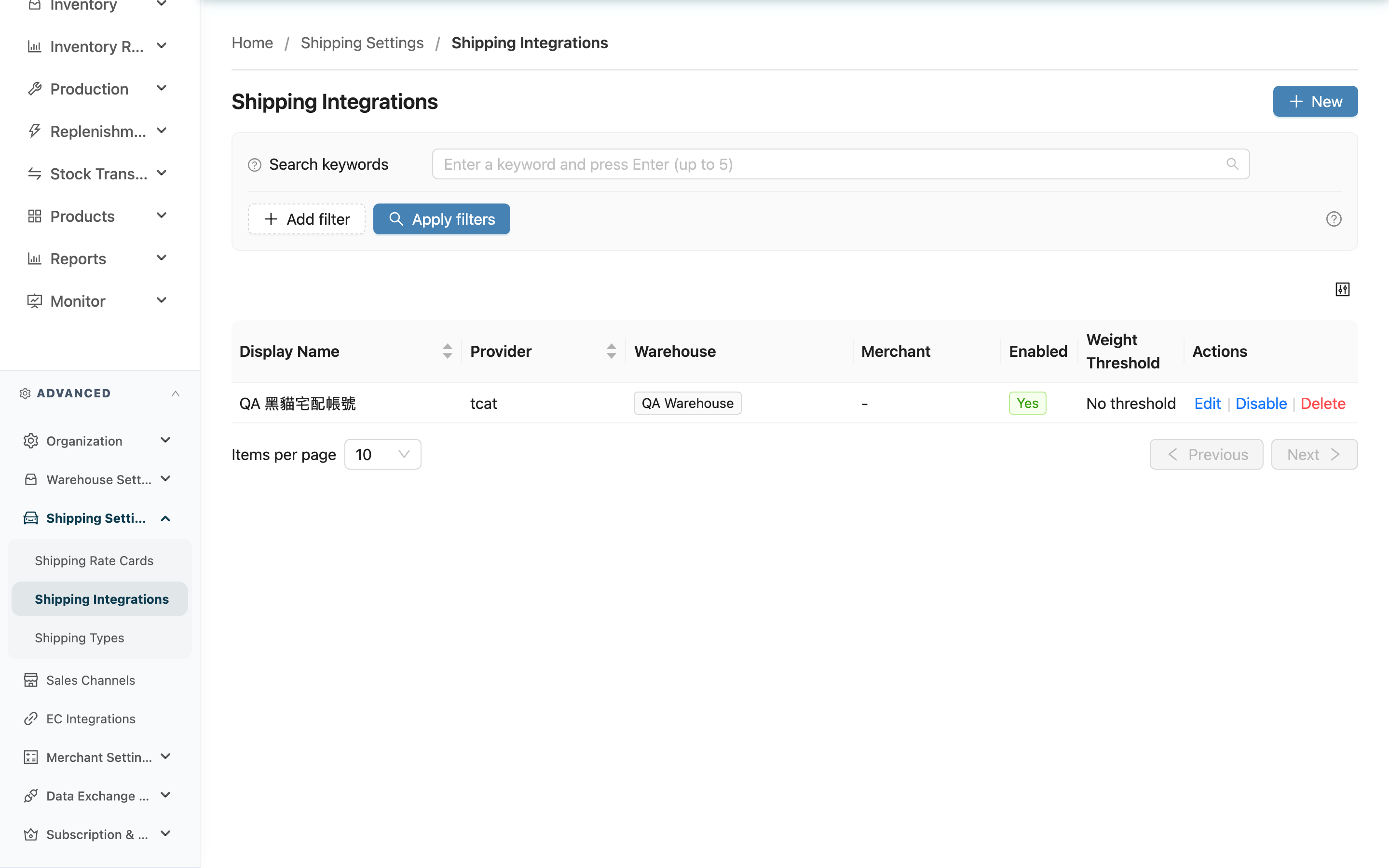
快速跳轉:Search and filter | List columns | Add and edit a shipping account | Disable, enable, and delete
2.1 Search and filter
- Search:Enter a keyword to search an account's Display Name.
- Provider:Filter by carrier, for example showing only HCT or T-Cat accounts; multiple selection is supported.
- Merchant:Filter by authorized merchant to find the accounts a merchant can use; multiple selection is supported.
2.2 List columns
| 欄位名稱 | 說明 |
|---|---|
| Display Name | The name you gave this account, used to tell different contract accounts apart |
| Provider | The carrier this account connects to, for example HCT, T-Cat, or ECPay |
| Warehouse | The warehouse the account belongs to; you only see accounts for your current warehouse |
| Merchant | The merchant authorized to use this account; "-" means no merchant has been assigned yet and it cannot be selected when shipping |
| Enabled | Shows whether the account is currently enabled or disabled; disabled accounts are not selected during fulfillment |
| Weight Threshold | The minimum parcel weight (kg) this account applies to, used for weight-based routing; "-" means no threshold |
2.3 Add and edit a shipping account
Click "New" at the top right to open the settings window; click "Edit" on a row to open the same window for an existing account. The window has two sides: the left holds general settings, and the right shows the connection fields specific to the carrier you selected.
標示 * 的欄位為必填項目
▸ Left side: general settings
| 欄位名稱 | 如何填寫 | 注意事項 |
|---|---|---|
| *Provider | Choose the carrier to connect from the list | Cannot be changed after creation; to switch carriers, create a new account |
| *Display Name | Enter an easy-to-recognize name, for example "HCT-Taipei warehouse" or "T-Cat-oversized" | Up to 100 characters |
| Enable Shipping Types | Check the shipping types this account opens up; appears after a carrier is selected | All are checked by default and can be unchecked; on save the system automatically activates the checked types for the authorized merchants |
| Merchant | Select the merchants allowed to use this account; multiple selection is supported | Leave blank to mean no merchant is authorized yet; it will not be selected when shipping and must be filled in later |
| Weight Threshold | Enter the minimum parcel weight (kg) this account applies to, used to route by weight when one carrier has multiple accounts | Leave blank to mean no threshold (standard account) |
▸ Right side: carrier connection settings
After you pick a carrier, the right side shows the connection fields that carrier requires (for example customer code, password, HashKey). These fields are all required; fill them in from the contract or documentation your courier provided. Different carriers need different fields:
- HCT:Customer code, account ID, password, customer-code type (billing method).
- T-Cat:Contract customer code, contract authorization code; you can also set a default product name and whether credit cards are accepted.
- Pelican (ecan):Customer code; you can also set whether credit cards are accepted.
- Kerry TJ:Customer number, account ID, password, label number range (start and end).
- Tong-Ying:Customer code.
- ECPay:Merchant ID, HashKey, HashIV, logistic type (B2C / C2C); you can also set a default product name.
- Presco:Parent code, sub-vendor code, label number range, and FTP connection details.
- Reyi:Parent code, sub-vendor code, public and private keys, shipper code, COD code, return cycle and method, label number range, and FTP details.
- SF Express:Customer number, App Key, App Secret, AES Key, monthly card number; sign key is optional (status updates are not synced if left blank).
- DHL:Account Number, API Username, API Password.
After filling everything in, click "Save" to finish connecting.
2.4 Disable, enable, and delete
Every row has three actions on the right: "Edit", "Disable / Enable", and "Delete".
| 操作 | 作用 | 是否可逆 |
|---|---|---|
| Disable | Temporarily turns the account off so fulfillment no longer selects it, while keeping all contract details | Reversible; click "Enable" any time to bring it back |
| Enable | Re-opens a disabled account so it can be selected for shipping again | Reversible |
| Delete | Permanently removes the account from the list | Irreversible; cannot be undone |
"Delete" is only available when the account has never produced any waybill; if it has ever been used to ship (even for soft-deleted records), the delete button is greyed out to prevent breaking the link to historical shipping and billing records. In that case, use "Disable" instead.
三、常見問題
3.1 FAQ
▪ Which carriers can I connect?
Currently supported: HCT, T-Cat, Pelican (ecan), Kerry TJ, Tong-Ying, ECPay, Presco, Reyi, SF Express, and DHL. Each requires different connection fields — see 2.3 Right side: carrier connection settings.
▪ Why can't I change the carrier after creation?
The carrier determines the format and connection method of the entire set of fields; switching midway is effectively a completely different contract. To use a different carrier, create a new account, then disable or delete the old one.
▪ Where do I get the connection fields (customer code, password, and so on)?
The courier provides this information when you sign the contract — refer to the carrier's contract or API documentation. The system does not generate these codes for you; you must obtain them from the courier and enter them.
▪ Why does the "Merchant" column show "-" for an account?
It means no merchant has been authorized for this account yet. Until then fulfillment will not select it; edit the account and add the authorized merchant in the merchant field.
▪ Why is the "Delete" button greyed out on some accounts?
Because the account has already been used to ship. To preserve the history of shipping and billing records, an account that has been used cannot be deleted — use "Disable" instead, see 2.4 Disable, enable, and delete.
▪ Can I create multiple accounts with the same carrier?
Yes. A common approach is to create separate "standard" and "oversized" accounts with the same carrier and let the system route by parcel weight using the weight threshold, see 情境 2.
▪ Why can't I see some shipping accounts other people created?
This page only shows shipping accounts for your current warehouse. Accounts in other warehouses, or accounts created by merchants in their own back office, do not appear here.
3.2 注意事項
⚠️ 重要提醒
- "Delete" permanently removes the account and cannot be undone; accounts that have been used to ship cannot be deleted and can only be disabled.
- The Provider cannot be changed after creation — confirm you picked the right carrier before adding.
- Fill in the customer code, password, and other connection fields from the contract your courier provided; incorrect values will prevent the system from getting tracking numbers when shipping.
💡 提示:If you only want to temporarily stop an account from being selected for shipping, use "Disable" — all contract details are kept and you can re-enable it any time, with no need to delete and recreate.
四、相關功能
| 功能 | 說明 | 連結 |
|---|---|---|
| Shipping Types | Manage the shipping types your warehouse offers; types activated by a shipping account appear here | 前往 |
| Shipping Rate Cards | Configure how shipping fees are calculated for each shipping type | 前往 |
| Shipment List | View the waybills and shipping status produced from shipping accounts | 前往 |