
Order List
Table of Contents
1. Use Cases
Quick links: Phone-in order | Stop an order that shouldn't ship | Clear out-of-stock backlog
Case 1: A customer calls in to add an order
Situation: The merchant calls to say a regular customer wants to add an order, but it hasn't synced in from the e-commerce platform yet. The warehouse needs the order created right away to make today's pickup.
Use this feature: Click New at the top right of the order list to open New Order and enter the recipient and products by hand. Once created, it joins the allocation and fulfillment flow just like a platform-synced order.
Result: The added order is allocated, picked, and shipped alongside regular orders without waiting for the platform to resend, so it goes out the same day.
Case 2: The merchant hits the brakes — hold the order
Situation: An order is already being prepared for shipment when the merchant warns that the address may be wrong, or the customer canceled on the platform side. You need to stop it before a picker grabs the goods.
Use this feature: Select the order in the list and use Hold Orders in the batch bar to hold it. A held order shows a red "HELD" badge and will not proceed to picking. Once the issue is confirmed, go to order details to correct the information and release the hold. The conditions and side effects of holding are described under Batch actions.
Result: The problem order is stopped before it ships, avoiding a wrong-address or already-canceled order going out, and saving return and reship costs.
Case 3: Clear the out-of-stock backlog
Situation: At the start of the early shift, you want to know which orders are stuck because of insufficient stock, so you can decide which SKUs to replenish first.
Use this feature: Go to Out of Stock Products to see shortages grouped by product (how much is short, how many orders are stuck, how much is in transit). Back on the order list, filter by status "Out of Stock" to list every out-of-stock order. Status meanings are explained under List columns.
Result: You can see at a glance which SKU, once replenished, releases the most orders, giving you a basis for replenishment priority instead of chasing scattered shortage orders.
2. Features
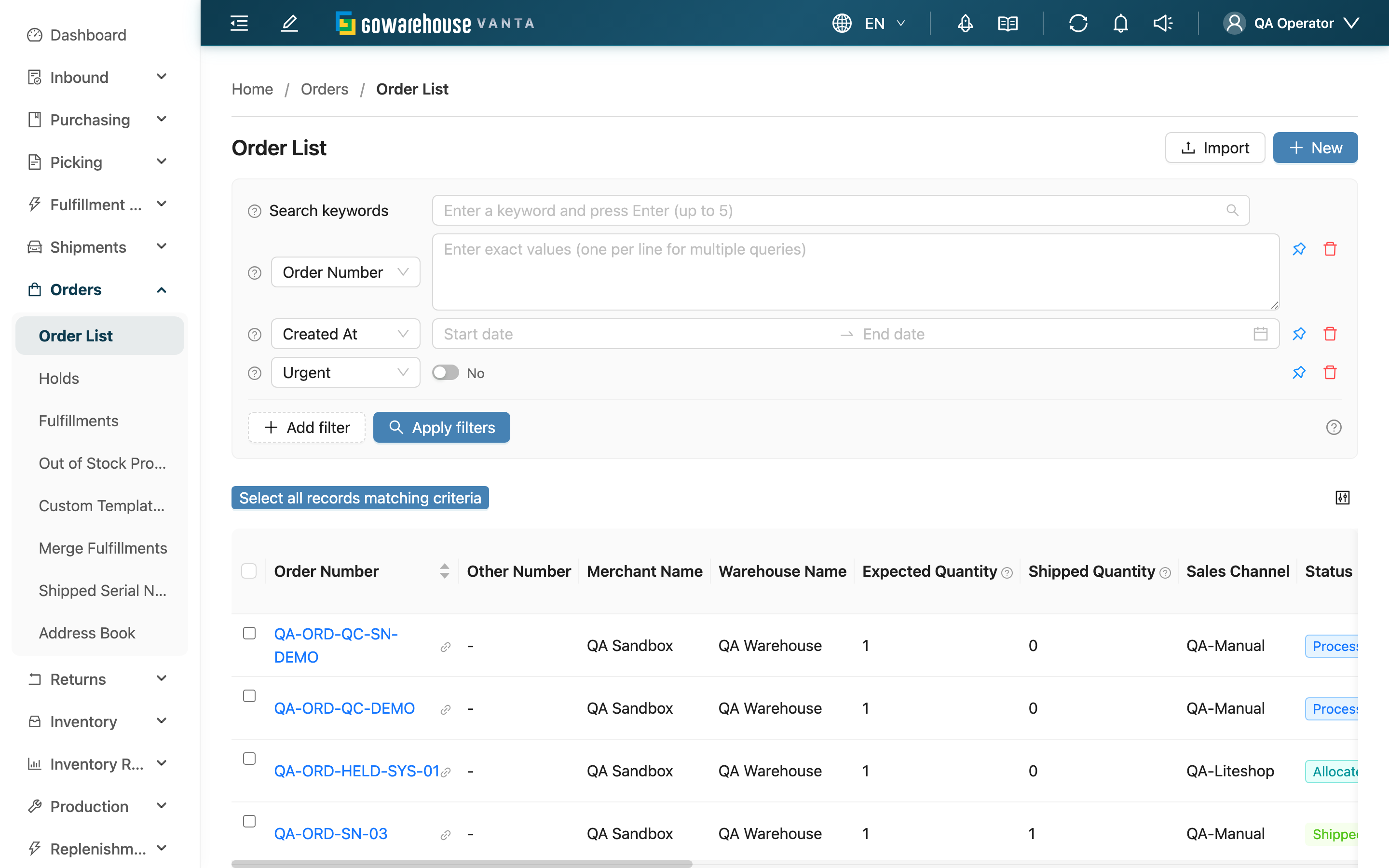
The order list is your daily entry point for handling shipments. Every order — synced from an e-commerce platform, created manually, or imported — is gathered here. You can check which status an order is stuck in, hold problem orders, recheck stock in bulk or download fulfillment sheets, and create or import orders from here. An order's status is aggregated from the fulfillments underneath it, so the status you see here changes automatically with picking and shipping progress.
Quick jump: Search and filter | List columns | Batch actions
2.1 Search and Filter
The search box at the top matches Order Number, Other Number, and Receiver Name by prefix — scan a barcode or type an order number to locate quickly.
Advanced filters offer finer conditions. The less obvious ones that need explanation are listed below; the rest (receiver, phone, email, sales channel, etc.) are entered by name:
| Filter | How to use | Notes |
|---|---|---|
| Status | Pick one or more statuses | Status meanings under List columns; often used to pull "Out of Stock" shortage orders or "Processing" in-progress orders |
| COD | Switch between "All", "COD", and "Non-COD" | "COD" lists only orders with a COD amount above 0; "Non-COD" lists only orders whose COD amount is not above 0 |
| Hold Status | Switch between "All", "Held", and "Not Held" | "Held" is the orders with the red badge in the list; "Not Held" is the orders with no hold in effect right now (including those whose hold was released) |
| Note Status | Switch between "All", "Has Note", and "No Note" | Looks only at whether the order's own Note field is filled in, not at notes on the item lines; "No Note" lists the orders whose order note is empty |
| Tracking Number | Enter a tracking number | Look up which order a tracking number belongs to |
| Shipping Status | Select a delivery status | Filter by the current delivery status of the shipment |
| Duplicate check | Pick recipient / phone / address | Find orders with duplicate recipient info to catch possible duplicate orders |
💡 Tip: You can pin filter conditions to the filter bar so your frequent conditions are at hand next time.
2.2 List Columns
List columns can be toggled on and off. Click the Order Number column to open the order details; urgent orders show a red "URGENT" badge next to the order number; the Expected Ship Date turns red when it is overdue and not yet shipped.
Expected Ship Date is hidden by default (only merchants with a shipping SLA configured have a value there). To see it, tick it in the column settings at the top right and save; the choice is kept for your next visits (saved in this browser, so you need to tick it again on another device or browser).
The Status column is the core of this page. Status is aggregated from fulfillments, and each value means:
| Status | Meaning |
|---|---|
| Draft | Draft order, not yet in the fulfillment flow; must be finalized before allocation |
| Awaiting Payment | Awaiting payment confirmation; allocation starts after payment is confirmed |
| Pending Allocation | Waiting for the system to allocate stock |
| Allocated | Stock fully allocated; ready for picking and shipping |
| Partial Allocated | Some products allocated, some out of stock |
| Out of Stock | Insufficient stock; cannot allocate |
| Processing | A picker is actively working on it |
| Partial Shipped | Partially shipped; some products still unshipped |
| Shipped | Fully shipped |
| Canceled | Order canceled |
If an order is held, the status column also shows a red "HELD" badge.
2.3 Batch Actions
After selecting one or more orders, a batch action bar appears at the bottom. Most actions apply to multiple orders at once. The four types of change actions below affect stock and fulfillments, so note the preconditions and whether they can be undone:
▪ Hold Orders (Hold)
- When it works: An order can be held when it is in "Pending Allocation", "Allocated", "Processing", or "Partial Shipped" status and has no other active hold. An order can have only one active hold at a time.
- Side effects: Holding pauses the order (no picking, packing, or shipping) but does not release allocated stock. You must choose a hold reason (address issue, convenience-store code error, merchant request, etc.) and may add a note.
- Reversible: Yes. Use "Release Hold" in the order details to resume the normal flow; you can add a resolution note for the record.
▪ Cancel (Cancel Order)
- When it works: An order can be canceled in "Pending Allocation", "Allocated", "Out of Stock", "Partial Allocated", "Draft", or "Awaiting Payment" status. "Partial Shipped" (already partly shipped) cannot be canceled.
- Side effects: Canceling releases the order's allocated stock and cancels the cancelable fulfillments. The fulfillment a picker is actively working on (Processing) is kept and unaffected, so the picker's list doesn't suddenly disappear.
- Merged fulfillments: Only the canceled order's items are removed and its reserved stock released; its canceled fulfillments remain as records. Other orders keep their items, stock reservations, and original fulfillment numbers, and their other fulfillments are not split again. Batch cancellation applies the same rule to each order.
- Limits for merged fulfillments: If a shared fulfillment already has a shipment, is still linked to picking work, or its amount cannot be safely divided, cancellation of that order fails and leaves it unchanged. Resolve the shipment or picking work first; ask an administrator to check amount issues.
- Reversible: After canceling, use "Resume Orders" in the order details to bring the order back, and the system reallocates stock. This affects only that order and does not automatically merge it back into the original fulfillment. The shipped portion cannot be undone.
▪ Check Stock (Recheck Stock)
- When it works: Orders in "Pending Allocation", "Allocated", "Partial Allocated", "Out of Stock", or "Partial Shipped" status.
- Side effects: Reallocates against current stock, and the status updates accordingly (for example, after replenishment it moves from "Out of Stock" to "Allocated").
- Reversible: This only recalculates allocation; it is non-destructive and can be rerun after replenishment.
▪ Remove Products
- When it works: Only on editable orders, up to 500 per batch. Shipped orders and orders being picked (Processing) are skipped. Partially shipped orders can have their not-yet-shipped items removed, but the already-shipped items cannot be removed. If the order already has a shipment, delete the shipment first. Canceled orders still count as editable and are processed.
- Cash-on-delivery orders are not supported: Removing items does not adjust the collected amount, and that amount is the cash the carrier actually collects from the recipient — allowing it would collect the original amount for a reduced shipment. Use "Split Fulfillment" for these orders, or edit them individually and adjust the amount yourself.
- How to pick the products: Choose one of two modes — "All out of stock products" removes every item that could not be allocated stock in each order; "Products containing specified SKUs" removes only the SKUs you paste in, one per line. If the list is already filtered by SKU, the dialog is prefilled with that SKU.
- Side effects: After removal the system rebuilds the fulfillments and reallocates stock, releasing the inventory that item was holding. The order amount is not adjusted automatically — edit the order details if the amount needs to change.
- What cannot be removed: If the matched items are all the items of the order (an order cannot be left with no products), or if a matched item belongs to a bundle, the whole order is skipped.
- Orders without the SKU: Simply skipped, not counted as failures. Selecting many orders when only some contain the SKU is the normal way to use this action. If none of the selected orders contain it (usually a typo), the whole batch is reported as failed with the reason.
- Where to see the result: The job notification shows whether the batch completed, partially completed, or failed. It reports completed as long as no order actually failed; skipped orders do not affect it. Per-order failure reasons are not listed in the notification yet; compare the order items to confirm.
- Reversible: No. Removal actually deletes the order items; to get them back, add the products again in the order details.
▪ Batch Download Labels
- When it works: Selected orders must already have a shipping label (allocated, tracking requested, and the label not yet past its retention period). Up to 200 orders per batch.
- This does not request new tracking numbers: It only packages the existing label files into a ZIP. Tracking numbers and their status with the carrier are unchanged, and no carrier API is called.
- Orders that get skipped: Not yet fulfilled, label not generated yet (fulfilled but the label hasn't been printed or is still being generated), no label file, label past its 2-month retention period, or a convenience-store web form (no downloadable file). When the job finishes, every skipped order is listed individually with its reason — not just a total count.
- What's in the ZIP: Labels are grouped by shipping type. When multiple orders are merged into the same fulfillment, or one fulfillment is split into several parcels, the same label file appears only once, never duplicated.
- Reversible: This only downloads existing files with no side effects, so it can be run again at any time.
Other batch actions include: Resume Orders (resume canceled orders), Create Return (create return orders), Download Shipping Details (download fulfillment sheets), Normal to Draft/Set as Urgent (convert to draft / urgent), Split Fulfillment (split fulfillments), and Export (export). Export and PDF results can be viewed under "Import List" or in the job notifications.
Bulk app actions
When your organization has an installed order tool and you have order viewing and editing permissions, select orders and choose “App actions”. The tool receives the orders selected when it opens. Close the window and select again to pass a different selection. Selecting orders does not narrow the app’s granted access; its features may also use other data within its permissions. With all merchants selected, you can select orders across authorized merchants. Warehouse staff can only process orders in their own warehouse.
Results are shown per order; partial success does not mean every order completed. For a conflict, read the latest result before retrying. Check saved data when a result is unconfirmed; unsent items have not run. Closing the window does not undo successful changes. When the app refreshes its results, the order list reloads and saved app summaries appear below the tool.
See Apps for available tools and uninstalling.
3. FAQ
3.1 FAQ
▪ An order is stuck at "Out of Stock" and won't ship. What do I do?
It means there isn't enough stock to allocate. After replenishing, select the order and run Check Stock to reallocate. To first see what's short, go to Out of Stock Products for shortages and in-transit quantities grouped by SKU.
▪ The order status is "Draft" — why won't it ship?
Draft orders don't enter the allocation and fulfillment flow. Use "Finalize Draft" in the order details, or convert drafts to formal orders via batch actions in the list, before the order starts allocating.
▪ How do I release a held order?
In the order details, click "Release Hold" and add a resolution note to release it; the list also supports releasing several at once. After releasing, the order resumes the normal fulfillment flow. The conditions for holding are under Batch actions.
▪ Why can't some selected orders be canceled?
"Partial Shipped" (already partly shipped) and completed orders cannot be canceled, because the shipped portion cannot be erased. Cancelable statuses are listed under Batch actions.
▪ Can a canceled order be recovered?
Yes. Use "Resume" in the order details to recover a canceled order, and the system reallocates stock. However, the shipped portion cannot be undone.
▪ How do I find which order a tracking number belongs to?
Use the advanced filter "Tracking Number" and enter the tracking number to list the matching order.
▪ How do I export the list of orders to a file?
Select the orders and click Export; you can export order details only, or order details together with allocation details (the warehouse, batch, expiration date, manufacturing date, and quantity of each allocation). View the download under "Import List" or in the job notifications.
When exporting without a template, the last column of both export files is "Total Volume" = quantity × the product's unit volume. The unit follows the Volume Unit setting and only one such column appears; the header states whether it is "CBM", "Sai", or "ft³". All other columns stay in the same position:
- Which quantity is used: order details have one row per item and use the ordered quantity; allocation details have one row per allocation and use that allocation's quantity (including the historical allocations of shipped orders); items not yet allocated use the ordered quantity. A partially allocated item only lists the allocated quantity — the shortfall has no row, so its rows add up to less than the ordered quantity's volume
- Blank: orders without items, unregistered products, or products with neither length/width/height nor carton dimensions to derive from — the volume cannot be measured, so it is blank rather than 0. Fill in the product dimensions and export again
- When only carton dimensions are filled in: a product with no unit dimensions but with carton dimensions and "Items Per Large Unit (Box Quantity)" is derived as carton volume ÷ units per carton, for CBM, Sai, and ft³ alike
- When exporting with Export Templates: both order detail and allocation detail templates can pick "Total Volume (CBM)", "Total Volume (Sai)", or "Total Volume (ft³)", and always output the unit you picked — changing Volume Unit later does not affect existing templates. Existing templates do not gain this column automatically; add it to the template for it to appear
- When importing an exported file back: the total volume column is ignored and does not affect order creation
▪ Batch "Download Shipping Details" shows "The selected order has no fulfillments, so this operation cannot be completed." — what should I do?
PDFs are generated from fulfillments. If a selected order still contains items that are not mapped to real products, no fulfillment is created for it, so no PDF can be produced. Open the order, map those items to real products in the item list, then try again.
3.2 Notices
⚠️ Important Notice
- Canceling an order releases allocated stock and cancels cancelable fulfillments; the shipped portion cannot be undone.
- A hold does not release allocated stock — it only pauses the order. To truly cancel, use Cancel Order.
- Batch cancel, convert-to-draft, split and similar actions apply to all selected orders at once; confirm your selection before submitting.
💡 Tip: An order's status is aggregated from the fulfillments underneath it, so the status you see changes automatically with picking and shipping progress — no manual sync needed.
4. Related Features
| Feature | Description | Link |
|---|---|---|
| New Order | Create a new order manually | Go |
| Import Orders | Import orders in bulk from a file | Go |
| Out of Stock Products | View shortages grouped by product | Go |
| Fulfillments | View and process fulfillments | Go |
| Holds | Manage all held orders in one place | Go |