
Label Templates
Table of Contents
1. Use Cases
Quick links: Print sticker labels for products | Match different label sticker sizes | Apply each merchant's own layout
Case 1: Print sticker labels for products
Situation: After a batch of products arrives, you need to stick a label with a barcode on the carton or individual items so they can be scanned later and the product name is easy to identify. Laying out each product by hand is too slow—you want one fixed layout you can apply and print right away.
Use this feature: First create a Label Templates here (see New Label Template), arranging the fields you want to print such as product name, SKU, and barcode. The actual printing happens on the product itself—go to the Product List, open the product, choose this template, enter a quantity, and submit. The system generates a PDF for you to download and print.
Result: The same template can be reused across all products, and every product prints a label with consistent formatting and the correct fields.
Case 2: Match different label sticker sizes
Situation: The warehouse uses more than one kind of label sticker—small items use 40mm × 30mm stickers, large cartons use 100mm × 70mm, and items needing instructions are printed on A4. Applying one layout across different paper sizes throws off the formatting.
Use this feature: Create a separate template for each sticker size, choosing the matching Paper Size (small/medium/large label, A4, A5, or custom width and height) when you create a new template, so the layout aligns with the actual sticker size.
Result: When printing, pick the template that matches the sticker on hand, and the label fills the sticker exactly—no overflow and no large blank space.
Case 3: Apply each merchant's own layout
Situation: The warehouse serves several merchants at once, each with different label requirements—some want their own brand name and logo, some only want SKU plus barcode, others also need material and origin. Sharing one layout prints labels that don't meet each merchant's needs.
Use this feature: Templates belong to a merchant, so you can create dedicated templates for each merchant and designate one Is Default per merchant. When working with multiple merchants, use the merchant filter on the list to quickly find all of a merchant's templates.
Result: When printing a merchant's products, the merchant's default template is applied automatically, producing labels that meet each merchant's requirements without mix-ups.
2. Feature Overview
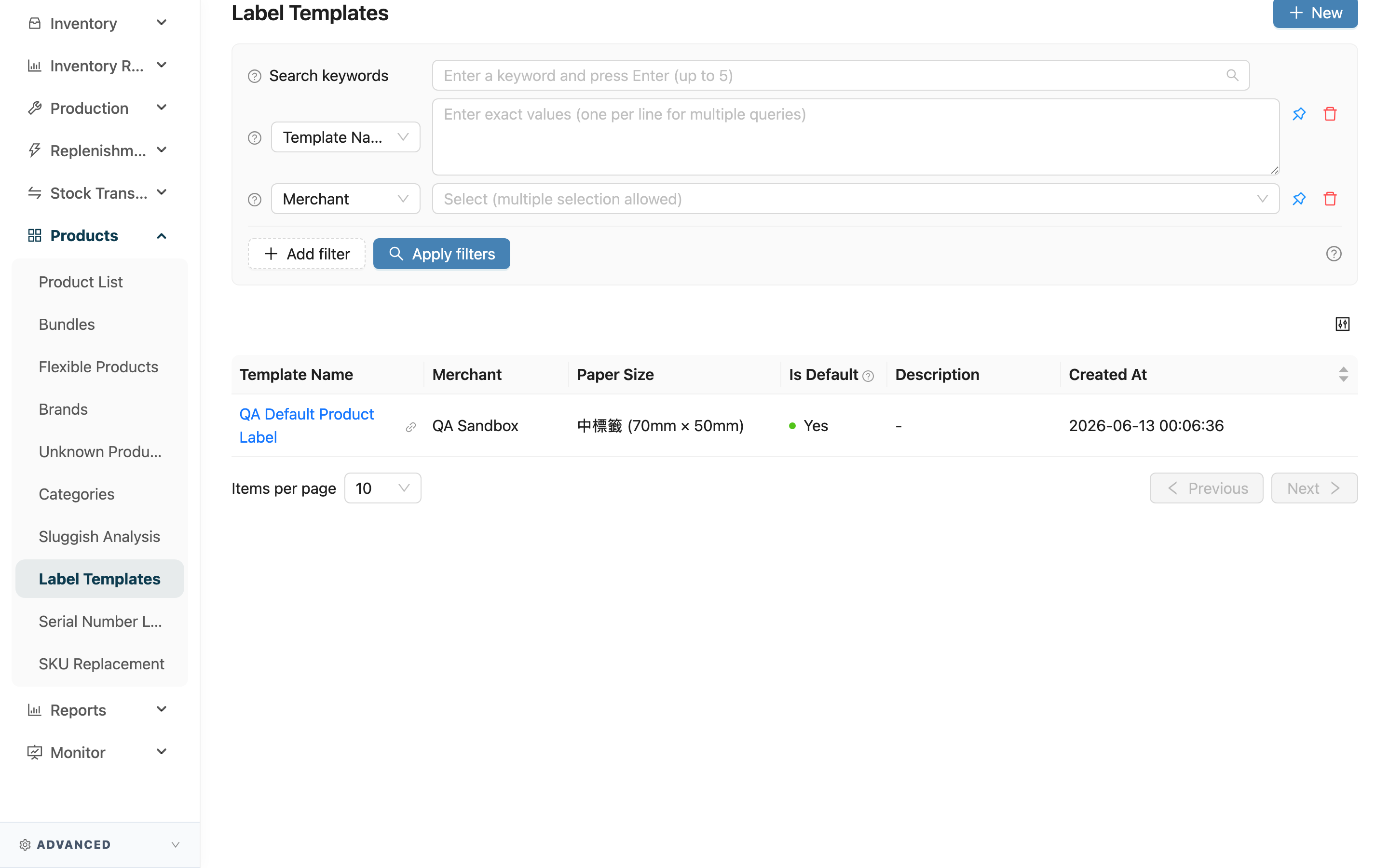
A product label template is a label layout you set up in advance. A template decides which product information to print (product name, SKU, barcode, material, origin, custom attributes, and more), what paper size to use, and the overall look. Once a template is built, the actual printing happens on the product page by choosing a template and entering a quantity, and the system generates a PDF. This page is the entry point for all templates—here you can view, search, and create templates, and mark each merchant's default.
Quick jump: Create a template | Search and filter | List columns | Printable product fields
2.1 Create a template
Click New at the top right to open the new page, then save once the layout is done. For layout details, see New Label Template. Click a template name in the list to open its detail page to view the content and preview (see Label Template Detail), then enter edit or delete from there.
2.2 Search and filter
| Filter | Description |
|---|---|
| Template Name | Enter a keyword to match template name and description; supports multiple entries, one per line |
| Merchant | Filter templates by merchant when working with multiple merchants; hidden for single-merchant operation |
| Is Default | Filter for templates that are / are not the default |
2.3 List columns
| Column | Description |
|---|---|
| Template Name | Template name; click to open the detail page |
| Merchant | The merchant the template belongs to; hidden for single-merchant operation |
| Paper Size | The paper size this template uses (with actual width and height) |
| Is Default | Marked "Yes" means it is applied automatically when printing the merchant's products without a chosen template |
The remaining columns (Description, Created At) are self-explanatory by name.
2.4 Printable product fields
The product information a template can print is the raw material you place into the layout. It includes:
- Product identity: SKU, product name, product barcode
- Product attributes: category, material, country of origin, HS code, temperature zone, product notes, creation date
- Custom attributes: attributes the merchant defines (such as color, size), shown using the labels the merchant set
- Brand and merchant: brand name, merchant name, and merchant logo
- Barcode and QR Code: turn the product barcode into a scannable barcode image or a QR Code image
- Date: the date and time at the moment of printing
When laying out, pick only the fields you need—you don't have to print them all. Which fields each template prints, and how they are arranged, is set on the new or edit page, with a live preview.
3. FAQ
3.1 FAQ
▪ After building a template, where do I print the labels?
The template itself does not print labels; it is only a layout. Printing happens on the product: go to the Product List, open the product you want to print, choose a template, enter a quantity, and submit. The system generates a PDF for you to download and print.
▪ What happens if I don't choose a template when printing?
The Is Default of the merchant that owns the product is applied automatically. If that merchant has no default template, the system falls back to the built-in standard small-label template.
▪ How many default templates can a merchant have?
Only one. When you mark a template as the default, if the merchant already has another default, the system blocks it and prompts you—you need to first unmark the existing default.
▪ Can a template be used by another merchant?
No. Each template belongs to the merchant selected when it was created, and is only applied to that merchant's products when printing. Create separate templates for different merchants.
▪ I can't find a particular merchant's templates—what do I do?
When working with multiple merchants, use the merchant filter at the top of the list to select that merchant. For single-merchant operation, the list already shows only your merchant's templates, with no merchant column or filter.
▪ Does deleting a template affect labels already printed?
No. A downloaded or printed PDF is a file generated at that moment and is unrelated to the template. But after deletion you can no longer print with this template; if it was set as the default, the merchant will then have no default, and printing without a chosen template falls back to the standard template.
3.2 Notices
⚠️ Important
- Each merchant can have only one default template; marking a second default is blocked.
- After a template is deleted it is removed from the list and cannot be recovered.
- For a custom size, both width and height must be greater than 0, otherwise it cannot be saved.
💡 Tip: Common label sizes (small, medium, large label, A4, A5) are built in—once selected, width and height are filled in automatically, with no manual entry needed; you only need "Custom Size" to enter width and height yourself when using non-standard stickers.
4. Related Features
| Feature | Description | Link |
|---|---|---|
| New Label Template | Create a new label layout | Go |
| Product List | Choose a template on a product and print labels | Go |