
Product List
Table of Contents
1. Use Cases
Quick links: Set up product records before a new merchant ships in | A barcode won't scan — add the matching barcode to the product | Set receiving rules for expiry / batch / serial-number products
Case 1: Set up product records before a new merchant ships in
Situation: A newly onboarded merchant will send their first batch into the warehouse next week, and all you have is a list of items. Receiving, putaway, and picking each rely on scanning the SKU (Barcode) to match a product record. Without product records, the floor will stall on the day the goods arrive.
Use this feature: Go to "Products" → "Product List" and create products one by one (see Add Product), or import the whole batch at once (see Import Products).
Result: On arrival day every item scans and matches, so receiving and putaway can proceed directly without scrambling to create records on the spot.
Case 2: A barcode won't scan — add the matching barcode to the product
Situation: A picker reports that a product won't scan from its outer-case barcode — the physical case carries the supplier's code, which differs from the main barcode registered in the system.
Use this feature: Search the product list to find the item, open its detail, then go to Edit Product and add this code under "Other Barcode". A product can carry multiple other barcodes, and scanning any of them resolves to the same product.
Result: Afterward the floor correctly recognizes the item whether the main barcode or the case code is scanned, eliminating scan-failure stoppages.
Case 3: Set receiving rules for expiry / batch / serial-number products
Situation: A merchant adds a line of health supplements. These goods must have expiry and batch recorded at receiving, and each unit's serial number logged at shipping, so the floor can enforce first-expired-first-out and warranty traceability.
Use this feature: When creating or editing these products, turn on "Manufacturing Date Required" and "Batch Management Required", and set "Required Serial Numbers" (see Add Product). These settings force the floor to enter the corresponding information at receiving and shipping.
Result: When receiving these products the system requires batch, manufacturing date, and serial numbers, so nothing is missed on the floor, and later picking by expiry order and returns tracing by serial number both have a basis.
2. Features
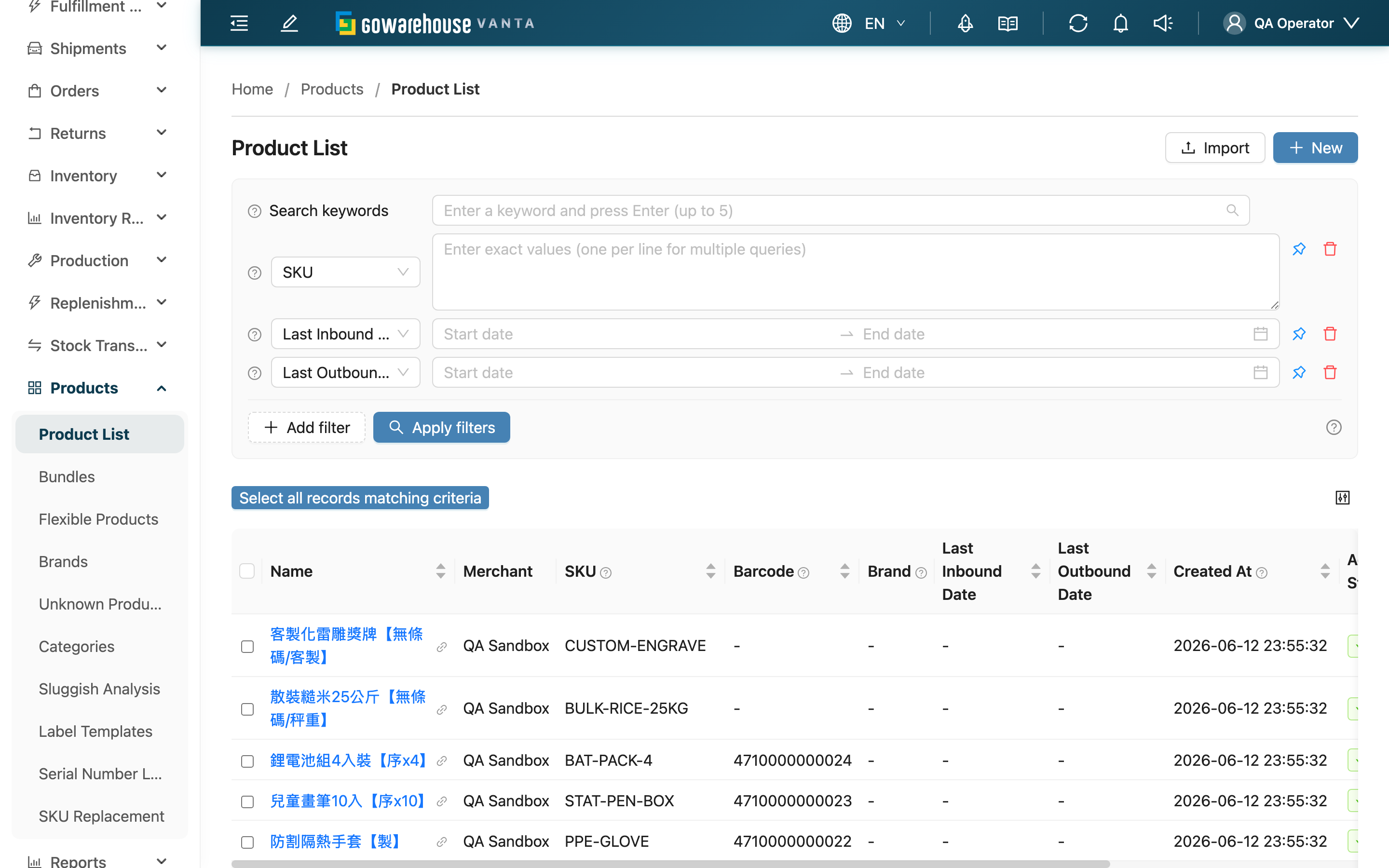
The product record is the root of all warehouse operations. Receiving matches items by it, putaway uses it to recommend shelves, picking relies on it for scan recognition, and stock-takes list items by it. This page is the entry to product records: here you look up products, confirm whether an item has been created, check its current stock and last inbound/outbound dates, and enter the create, edit, import, and inventory-lookup screens.
Quick jump: Search & Filter | List Columns | Batch Operations
The list uses the interface mode selected in "Profile settings". Compact mode initially focuses on product identification and stock. Column and pin preferences saved in this browser take precedence. Changing the mode while using the list preserves your current filters, sorting, selection, and displayed columns; the new defaults apply when you next enter the list.
2.1 Search & Filter
The search box at the top matches SKU, Name, Barcode, and Other Barcode at once. SKU and name match by "contains", while a barcode must be entered in full to match (barcodes carry no meaning, so partial matching only returns noise).
Without saved pins, compact mode starts with SKU, last inbound date, and last outbound date collapsed; full mode initially displays these three filters. Search remains available in both modes. Use "Add filter" to add conditions and "Pin this filter" to save frequently used ones. Mode defaults do not overwrite saved pins, including an empty pin selection. Previously applied query conditions are also restored.
For more precise conditions, use the filters:
| Filter | How to use | Notes |
|---|---|---|
| Merchant | Limit to a single merchant's products | Only appears with multiple merchants; a single merchant is auto-locked and hidden |
| Brand | Select from the list | If the brand is missing, create it first under "Brands". This field belongs to the advanced plan and is hidden when it is not enabled |
| Category | Select from the list | If the category is missing, create it first under "Categories" |
| Default shelf status | Filter products that "have a default shelf" or "have no default shelf" | Used to find products without an assigned putaway shelf |
| Last Inbound Date | Select a date range | Pull products that received goods within a period |
| Last Outbound Date | Select a date range | Pull products that shipped within a period |
| Activation Status | Select active or inactive | Inactive products cannot move in or out |
The remaining filter fields (SKU, Barcode, Other Barcode, Name) take direct input by name and accept multiple values at once. If the merchant has custom attributes set up, those attributes also appear in the filters.
2.2 List Columns
Without saved column settings, compact mode shows Name, SKU, Barcode, Activation Status, Available Stock, Total Stock, and Merchant when applicable. Brand, Last Inbound Date, Last Outbound Date, and Created At are initially hidden. Full mode shows all columns by default.
Use "Configure columns" to restore hidden columns or save your preferred columns. Saved choices are preserved in both modes. Column visibility does not change query results, the scope of selecting all records, or export contents.
| Column | Description |
|---|---|
| Activation Status | Active means it can move in and out normally; inactive means all inbound/outbound activity is suspended |
| Available Stock | Quantity currently allocatable for shipping (total stock minus reserved and held) |
| Total Stock | Total quantity currently in stock |
| Last Inbound Date | The date this product was last received |
| Last Outbound Date | The date this product was last shipped |
Click the product Name to open its detail; the remaining columns (SKU, Barcode, Brand, Created At) are self-explanatory.
2.3 Batch Operations
After selecting multiple products, a batch operation bar appears at the bottom:
| Operation | Effect | Notes |
|---|---|---|
| Edit | Set the Brand, Category, or Activation Status of the selected products to the same value in one go | At least one of the three must be set; other fields are untouched |
| Export | Export the selected products to a spreadsheet | Check the result in the background-task notifications |
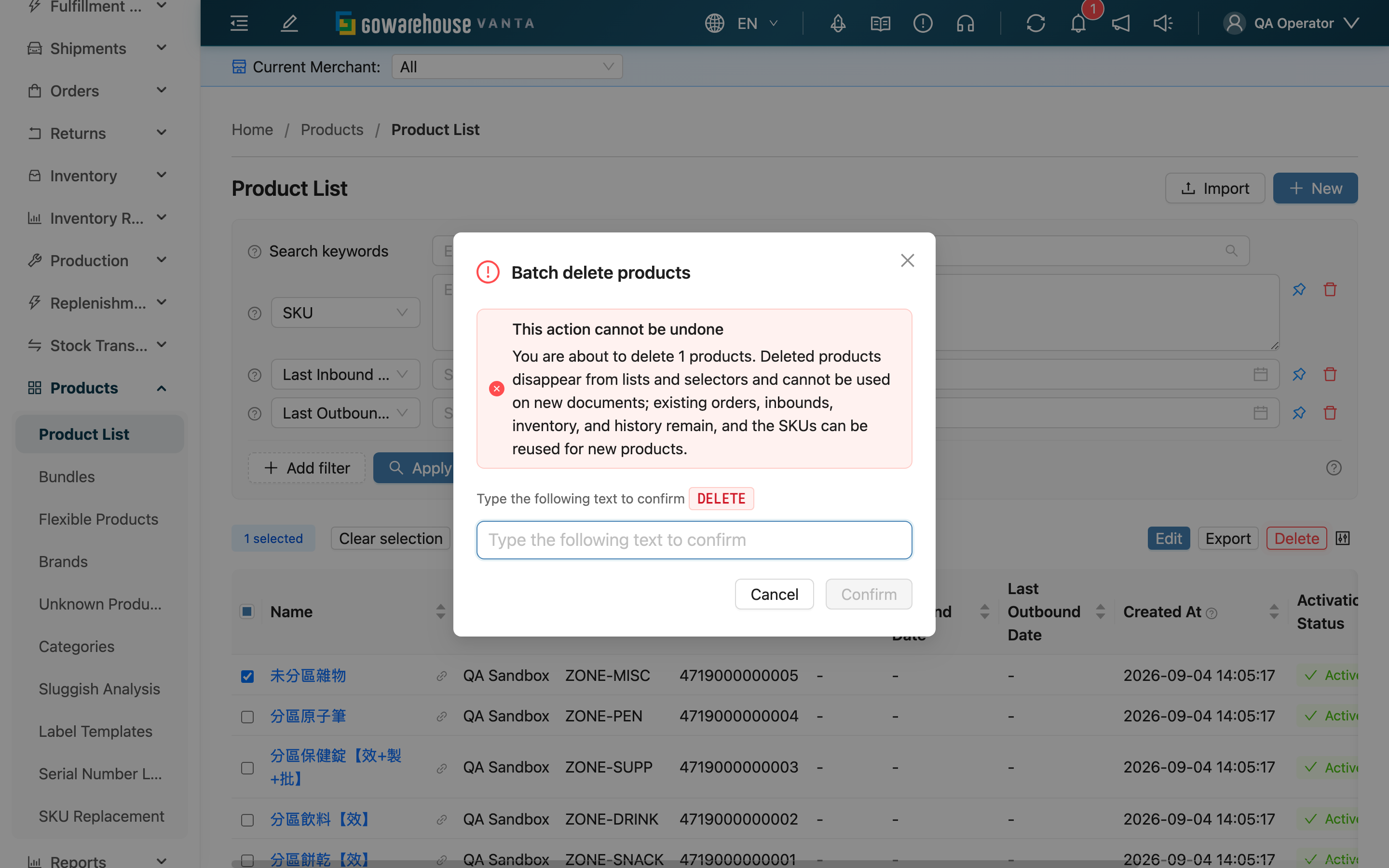
| Delete | Delete up to 10,000 selected products at a time (background task) | After clicking, review the irreversible effects and type DELETE in the confirmation dialog before the task can start. If more than 10,000 products are selected, reduce the selection before trying again. When it finishes the list refreshes and shows the deleted count; if the selection includes products already deleted, outside your authorized merchants, or still used as bundle components, the task shows "partially completed" with the skipped count (bundle components are counted separately). Existing orders, inbounds, inventory and history are kept, and the SKUs can be reused for new products |
The top-right corner also has two buttons: "New" enters single-record creation, and "Import" opens the import window (see Import Products).
3. FAQ
3.1 FAQ
▪ What if a barcode won't scan to a product?
First check whether the barcode is registered on the product. Enter the full barcode in the search box to match the main and other barcodes; if it really isn't registered, go to Edit Product and add it under "Other Barcode". A product can carry multiple other barcodes.
▪ Why can't an inactive product receive or ship goods?
When "Activation Status" is set to inactive, the product suspends all inbound/outbound activity. To resume, set it back to active on the edit page. Deactivating does not delete the product or clear its stock.
▪ The same product appears once under each merchant — are these duplicates?
No. Each merchant's product records are independent; even with the same SKU, they are two distinct products. The SKU is unique only within a single merchant. In a multi-merchant environment, use the Merchant filter to view them separately.
▪ Why is "Available Stock" lower than "Total Stock"?
Available stock is total stock minus what has been reserved by orders or manually held. The difference is stock that, while still physically in the warehouse, is already committed and cannot be allocated to other orders. To see the detail of each stock record, open Product Inventory.
▪ I need to create many products at once — what's faster?
Use import. Download the template, fill in the whole batch, and upload; the system creates them all at once. See Import Products.
▪ After turning on "Batch Management Required" or "Manufacturing Date Required", what changes on the floor?
When receiving these products, the system requires batch and manufacturing date to be logged, and receiving cannot be completed without them; products with "Required Serial Numbers" set require each unit's serial number at shipping. These are enabled in Add Product or Edit Product.
3.2 Notices
⚠️ Important
- Deactivating a product suspends all of its inbound/outbound activity — be sure the product is truly no longer in use before deactivating.
- Batch editing sets all selected products to the same value; confirm the selection scope is correct before applying.
- Deleting products cannot be undone: they disappear from lists and selectors and cannot be selected for new documents, while existing documents and inventory are kept. For a wrong import, delete and re-import with the same SKU.
💡 Tip: If the brand or category you want to set is missing, create it under the corresponding management page first, then return to the product page to select it.
4. Related Features
| Feature | Description | Link |
|---|---|---|
| Add Product | Create product records one by one | Go |
| Import Products | Import products in bulk | Go |
| Inventory | View a single product's stock distribution and in-transit | Go |
| Brands | Maintain the brands products belong to | Go |
| Categories | Maintain product categories | Go |