
Order Reports
Table of Contents
1. Use Cases
Quick links: Check daily on-time shipping | Review workload, plan staffing | Understand merchant & carrier mix
Case 1: Start each day by checking whether yesterday's shipments went out on time
Situation: The warehouse ships for several merchants every day, and what merchants care about most is whether orders go out by the agreed time. When shipping slows down, complaints and penalties follow — but flipping through fulfillment orders one by one, a supervisor can't see at a glance whether the overall on-time rate is slipping.
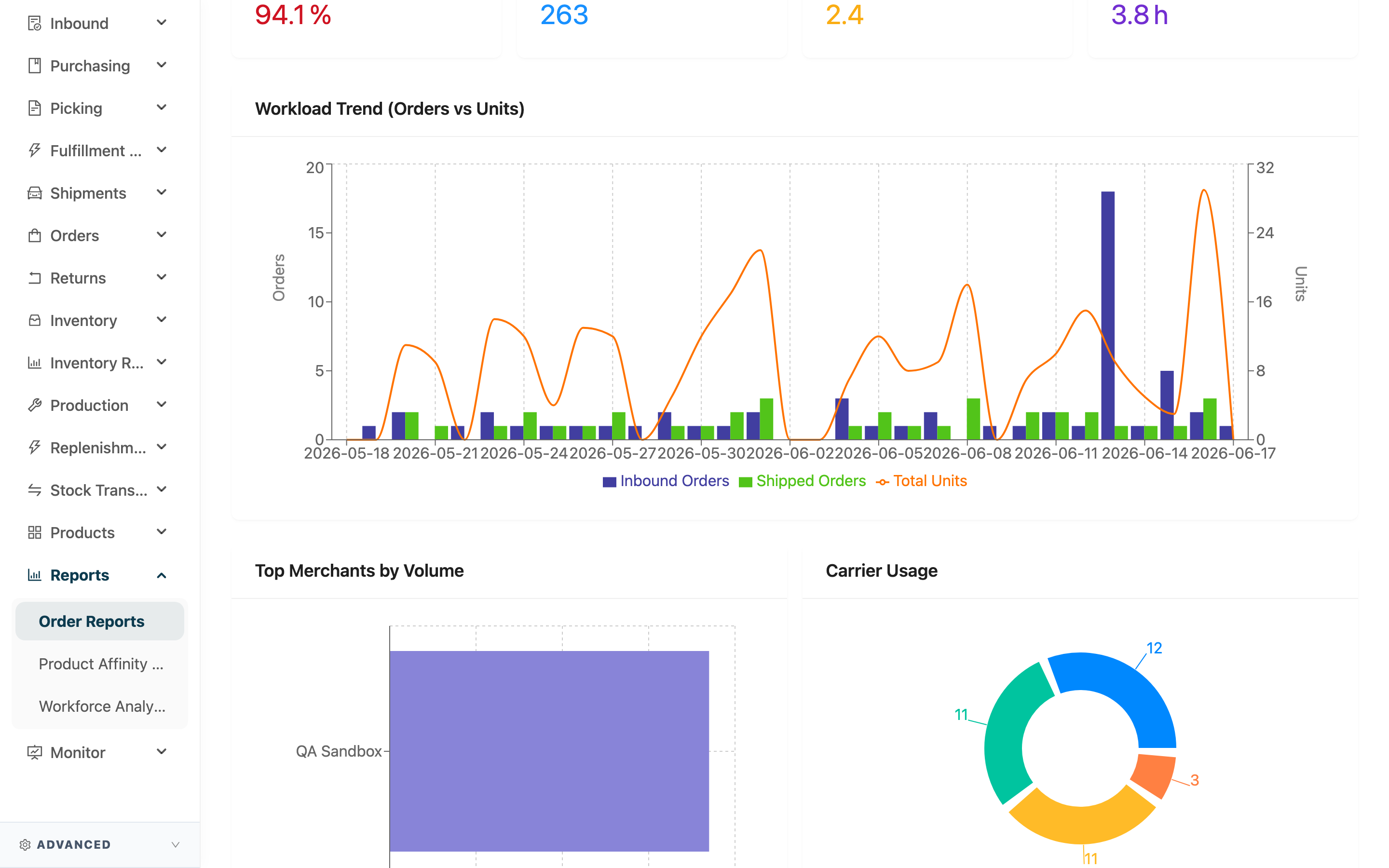
Use this feature: Each morning, check SLA Compliance and Avg. Process Time at the top (see Key Metrics), then look at the Workload Trend (Orders vs Units) below to see which days started slowing down.
Result: You grasp at a glance whether overall shipping speed is on target, and when it drops you can chase the cause and reallocate staff right away — instead of waiting for a merchant to complain.
Case 2: Review workload before and after peak season to plan staffing
Situation: Promotions, month-end, and holidays cause order volume to spike. A supervisor needs to know roughly how many orders and units the warehouse handles per day before deciding whether to add overtime or shift schedules.
Use this feature: Pull the Workload Trend (Orders vs Units) for the period to see the daily peaks and troughs of incoming and shipped orders, along with the total Total Units (see Workload Trend).
Result: You set staffing based on the actual workload curve, putting people on the highest-volume days — avoiding both peak-season overload and slow-season idle time.
Case 3: Understand the merchant volume structure and carrier mix
Situation: A supervisor wants to know which merchants drive most of the volume and which carriers most shipments go through — whether for operations reporting, negotiating volume with carriers, or deciding where to allocate resources, this overview is essential.
Use this feature: Look at Top Merchants by Volume and Carrier Usage at the bottom of the report (see Merchant & Carrier Distribution).
Result: You see clearly which merchants carry the bulk of the volume and which carrier handles the largest share, backing resource and contract decisions with real numbers.
2. Feature Guide
Order Reports turns the warehouse's shipping performance over a period into charts, so without flipping through fulfillment orders one by one you can see whether speed is on target, how many orders and units are handled each day, which merchants the volume concentrates on, and which carriers merchants ship through. This is the entry point for a warehouse supervisor to grasp overall workload and shipping quality, plan staffing, and report operations.
Jump to: Date & Merchant Filters | Key Metrics | Workload Trend | Merchant & Carrier Distribution
2.1 Date & Merchant Filters
The top-right corner offers two filters; every metric and chart recalculates immediately when you adjust them:
| Filter | How to use | Notes |
|---|---|---|
| Date range | Pick the start and end dates to analyze; defaults to the last 30 days | Can only go back to 90 days ago at the earliest, and future dates cannot be selected |
| Merchant | When you serve multiple merchants, select up to 10 to view only their data; leave it empty to cover all merchants you can access | A warehouse serving a single merchant is auto-locked and this option is hidden |
2.2 Key Metrics
The four metric cards at the top summarize the whole period; hover the hint icon next to each title for a description:
| Metric | What it means | Notes |
|---|---|---|
| SLA Compliance | Share of orders shipped on or before their expected ship date (only orders with an expected ship date are counted) | Shows green at 95% or above, red as a warning below that |
| Total Units | Total item quantity across all orders in the period | — |
| Avg. Lines/Order | Average number of distinct product lines (SKUs) per order | — |
| Avg. Process Time | Average time from order creation to shipment completion (hours) | — |
2.3 Workload Trend
The Workload Trend (Orders vs Units) in the middle plots daily workload as bars plus a line:
| Series | What it means |
|---|---|
| Inbound Orders | Number of orders "created" that day (bar, on the left Orders axis) |
| Shipped Orders | Number of orders "shipped" that day (bar, same left axis) |
| Total Units | Total item quantity shipped that day (line, on the right Units axis) |
Created and shipped count different orders — an order received today may not ship until later, so the created and shipped numbers for the same day won't (and shouldn't) be equal. This chart shows trends over time, not a same-day in-out reconciliation.
2.4 Merchant & Carrier Distribution
The two charts at the bottom show the shipping structure for the period. Both are computed from "shipped" orders, and if there were no shipments in the period they display no data:
- Top Merchants by Volume: Lists the top 10 merchants by shipped order volume, highest to lowest.
- Carrier Usage: Each carrier's share of shipped orders, showing which carriers most shipments go through.
3. FAQ
3.1 FAQ
▪ Why is there a big gap between Inbound Orders and Shipped Orders on the same day?
They count different orders: created orders are newly "created" that day, while shipped orders are those "completed for shipping" that day. An order received today often ships several days later, so the two numbers naturally don't line up — look at each one's trend, not a same-day reconciliation. See Workload Trend.
▪ SLA Compliance is low — where can I look for the cause?
First check whether Avg. Process Time has lengthened, then use the Workload Trend (Orders vs Units) to find which days it started dropping, and compare whether Total Units spiked on those days. Once you've pinned down the problem dates, go to the Fulfillment Order List to trace those days' orders one by one.
▪ Can the report be exported or downloaded?
Order Reports is an on-screen chart view with no export function. For line-by-line shipping details, go to the Fulfillment Order List to view and export.
▪ Why can I only query 90 days at most? What if I need older data?
Order Reports focuses on recent operations, so the date range can only go back 90 days. For older line-level data, query the Fulfillment Order List or the Order List.
▪ The report numbers don't match the Fulfillment Order List?
The report buckets orders into each day by "order date / ship date" using the warehouse's time zone, which differs from how the Fulfillment Order List filters — so the counts for the same date range may not match. When reading the report, go by the report's own date axis.
▪ Why don't I see a merchant filter?
A warehouse serving a single merchant auto-locks to that merchant and hides the merchant filter; the multi-select merchant menu only appears when you serve multiple merchants.
3.2 Notes
⚠️ Important
- The date range goes back at most 90 days: Data older than 90 days can't be queried here, and future dates can't be selected; for older details, use the Fulfillment Order List instead.
💡 Tip: After switching dates or merchants, all metrics and charts recalculate immediately; to trace exactly which orders make up a given day, view them one by one in the Fulfillment Order List.
4. Related Features
| Feature | Description | Link |
|---|---|---|
| Fulfillment Order List | View and act on each fulfillment order | Go |
| Order List | View merchants' original orders | Go |
| Workforce Analytics | Compare workforce output by station against shipping volume | Go |