
Billing Detail
Table of Contents
1. Features
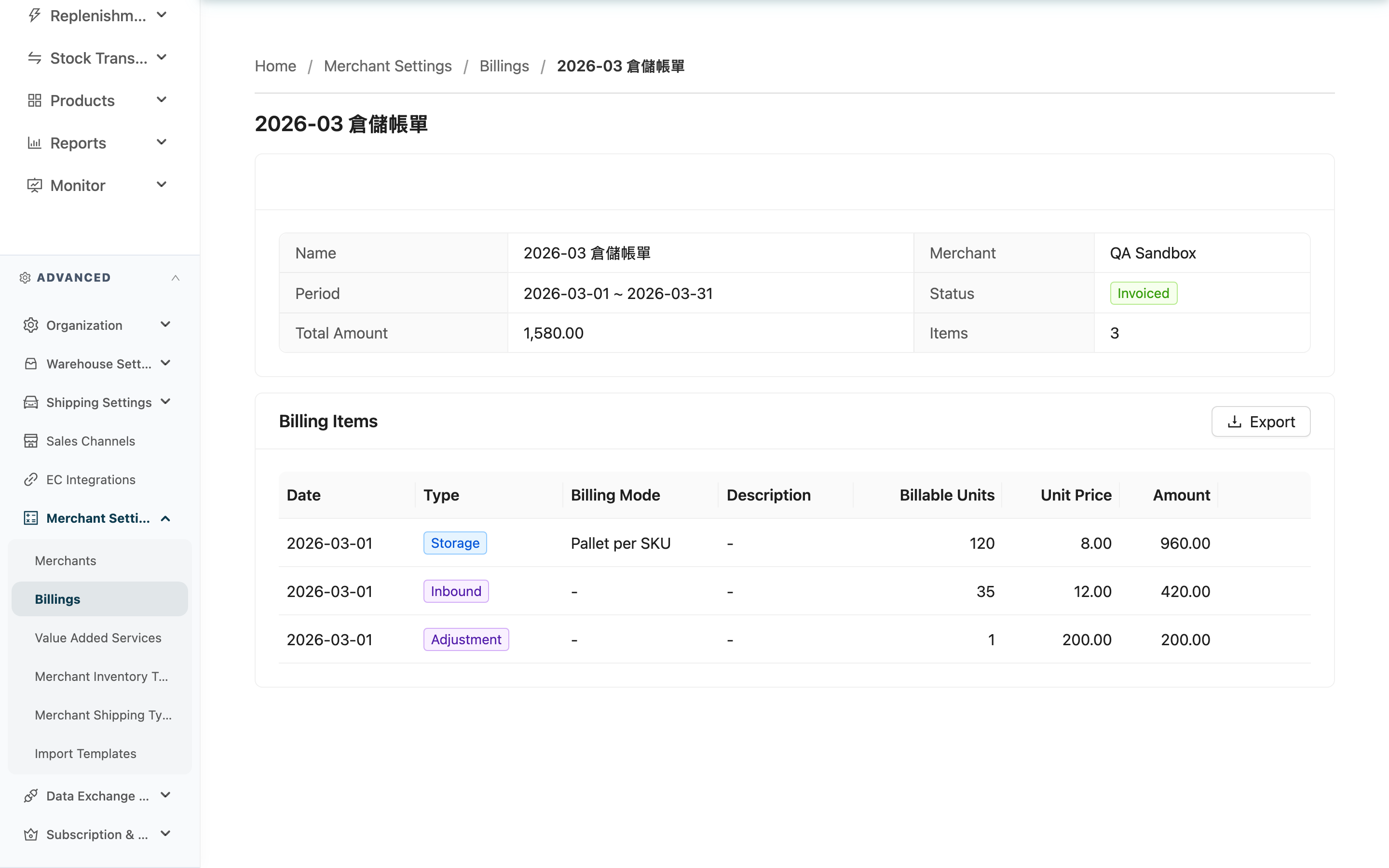
The billing detail page is your workbench for one merchant's billing for one period. The top of the page summarises the billing; below it every charge in the period is listed line by line. Here you review each charge, expand the calculation detail down to individual documents, add charges agreed outside the contract, and advance the billing status — the merchant only sees it once you confirm — then export to Excel as the basis for invoicing.
Quick jump: Billing summary | Charge items | Calculation detail | Advancing the status | Adding an adjustment | Exporting
1.1 Billing summary
The card at the top shows Merchant, Period, Status, Total Amount and Items. The total recalculates as items are added or removed; you never add it up by hand. For what each status means, see Billings.
1.2 Charge items
Each row is the total for one day and one fee type, not one document — ship a hundred orders in a day and Outbound is still a single row. Adjustments you add by hand are one row each.
| Column | Description |
|---|---|
| Date | The charge date, that is, the anchor date in the table below. It does not have to fall inside this billing's period — see the FAQ |
| Type | The fee type; there are nine, listed below |
| Rate Card | The rate card version in effect on the day the charge occurred. Click the version to open a read-only view of the rates as they were then |
| Description | Only Storage and Adjustment carry a description; if no item in the billing has one, the column is hidden entirely |
The nine fee types:
| Type | What it charges for | Anchor date |
|---|---|---|
| Storage | Rent for the space the merchant's stock occupies, calculated daily | That day's stock cut-off |
| Inbound | Receiving and put-away work plus the receipt document fee | Receiving completion date |
| Outbound | Picking and QC work plus the shipping document fee | Shipment completion date |
| Return | Return receiving work plus the receipt document fee | Return receiving date |
| Value-added | Value-added services attached to an inbound or an order | The related document's completion date |
| Processing | Fee lines on a work order | Work order completion date |
| Consumable | Packing materials consumed when shipping | Shipment completion date |
| Shipping Fee | Carrier charges for outbound shipments | Shipment completion date |
| Adjustment | A charge you added by hand | The date you choose |
Only Storage, Inbound, Outbound and Return are priced from the rate card and therefore show a version. The rest have their own pricing sources and always show "—" in Rate Card: Shipping Fee comes from the shipping rate card, Value-added and Processing are priced per line, Consumable follows the consumable's price, and Adjustment is priced by you.
1.3 Calculation detail
Items made up of several documents, products or shelves have a "View detail" button on the right that shows how the amount was assembled.
- Storage: Lists each Product or Shelf Type with that day's Quantity, the converted Billable Units, Unit Price and Subtotal. With many products, use the search box to find a specific SKU, or tick "Abnormal only" to see only the products that were not charged — those are missing an attribute pricing needs (weight, dimensions or units per pallet) and will not be billed until the product record is completed.
- Every other type: Lists Document No., Fee Type, what was priced, Quantity, Unit Price and Subtotal, with rows for the same document merged. Shipping Fee additionally carries an "Abnormal" marker explaining why the row needs review (the rate card's tiers are incomplete, several consumables in one parcel are marked as the volume source, or the shipment has no tracking number) — the marker does not change the amount already calculated, it flags the row for review. ⚠️ Shipments with no rate card linked do not appear in this column (they are $0 but unflagged); to find those, filter for a $0 amount with a blank issue column.
Adjustments added by hand are a single amount with no detail to expand.
1.4 Advancing the status
The top right of the summary card shows the action available for the current status; the three are mutually exclusive and only one appears at a time:
| Current status | Action | After |
|---|---|---|
| Accumulating | Close Early | The period is pulled back to yesterday and settled and confirmed in one step, landing on Confirmed |
| Pending Confirmation | Confirm | Confirmed |
| Confirmed | Revert | Back to Pending Confirmation for another review |
Preconditions: "Close Early" appears only when all three hold — the billing is still Accumulating, the period already contains at least one complete day to settle, and the period has not reached its natural end. Neither the first day of a period nor an already-ended period offers the button.
Side effects: "Close Early" moves the period end to yesterday, so charges from today onwards go to a new period. It stops at yesterday rather than today because today's charges are only billed during the coming night; including today would have you confirm a total that is a day short. Confirming makes the billing visible to the merchant immediately; reverting removes it from their view. None of the three actions changes any charge amount.
Reversibility: Confirm and revert can be toggled back and forth, but the period boundary set by closing early cannot be undone — once the period is shortened it stays shortened, and reverting only removes the confirmation.
1.5 Adding an adjustment
Before the billing is confirmed (Accumulating or Pending Confirmation), the "Billing Items" card has an "Add Adjustment Item" button at the top right for charges the system does not calculate. They are always recorded as Adjustment.
Fields marked with * are required
| Field | How to fill it in | Notes |
|---|---|---|
| *Date | Pick the date of the charge | Only dates inside this billing's period can be selected |
| *Description | State clearly why the charge exists, for example "repacking returns" | At reconciliation time this is the only clue identifying the charge |
| *Billable Units | Enter the billable quantity | Cannot be negative |
| *Unit Price | Enter the price per unit | Can be negative, which is how you record a refund |
| Amount | Calculated as quantity × unit price | Filled in by the system and cannot be edited |
Preconditions: A Confirmed billing does not show the button; use "Revert" first if you need to add something.
Side effects: The amount joins Total Amount immediately. Adjustments cannot be reversed — a mistake is corrected by adding an opposite amount.
1.6 Exporting
"Export" at the top right of the "Billing Items" card exports the whole billing to Excel. The first sheet is an overview with the subtotal per fee type and the billing's basic information; after it comes one sheet per fee type actually present in the period, with Storage getting an extra detail sheet; last are the rate settings, plus shelf and product settings when there is data for them. Fee types with no charges produce no sheet.
After clicking, collect the download link from the notification area. Export works in any billing status.
2. FAQ
Quick jump: FAQ | Important notes
2.1 FAQ
▪ An item's Date falls outside this billing's period — is that wrong?
No. When the period a charge belongs to has already closed, the system attaches the charge to the period currently accumulating while keeping its original operation date. Late Processing and Value-added charges are where you see this most.
▪ Why do some items have no "View detail" button?
Only items assembled from several documents, products or shelves have a detail layer. Adjustments added by hand are a single amount with nothing underneath.
▪ The detail shows a product as not charged due to missing attributes — can I still collect that money?
That product was not included in the amount for that day. Completing the missing attributes on the product record fixes future billing, but days already billed are not recalculated — to collect retrospectively, add an adjustment item by hand.
▪ I confirmed and then found the amount was wrong — can I still fix it?
Yes. Click "Revert" to return to Pending Confirmation, adjust or re-check, then confirm again. Note that the merchant cannot see the billing while it is reverted.
▪ Why is the "Close Early" button missing?
Three situations hide it: the billing is already settled (no longer Accumulating), today is the first day of the period (no complete day to settle yet), or the period has in fact already ended naturally — in that case wait for the nightly settlement, since nothing is being closed early.
▪ We agreed to refund a merchant — how do I record it?
The system does not reverse charges that already exist. Add an adjustment item with a negative Unit Price and a description explaining the refund, and the total drops accordingly.
▪ A row shows an amount of 0 — is that a mistake?
Not necessarily. A rate set to 0, or a genuine activity quantity of 0, both still produce a row. That is deliberate, so that "the contract does not charge for this" and "this step never ran" remain distinguishable on the bill. Expand the calculation detail to see which one it is.
▪ A sheet is missing from the exported Excel file
When the billing has no items under a given fee type, that sheet is skipped, so the file only contains the types that actually incurred charges.
2.2 Important notes
⚠️ Important
- "Close Early" pulls the period end back to yesterday and that boundary cannot be undone; "Revert" only removes the confirmation, it does not restore the period.
- The merchant can only see the billing once it is confirmed, and reverting removes it from their view. Repeated reverting while a merchant is reconciling makes the billing appear and disappear on their side.
- Adjustments cannot be reversed — a mistake is corrected by adding an opposite amount, leaving two rows on the bill.
💡 Tip: Expand the calculation detail on the largest few charges first and check the pricing basis there before confirming; it cuts down how often you have to revert and redo.
3. Related Features
| Feature | Description | Link |
|---|---|---|
| Billings | Back to the billing list for all merchants | Go |
| Merchants | Configure each merchant's billing method, rate card and period | Go |
| Shipping Rate Cards | Define the tiers behind Shipping Fee | Go |
| Consumables | Define the prices behind Consumable | Go |