
Fulfillment QC
Table of Contents
1. Use Cases
Quick links: Final check before shipping | Packing video for disputes | Block already-cancelled orders | Scan serials for serial-tracked items | Distribution already skipped scanning — pack and ship directly
Scenario 1: The final gate before shipping — keep wrong items in the warehouse
Situation: A multi-item fulfillment has been picked and arrives at the packing station. Before the shipping label goes on and it leaves, you need to confirm "the right items, in the right quantities, not one off." Wrong or missing items reaching the customer mean returns, complaints, and reshipping costs.
Use this feature: In Scan items one by one, scan every item's barcode. The system tallies the verified quantity per line in real time and only lets you print once every line is fully scanned; over-scanning or scanning the wrong item is rejected on the spot.
Result: Only after stock matches the order do you print the shipping label, keeping the wrong package in the warehouse rather than in a customer complaint.
Scenario 2: Keep the packing video to settle missing-item disputes
Situation: A customer reports "one item is missing" after receiving the package. The warehouse needs evidence to determine whether it was short at the moment of shipping or something went wrong in transit.
Use this feature: QC records video the entire time, with one segment per sealed box (see Recording for evidence); later you can pull this fulfillment's packing video and replay it to compare.
Result: Use the video as proof of what was actually packed at shipping time, responding to disputes with evidence rather than guesswork.
Scenario 3: Don't ship an order the customer cancelled on the platform
Situation: A customer cancels on a platform like Shopee or momo, but this fulfillment was already picked and is sitting at the packing station. Shipping it anyway means sending out a cancelled order, with return shipping and refunds to deal with afterward.
Use this feature: The moment you scan the fulfillment into QC, the system checks the source platform in real time to confirm whether the order has been cancelled (see Scan a fulfillment to load it); cancelled orders are blocked before entry.
Result: Cancelled orders are stopped before shipping, saving the cost of sending a package only to retrieve it.
Scenario 4: Serial-tracked items — scan each serial for full traceability
Situation: You sell high-value, warranty-tracked or anti-swap items such as electronics, each with its own serial number. If you don't record "which serials went out on this fulfillment," later warranty registration, complaint tracing, and swap disputes won't line up.
Use this feature: This requires that the products have serial-number management enabled in their settings (with "serials required per unit"). When QC scans such an item, a serial dialog pops up to scan each serial barcode one by one — for the steps, see Scan serials for serial-tracked items.
Result: Every fulfillment is recorded down to the serial level, so a serial number tells you exactly which fulfillment and which customer it shipped to.
Scenario 5: Distribution already skipped scanning — pack and ship directly
Situation: During a busy season with staff stretched thin, a batch of fulfillments was already checked item by item against its order during Distribution. Having QC re-scan the same item's barcode again means it gets picked up and scanned twice, slowing down shipping.
Use this feature: If this batch already had QC scanning skipped when distribution was completed (see Skip scanning and ship directly), quantities are already filled in when loaded here — no need to scan items one by one; pack and click complete to ship.
Result: Shipping speeds up, and serial numbers for serial-tracked items are already recorded precisely from the distribution step — you can still trace exactly which fulfillment a serial shipped on.
2. Features
Fulfillment QC is the last gate before items ship. Here you scan a fulfillment to load what needs to go out, scan each item's barcode to confirm the items and quantities are correct, and pack as you verify. Once everything is fully scanned, scan a barcode or click confirm in the completion dialog and the system generates and prints the shipping label and marks the fulfillment as shipped. The whole process is recorded on video and serials are logged one by one, as evidence for any later shipping dispute.
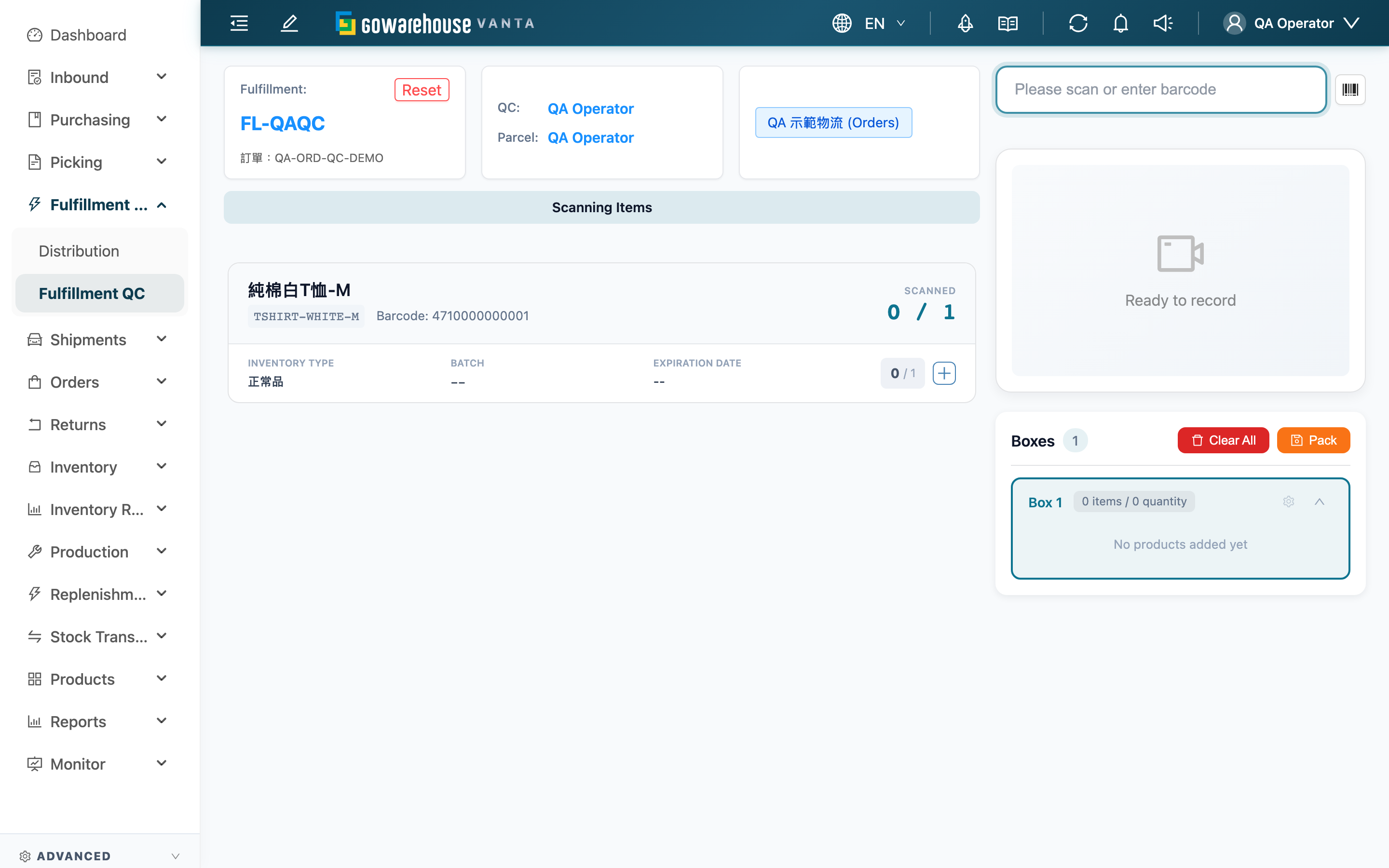
The left side is the fulfillment and item list (what to verify); the right side is the barcode input, video view, and box list (how to verify, and which box). A status bar across the top shows the current step, and scanning is routed automatically by status:
| Status | What it means | A scan now will |
|---|---|---|
| Awaiting Order Scan | No fulfillment loaded yet | Treat the barcode as a fulfillment number and load the order |
| Scanning Items | Loaded, verifying item by item | Match the item barcode and tally the verified quantity |
| Awaiting Order Rescan | All items fully scanned | Scan the on-screen/paper barcode or click confirm to enter printing |
| Printing Shipping Label | Generating and printing the shipping label | — |
| Process Complete | Shipped | Scan the next fulfillment to continue |
Quick jump: Assign operators | Scan a fulfillment to load it | Scan items one by one | Scan serials for serial-tracked items | Skip scanning and ship directly | Packing and box management | Print the label and complete shipping | Print the packing slip | Recording for evidence
2.1 Assign QC and packing operators
By default the page treats the currently logged-in operator as both the QC (QC) and Parcel operator, so you can start right away without any setup.
When someone else handles QC or packing at this station, click the operator block in the header to open the "Verify Operators" dialog, enter or scan the QC Operator Account and Parcel Operator Account, and click "Confirm Accounts".
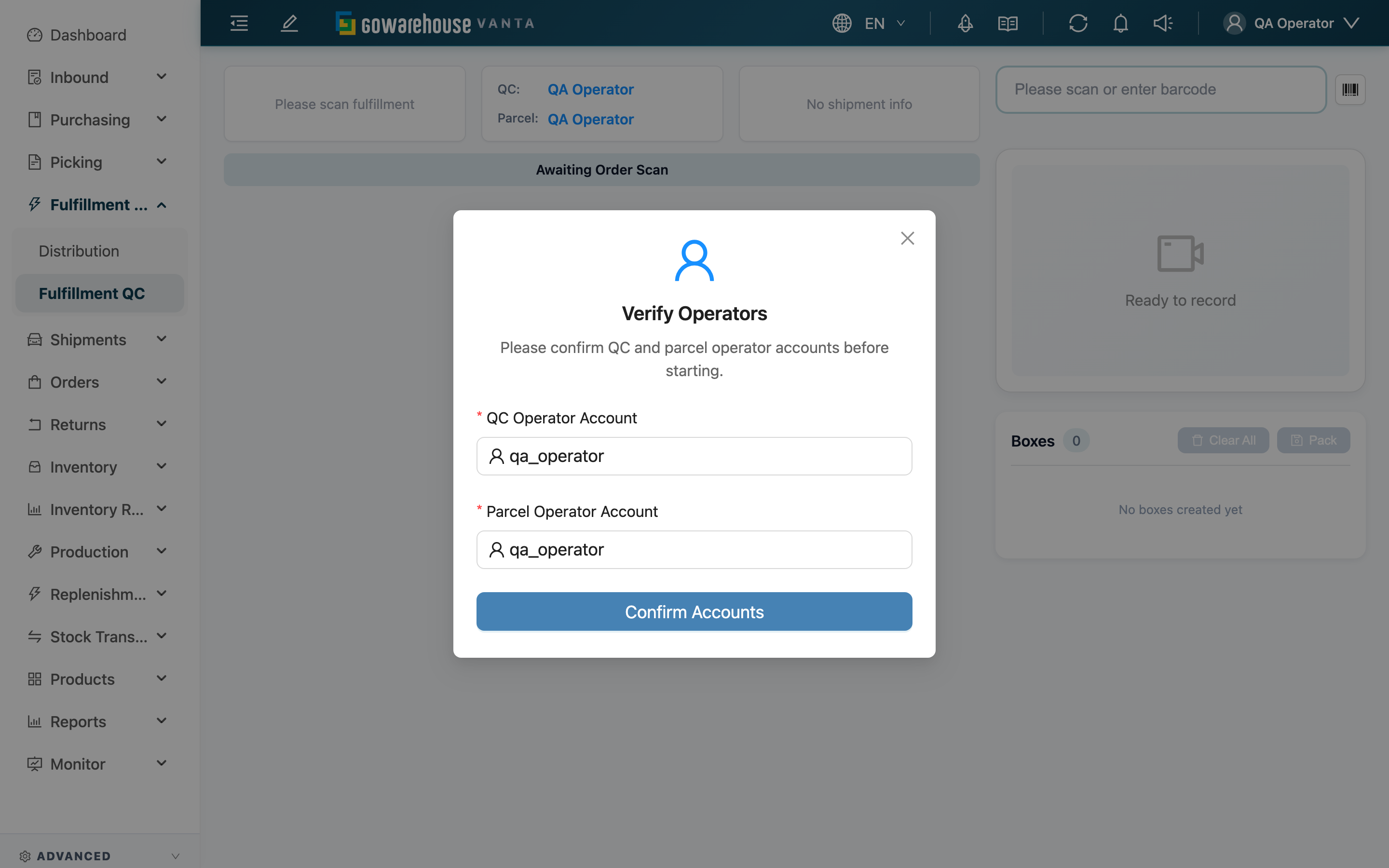
⚠️ The QC and packing operators must belong to the same warehouse, otherwise verification fails. If verification fails while switching operators, the previously verified operators remain selected. Correct the accounts and verify again, or cancel the switch to continue.
2.2 Scan a fulfillment to load it
Scan a fulfillment in the right-side barcode box (Please scan or enter barcode) to load its items into the left-side list. You can scan the fulfillment number (system barcode), the fulfillment name, or an associated order number. If one name maps to multiple fulfillments, a list appears for you to pick the correct one.
Barcodes scanned before loading finishes aren't counted — the screen shows "Fulfillment is still loading — please wait before scanning again"; wait for the left-side list to appear before scanning items.
While loading, the system runs checks; any one that fails blocks entry with a red message:
| Check | Why it's blocked |
|---|---|
| Order on hold | An associated order is on hold (e.g. awaiting an address fix). The message includes "Hold order to correct info" or a link to the order |
| Cancelled on platform | The source platform reports the order is cancelled; blocked before entry |
| Picking not done | This fulfillment's picking list isn't complete; stock isn't settled to a shippable state yet |
| Tote quantity insufficient | The picking tote's physical quantity isn't enough for this fulfillment |
| Wrong status | The fulfillment isn't in the "processing" state. The message names the fulfillment by the same name shown on screen, along with its current status (e.g. "Shipped", "Canceled", "Pending"), so you don't have to go back to the list to check. The most common cause is the sales channel having "Auto Complete Fulfillment" turned on, which ships the fulfillment the moment picking finishes |
Two cases ask you first rather than blocking outright:
- Platform status check failed: When the platform can't be reached to confirm cancellation, "Could not verify this order's cancellation status on the platform. Continue with QC anyway?" appears and you decide whether to "Continue anyway".
- Packing lock conflict: This fulfillment is being packed by someone else; a dialog asks whether to take over. After taking over, the QC lock moves to you.
2.3 Scan items one by one
After loading, scan each item's barcode. The "Scanned" count for the matching line goes up by one; reaching the required quantity completes that line. Item matching is tried in order: product barcode → secondary barcode → mid/large-unit barcode (one scan equals a full case/box quantity) → SKU → Batch.
- Over-scanning is blocked: When the scanned quantity would exceed what this fulfillment should ship, a "Quantity exceeded" prompt appears and the extra is not counted.
- Item not found: When the scanned barcode doesn't belong to this fulfillment or is wrong, "Product not found" appears. If the barcode matches a consumable, it's recorded as packing material for this box instead (see Consumables below).
- Batch verify: For a line with a large quantity, open "Batch Scan" from the list to enter the quantity at once instead of scanning each unit.
Packing materials (consumables) for this box
For consumables used in packing — cartons, cushioning, etc. — just scan the consumable barcode to record it under "Materials for this box", and adjust the quantity manually. Consumables are deducted together with the current box when it is packed.
If a consumable is marked "Use as Shipping Volume Basis" on its record, its length, width, and height are used directly as this box's shipping volume, instead of summing product dimensions. Only one such consumable is allowed per box: if the box already has one checked consumable and you scan another checked consumable, it is blocked on the spot with "This parcel already has another consumable set as the volume basis. Remove it before scanning a new one" — remove the original one before scanning the new one.
2.4 Scan serials for serial-tracked items
For items that require serial tracking (serial-number management enabled in product settings, with "serials required per unit" — e.g. electronics and high-value, traceable goods), scanning during QC doesn't just add one to the count; instead the "Scan Serial Number" dialog pops up and asks you to scan or enter each unit's serial barcode one by one. Serials are bound to the matching line on this fulfillment, so a serial number later tells you exactly which fulfillment it shipped on.
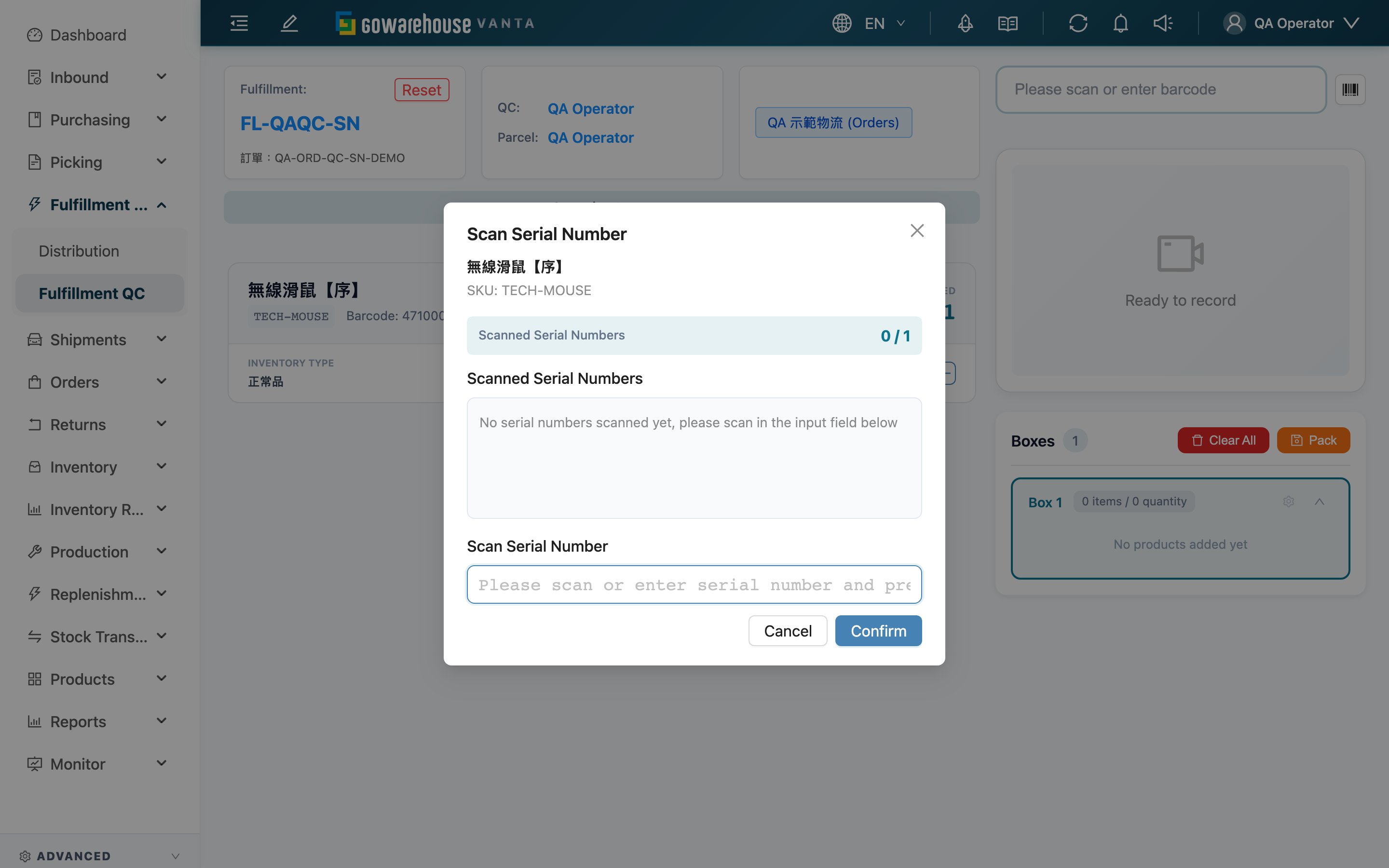
| Rule | Description |
|---|---|
| Serial count | The number of serials scanned must be a whole multiple of the item's "serials required per unit." E.g. 1 serial per unit means scanning 3 = 3 units; a crayon box needing 10 serials must total a multiple of 10. A non-multiple shows "Serial number count mismatch" |
| Full-box serial label | If the item carries a single label containing all the serials in a box, scan it once — the dialog converts it into the corresponding unit count |
| No duplicates | A serial already scanned for the same item is rejected on the spot, preventing the same serial from being recorded twice on one fulfillment |
| Bound to the line | Each serial is bound to the matching line on this fulfillment; in a merged fulfillment, the same product from different orders is recorded separately |
After scanning all required serials and the dialog shows "✓ Completed required serial number scanning", click "Confirm" and the batch is counted into the current box. If you scanned wrong, remove individual serials in Packing and box management under manage box, and the unit count recalculates from the remaining serials.
2.5 Skip scanning and ship directly
If a batch of fulfillments had QC scanning skipped when Distribution was completed for that wave, the verified quantity in the left-side list is already filled in when it loads here, and serial numbers for serial-tracked items are already filled in too — the serial dialog does not pop up. There's no need to scan item barcodes one by one: pack directly, seal with "Pack", and proceed to Print the label and complete shipping. Packing, printing, and recording work exactly as usual, and QC fees are still billed as normal.
If you adjust quantities or remove items while managing a box in skip-scan mode, existing serial number bindings are not cleared; only a line whose quantity is adjusted below the required amount needs to be topped up before shipping can complete.
To switch back to scanning item by item (for example, if you spot a problem with the goods and want to re-verify on the spot), press "Resume Manual QC" on the banner that shows items are fully scanned. The system removes the box that was created automatically, letting you scan items one by one again and split them into multiple boxes as usual to complete shipping. This button only appears in skip-scan mode.
2.6 Packing and box management
The "Boxes" on the right records how many boxes this fulfillment is split into and what each box holds.
- Seal a box, open a new one: When a box is full, scan the
-DOPACKING-barcode or click the "Pack" button. The system seals the current box and opens a new one automatically; items scanned next go into the new box. A fulfillment can be split into multiple boxes with no limit. - Manage a single box: Click "Manage" on a box to adjust item quantities, remove serial numbers, or delete a misplaced item. If removing makes a line no longer fully packed, "complete shipping" locks again until you scan it back to full.
- Clear all boxes: "Clear All" deletes all boxes built for this fulfillment; you must type
clearin the dialog to confirm.
💡 Once all items are fully scanned you can no longer open a new box manually — at that point the system defers sealing to the moment you confirm printing, so consumables scanned right before printing still make it into the box.
Saving an unsealed box updates its contents and allows further scanning. Use "Pack" to seal it. Adjust sealed boxes through "Manage". Scanning and box actions pause while packing, saving, or deleting; continue after the operation finishes.
Before saving an unsealed box, the system checks that item and consumable quantities are positive integers, each line stays within its required quantity including units in other boxes, and serial numbers have the correct count and format with no duplicates across boxes. If validation fails, the reason is shown and the original box contents and scanning progress are preserved. Correct the entries and save again.
2.7 Print the label and complete shipping
When every line is fully scanned, the "Confirm QC completion" dialog opens automatically with the fulfillment, parcel count, item count, and fulfillment barcode. Check the details, then confirm in any of these ways:
- Scan the barcode displayed in the dialog.
- Click "Confirm and print".
- Continue scanning the original paper fulfillment barcode or the
-CONFIRM-barcode.
To add consumables or adjust parcels, click "Back to adjustments". Scanned items are preserved. Once adjustments are complete, click "Confirm shipment" in the green banner to reopen the dialog. If any items are missing, scan them back to full first. Opening the dialog does not seal the parcel or ship the fulfillment.
Check on site whether your scanner can read on-screen barcodes. If it cannot, use the button or paper barcode. If your procedure requires matching the paper document in hand to the fulfillment on screen, keep scanning the paper: scanning the screen or clicking the button only confirms the fulfillment currently displayed.
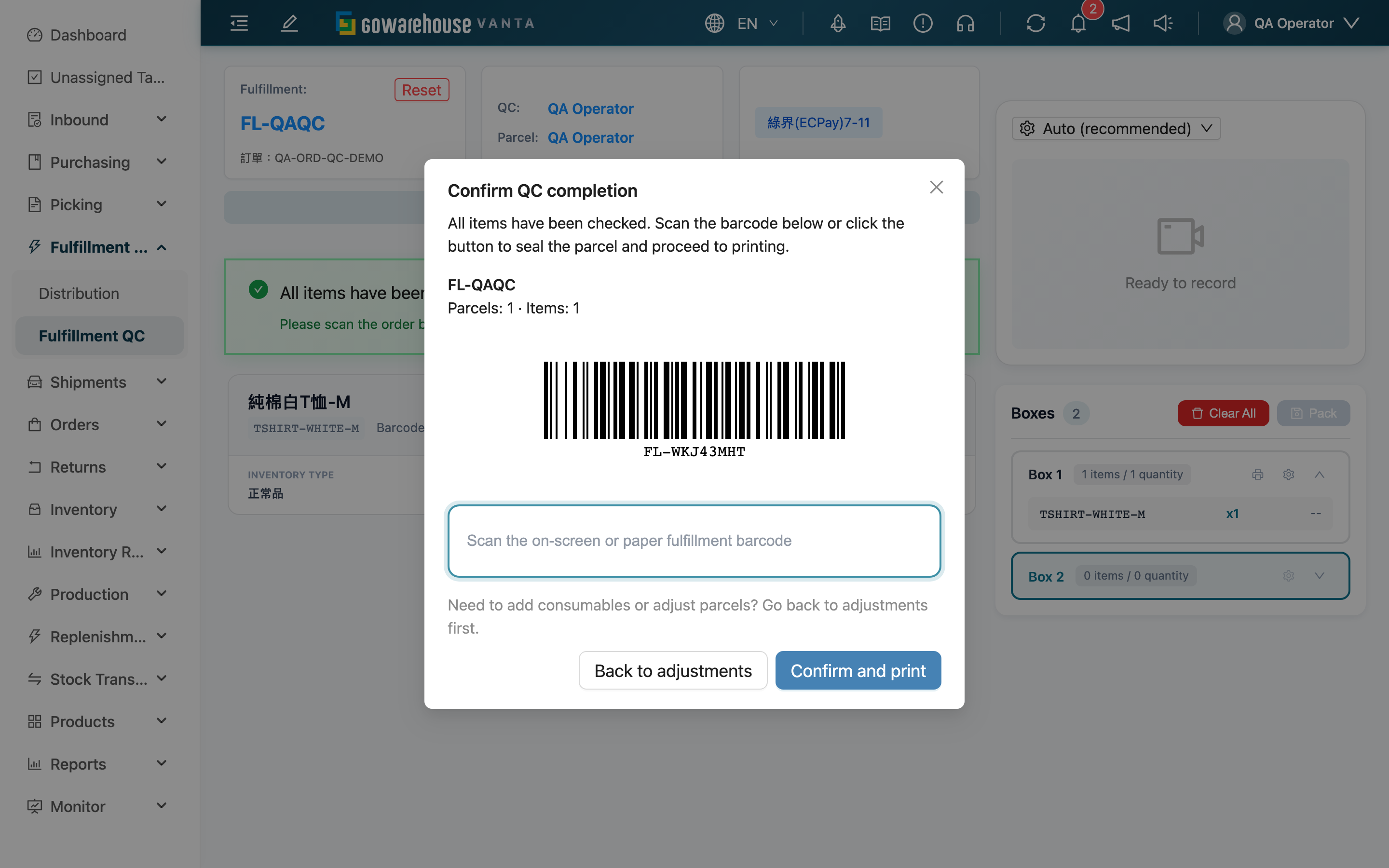
Preconditions: every line is fully scanned (verified = required), at least one non-empty box exists, no associated order is on hold or cancelled on the platform, and the picking list is done.
If any of these fails, the attempt is blocked with the reason spelled out: when an associated order is cancelled while you are in the middle of QC, the message lists which orders were cancelled; when the fulfillment itself has already been shipped or cancelled by someone else, the message gives its fulfillment name and current status.
What the system does: seals the current box → generates the shipping label and opens the print dialog → marks the fulfillment as "Shipped". At the same time stock is formally shipped out, the associated orders' rollup status updates, and this box's consumables are deducted.
Reversibility: once completed, this page can no longer modify boxes and the "Reset" button is disabled; to make changes you must go to the order page to place a hold, or use the returns flow.
If printing fails
If the label is not ready, its download fails, or the wait times out, the page returns to the re-scan state. The confirmation dialog displays the error. Scan the fulfillment barcode or click "Confirm and print" to retry. Completion appears only after the label is sent to print and shipping is saved successfully; opening a print dialog alone does not complete shipping.
If the shipping label fails to generate, "Label printing failed — complete shipment anyway?" appears, offering two paths:
- Hold order to correct info: Place the order on hold, fix the address or shipping info, and try again.
- Complete anyway: Force completion. This means there is no tracking number, so shipping status won't update automatically and you must track it yourself — use with care.
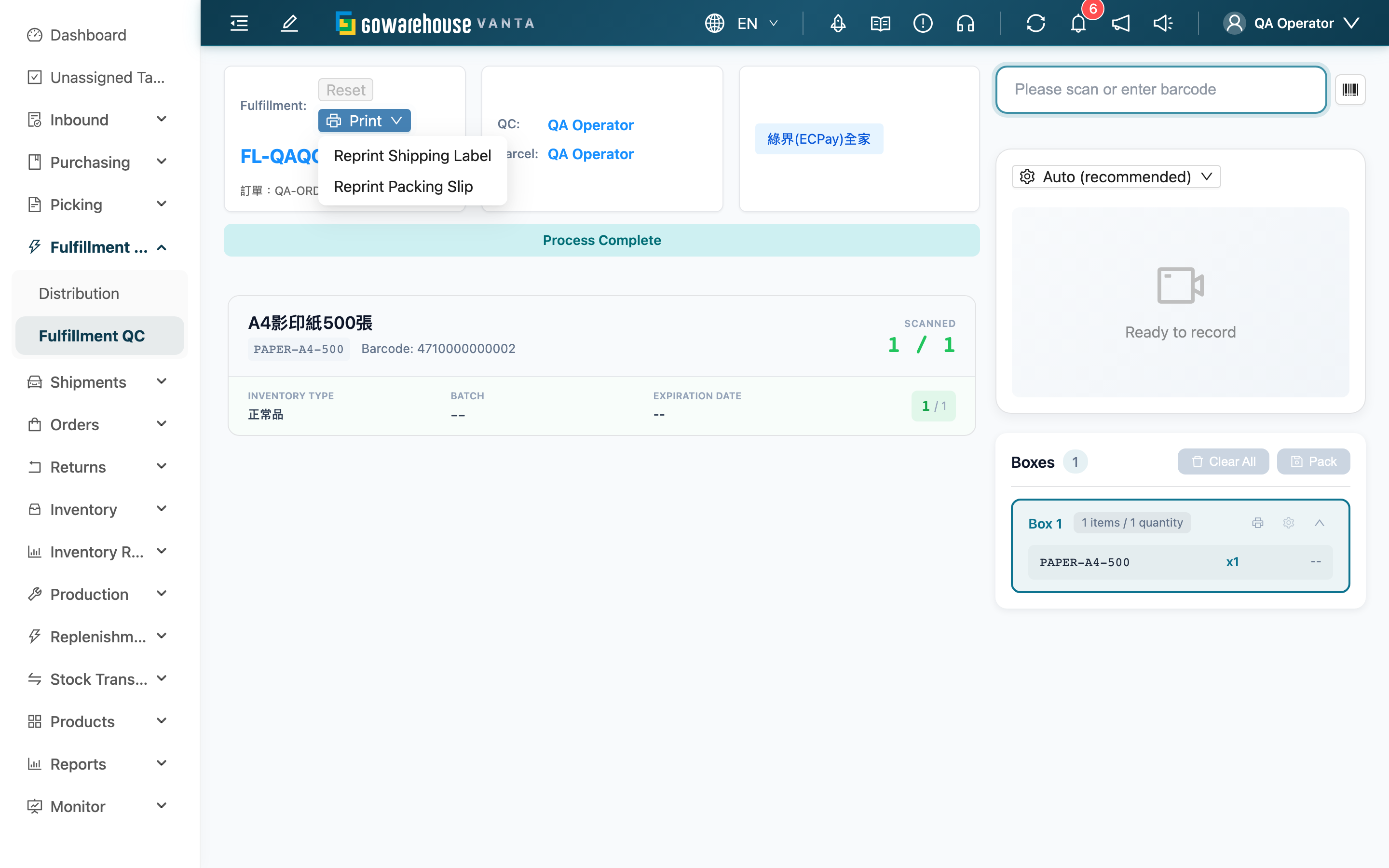
After shipping is completed, a "Print" dropdown appears in the header; its "Reprint Shipping Label" option voids the current tracking number, requests a new one from the carrier, and prints a brand-new shipping label — except for an already-billed fulfillment, or one whose label was manually uploaded, which just reprints the existing label without changing the number.
2.8 Print the packing slip
Every sealed box can be printed as a "packing slip" right away to travel with the shipment, so the receiver can check what's inside each box against the paperwork; if a print fails or is missed, there's a way to reprint it later. This system has no printer integration — "print" opens the browser's print dialog, and the actual paper output depends on that computer's default printer.
- Print as soon as a box is sealed: In Packing and box management, a print icon (Print Packing Slip) appears next to any box that has been sealed. Clicking it opens the print dialog; the content covers only that box's items and quantities, with the box number always printed as "Box N" (N is this box's position in the order it was packed — the total box count is never printed). Boxes still being packed (not yet sealed) don't show this icon.
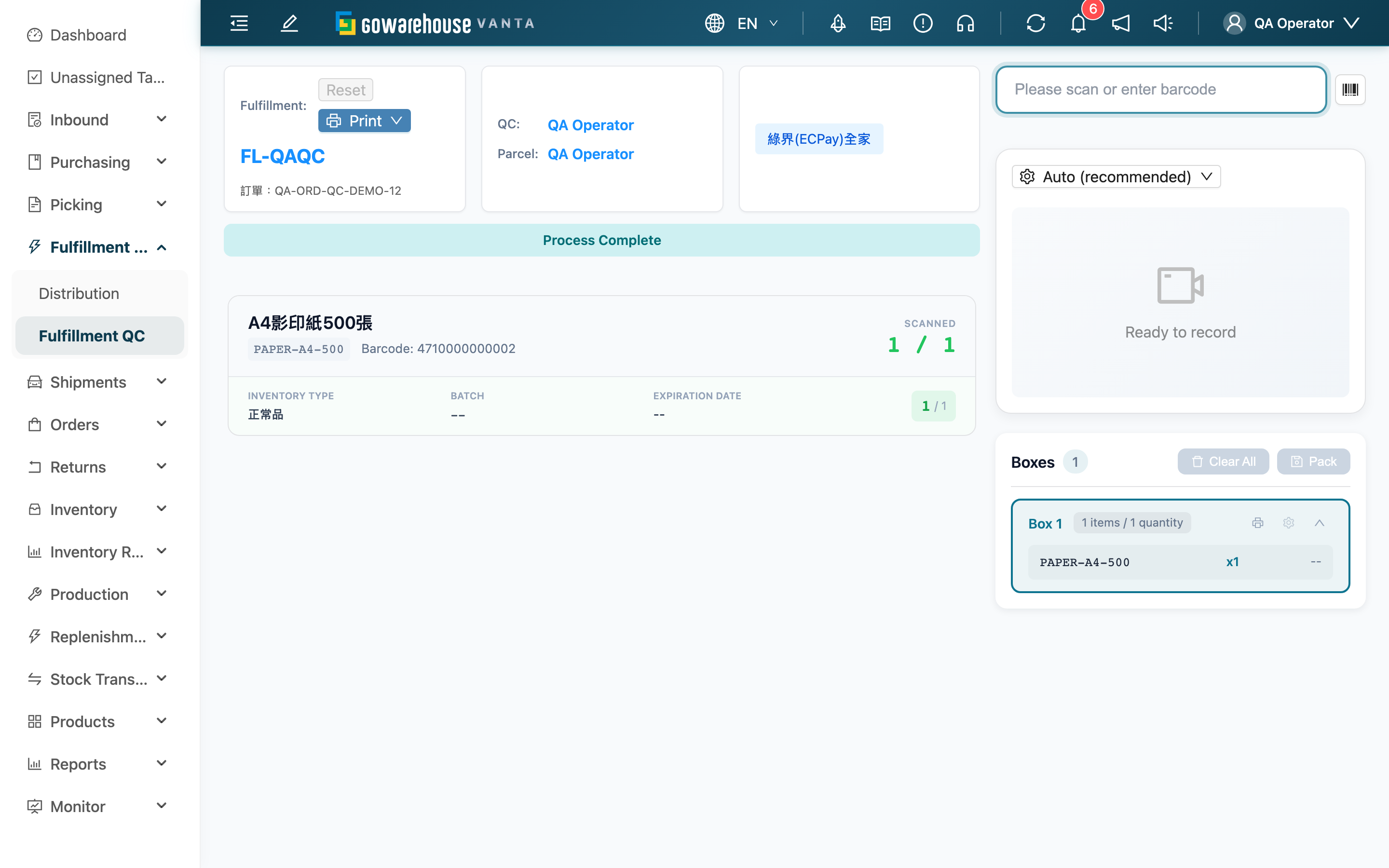
- Reprint from this page after completion: Once shipping is completed (the "Process Complete" state), the "Print" dropdown in the header gains a "Reprint Packing Slip" option (in the same dropdown as the shipping label reprint option), printing every box on this fulfillment at once (one page per box).
- Layout resolution: If this fulfillment's merchant has a dedicated packing-slip template set as default, that template's layout and paper size are used; if the merchant has none, the organization's default template is used instead; if neither is set, the system falls back to its built-in template (SKU / barcode / name / quantity in four columns) — printing never fails or shows an error just because no template is configured.
💡 Tip: The system starts preparing a box's packing slip in the background the moment it's sealed. In most cases clicking the print icon opens the print dialog immediately; if you click right after sealing and the background job hasn't finished yet, there's a brief pause before the dialog appears — this is expected. If "Print failed, regenerating the packing slip" appears, that print attempt didn't go through; the system automatically regenerates a new slip and reopens the print dialog on its own — no need to click again or report it, just wait a moment.
2.9 Recording for evidence
After a fulfillment loads, the recording area on the right starts recording automatically (shows "Recording"). Each sealed box becomes a separate video segment, and together with the serial-scanning footage serves as evidence of what shipped. Videos are queued in the "Video Upload Queue" for automatic upload, with progress shown on the right.
Use "Recording quality" above the recording area to match the quality to this computer's performance. The system remembers your choice. "Auto (recommended)" is suitable for normal work; if recording remains slow, a prompt appears and you can choose "Use power saver".
| Option | When to use it |
|---|---|
| Auto (recommended) | Starts at standard quality; if the browser determines before recording that it cannot handle this smoothly, it switches to power-saver quality |
| High (1080p) | When clearer detail is needed and the computer remains responsive while recording |
| Standard (720p) | A balance of quality and performance for routine QC |
| Power saver (540p) | When the video stutters or the computer has lower performance, prioritizing responsive operation |
The actual recording resolution and frame rate appear beside the selector. Changing quality during a recording does not interrupt the current segment; the new setting applies to the next recording segment.
When sealing a box applies a new quality setting, reopening the camera takes at most 10 seconds. If the camera does not respond, the system shows a recording-start failure, preserves the previous segment for upload completion, and lets packing continue. Confirming that you want to leave the QC page also ends the wait for the camera to reopen.
If you stop recording or seal a box while the camera is still starting, the system waits up to 10 more seconds. If the camera does not respond, it cancels that start attempt and shows a recording-start failure so the operation can finish. Check that the browser allows camera access before starting recording again.
If the final segment has not arrived within 10 seconds of stopping a recording, the upload area shows a waiting message and includes the recording in the pending count. You can continue with the next box or fulfillment. When the final segment arrives, the system automatically finishes the video for its original box; keep the page open.
If an upload fails, click "Retry" to upload the retained segments again. To give up videos that failed or are waiting to finish, click "Discard failed videos" and confirm. This stops those recordings and removes their unfinished uploads, which cannot be retried from this page afterward. If QC is still in progress, a new recording starts; discarded footage cannot be recovered, and completed shipping is unaffected. Retry and discard are temporarily unavailable while data is being processed. Scanning, packing, and reset are temporarily disabled while discarding recordings and reopening the camera. They become available again when this finishes.
⚠️ Do not close or leave the page before video upload finishes. If you leave while still working, still recording, or with unfinished or failed uploads, the system warns you; forcing your way out may leave a video incomplete or lost.
3. FAQ
3.1 FAQ
▪ Nothing happens when I scan a fulfillment, or a red message appears — what now?
It means the fulfillment didn't pass entry checks; see the table in Scan a fulfillment to load it: order on hold, cancelled on platform, picking not done, tote quantity insufficient, or wrong status. Follow the message — hold-related ones include a "go to order" link so you can fix it; for a wrong status the message names the fulfillment and its current status, so "Shipped" means this one has already shipped and you can move straight on to the next.
▪ Scanning an item does nothing, or shows "Product not found"?
If the screen shows "No fulfillment is loaded — please scan a fulfillment barcode again", no fulfillment is loaded yet — no need to check anything yourself, the system detects this and tells you; just scan the fulfillment barcode again. If it shows "Product not found", a fulfillment is loaded but this barcode doesn't match anything on it — check whether this item belongs to this fulfillment and whether the barcode is correct. If the barcode is actually a consumable, the system records it under "Materials for this box" rather than as an item.
▪ What happens if I scan more than the required quantity?
The system shows "Quantity exceeded" and blocks it; the extra is not counted, preventing you from exceeding what this fulfillment should ship.
▪ A serial-numbered item shows "Serial number count mismatch"?
The serial count must be a whole multiple of the item's "serials required per unit" (e.g. 2 per unit means 2, 4, 6...). Make sure you haven't scanned too few, too many, or a duplicate — duplicate serials are rejected.
▪ Why is this fulfillment already fully scanned the moment it loads?
It means this batch had QC scanning skipped when Distribution was completed (see Skip scanning and ship directly) — quantities and serial numbers were already recorded at the distribution step and are loaded in directly. QC fees are still billed as normal and video is still recorded; only the item-by-item barcode scan is skipped.
▪ Can I switch back to scanning item by item in skip-scan mode?
Yes — press "Resume Manual QC" on the banner. The system removes the box that was created automatically, letting you scan items one by one again and split them into multiple boxes as usual to complete shipping. This button only appears in skip-scan mode.
▪ The fulfillment shows it's being packed by someone else — can I take it over?
Yes. A takeover dialog appears, and after confirming, the QC lock moves to you so you can continue. Check with the other person first to avoid two people packing the same fulfillment.
▪ I packed the wrong box or item — how do I fix it?
Click "Manage" on the box to adjust quantities, remove serials, or delete items; to start over, use "Clear All" to clear all boxes (type clear to confirm) and re-scan. If removing leaves a line no longer fully packed, "complete shipping" locks again until you scan it back to full.
▪ The shipping label failed to print but the goods are already packed — what now?
The dialog offers two paths: place the order on hold to fix the info and try again, or — knowing that there will be "no tracking number and status won't update" — complete anyway to force shipping. Generally, fix the info and print first.
▪ Can I start this fulfillment's QC over?
Before shipping is completed, click "Reset" in the header to clear this fulfillment's current scanning and packing data and start over. Reset is temporarily disabled while loading, packing, saving, deleting, or printing is in progress. A fulfillment that's already shipped cannot be reset.
Only after reset succeeds will the current recording stop and be discarded. Scanning the next fulfillment remains disabled until recording has stopped. If reset is rejected or a box cannot be deleted, recording and unfinished video uploads are preserved so you can resolve the problem and retry.
▪ I've already scanned the next fulfillment — can I go back and reprint the previous one's packing slip?
Not from this page — QC only recognizes the fulfillment currently loaded. Once you switch to the next one, the previous fulfillment's QC screen is gone and can't be reopened here. Go to that fulfillment's "order detail page" instead and use the reprint button in the fulfillments section to regenerate its packing slip.
▪ What happens if I need to leave the page midway?
If you leave while still in QC, or with videos still uploading, the system shows a confirmation warning that data may be lost. A fulfillment that's shipped with all videos uploaded gives no prompt when you leave.
▪ What should I do if the recording stutters?
Choose "Power saver (540p)" under "Recording quality". If a recording is already in progress, the change takes effect on the next video segment and does not interrupt the current one. Use the displayed resolution and frame rate to confirm the result after the switch.
3.2 Notes
⚠️ Important reminders
- After shipping is completed, this page can no longer modify boxes or reset the fulfillment; to make changes you must place a hold on the order or use the returns flow.
- Choosing "Complete anyway" to force shipping means there is no tracking number, so shipping status won't update automatically and you must track it yourself.
- Closing or leaving the page before video upload finishes may leave that video incomplete or lost.
- The "Clear All" action that deletes all boxes cannot be undone.
💡 Tip: For a large quantity of the same item, use "Batch Scan" to enter it at once; scanning -DOPACKING- is the same as clicking "Pack", and scanning -CONFIRM- is the same as re-scanning the fulfillment to enter printing; after all items are scanned and before printing, you can still scan consumables into this box.
4. Related Features
| Feature | Description | Link |
|---|---|---|
| Distribution | The step before QC: distribute orders to slots by wave and generate picking | Go |
| Fulfillments | View fulfillment status, split and merge fulfillments | Go |
| Orders | View and hold orders, fix address and shipping info | Go |
| Shipments | View generated shipping labels, reprint or upload labels | Go |