
Edit Product
Table of Contents
1. Features
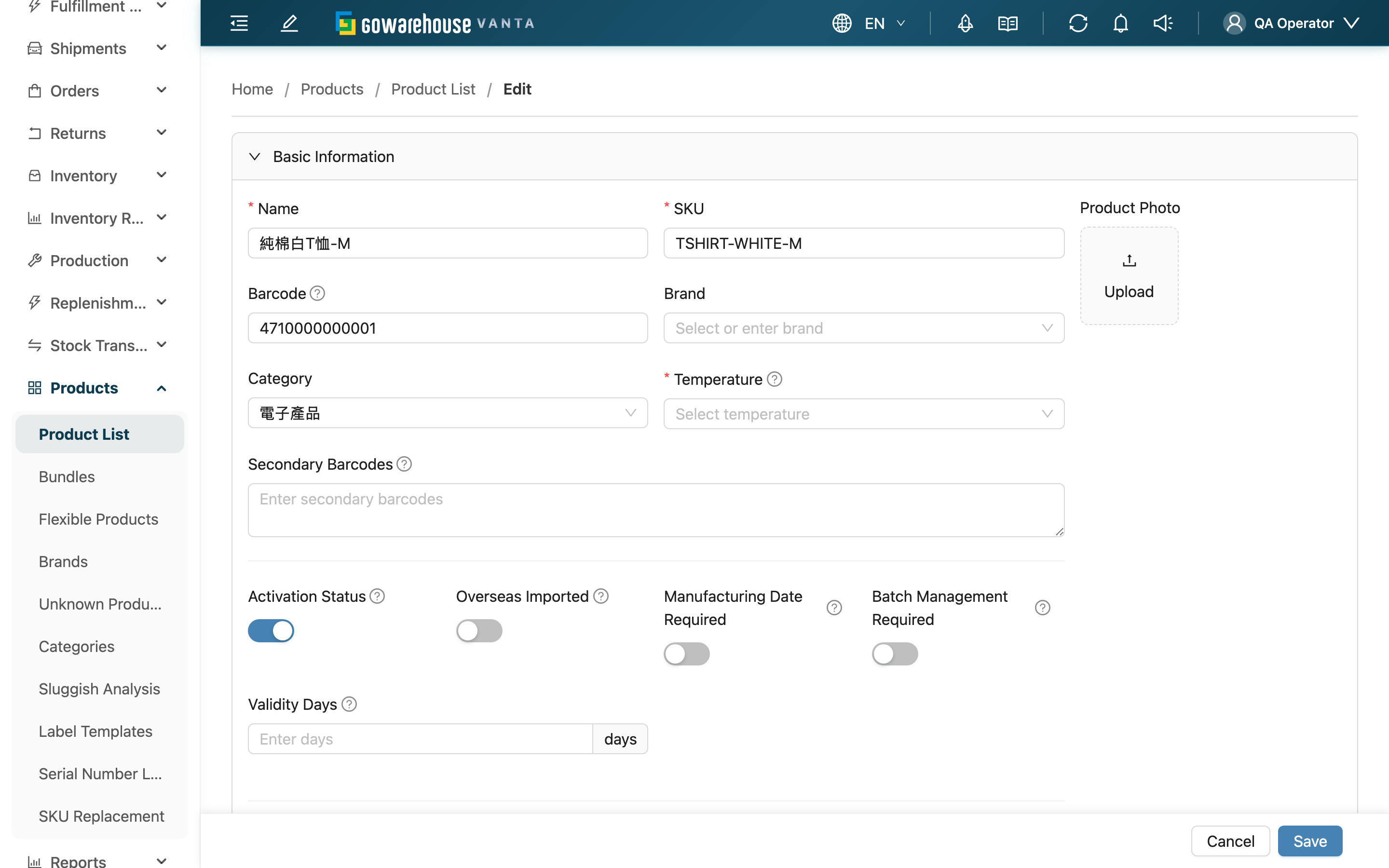
Edit Product is for modifying an existing product's record — changing barcodes, adjusting receiving / shipping rules, switching brand or category, updating packaging units or substitutes, and so on. The form structure is the same as Add Product; the difference is that the product's current values are pre-loaded here, and every save records which fields changed (viewable in the Product Detail edit history). The merchant a product belongs to is fixed after creation, so during editing all dropdowns (brand, shelf, etc.) are locked to this product's merchant.
Quick jump: What You Can Change | Rules for Changing Barcodes & Image | Saving & Records
1.1 What You Can Change
Create and edit both follow the compact/full preference in “Profile settings”. Compact mode shows basic information and custom attributes first. Existing tracking requirements and packaging conversions retain summaries; click a configured section heading to expand it. To configure an unused secondary section for the first time, switch to full mode from the top-right "User menu" without leaving the form. Collapsing a section retains its existing data, and changing the preference keeps unsaved values on the current page.
The fields in each section match Add Product; common changes include:
| Field | How to fill | Notes |
|---|---|---|
| *Name | Change the name | Required |
| *SKU | Change the SKU | Required; must not duplicate another product within the merchant — checked in real time on field exit (excluding itself) |
| Brand / Category | Reselect | Only this product's merchant's options appear |
| Label template | Assign or clear the label template used for this product | Clearing it falls back to the merchant default; a template that is already the default cannot be assigned to an individual product (see Print Templates) |
| Activation Status | Active / inactive | Deactivating suspends all inbound/outbound for this product |
| Batch Management Required / Manufacturing Date Required | On / off | Affects whether batch and manufacturing date are mandatory at future receiving |
| Required Serial Numbers | Adjust the number of serials to log | Setting it to 0 disables the serial requirement and clears the serial pattern and delimiter |
| Product Custom Attributes | Fill in per the merchant's configured attributes | Attributes marked required cannot be left blank or it won't save |
| Shelf type capacity limits | Under “Shelf Information,” select a shelf type on each row and enter the maximum pieces one shelf can hold | Shown only for existing products in dynamic warehouses; affects putaway, replenishment, and bulk-picking suggestions. See Full-Pallet-First Picking for Bulk Orders for the complete setup |
1.2 Rules for Changing Barcodes & Image
| Item | How to change | Result |
|---|---|---|
| Other Barcode | Add or remove barcodes in the multi-line field, one per line | On save the new list fully replaces the old; both additions and deletions are recorded in the edit history |
| Product Photo | Upload a new image to replace, or remove the current one | After removing and saving, the original image is cleared |
1.3 Saving & Records
Collapsed fields are also validated. When validation fails, settings expand and focus moves to the first invalid field. Server errors appear in a persistent summary at the top with settings expanded; entered values remain available for correction.
After changes, click "Save" at the bottom. A successful save returns to the product's detail page. The system automatically compares which fields changed and from what value to what, recording it in the edit history; foreign-key fields (such as brand, category) are recorded as the corresponding name rather than a code, for easier later tracing.
2. FAQ
2.1 FAQ
▪ Why can't I change this product's merchant?
A product is fixed to the merchant it was created under and cannot be reassigned on the edit page. That's also why the brand, shelf, and other dropdowns here only show that merchant's options. If a product was created under the wrong merchant, it must be recreated under the correct one.
▪ If I change "Batch Management Required" or "Manufacturing Date Required", is stock already received affected?
No. These switches affect whether logging is required at "future" receiving; stock already in the warehouse is not altered.
▪ What happens if I set "Required Serial Numbers" to 0?
It disables the serial requirement for this product; the serial pattern and box serial delimiter are also cleared, and shipping no longer requires per-unit serials. Serials already logged are not deleted by this action.
▪ If I delete an other barcode and save, will the history show it?
Yes. Changes to other barcodes are itemized in the edit history, marking which were added and which were removed.
▪ After changing the SKU, do the old SKU's stock or orders change with it?
The SKU is the product record's identifier; after changing it, the product itself uses the new SKU, while existing stock and documents still map to the same product. Before changing, confirm the new SKU doesn't conflict with another product under the same merchant.
2.2 Notices
⚠️ Important
- Other barcodes use full replacement: the save uses whatever list is currently in the field, and old barcodes not kept in the field are removed.
- Deactivating a product suspends all of its inbound/outbound activity — confirm the product is truly no longer in use before deactivating.
- The receiving / shipping rule switches affect floor operations; confirm the corresponding stock processes can accommodate before adjusting.
💡 Tip: Every save leaves an edit history; if you're unsure who changed what before, check the edit history tab in Product Detail.
3. Related Features
| Feature | Description | Link |
|---|---|---|
| Product Detail | View this product's full settings and edit history | Go |
| Inventory | View this product's stock and in-transit | Go |
| Product List | Back to the product list | Go |
| Add Product | Create a new product | Go |