
Sales Channels
Table of Contents
1. Use Cases
Quick links: Onboarding a new sales platform for a merchant | Different expiration standards per channel for the same merchant
Scenario 1: Onboarding a new sales platform for a merchant
Situation: A merchant you handle used to ship only through their own website, and now they are adding a Shopee flagship store. Shopee orders are imported into the system automatically, and at the moment of import the system must already know which inventory to use for these orders, the expiration threshold, and which logistics to use — all of these shipping rules live in the sales channel. Without a channel, the orders cannot be processed.
Use this feature: First create a channel for this merchant on this page corresponding to Shopee (see 2. Feature Overview and go to Create Sales Channel), configure its inventory, expiration, and logistics rules, then bind the Shopee account to this channel.
Result: From then on, whenever a Shopee order comes in, the system automatically classifies it under this channel and applies the shipping rules you set up — you no longer have to assign a channel manually for each order.
Scenario 2: Different expiration standards per channel for the same merchant
Situation: The same merchant sells on Shopee, PXMart, and a website clearance section at the same time, but each channel has wildly different expiration requirements — Shopee requires at least 90 days remaining, PXMart requires at least one third remaining, and the website clearance section only requires that the product is not expired. Applying one single rule set either locks up inventory that could still be shipped, or gets goods rejected after shipping to PXMart.
Use this feature: Create a separate channel for each platform on this page (see 2. Feature Overview), and set each one's expiration threshold and inventory source independently; the rules of each channel do not interfere with one another.
Result: Orders apply the expiration standard of their corresponding channel based on their source — strict where it needs to be strict, lenient where it can be lenient — so you neither waste inventory nor get goods rejected.
2. Feature Overview
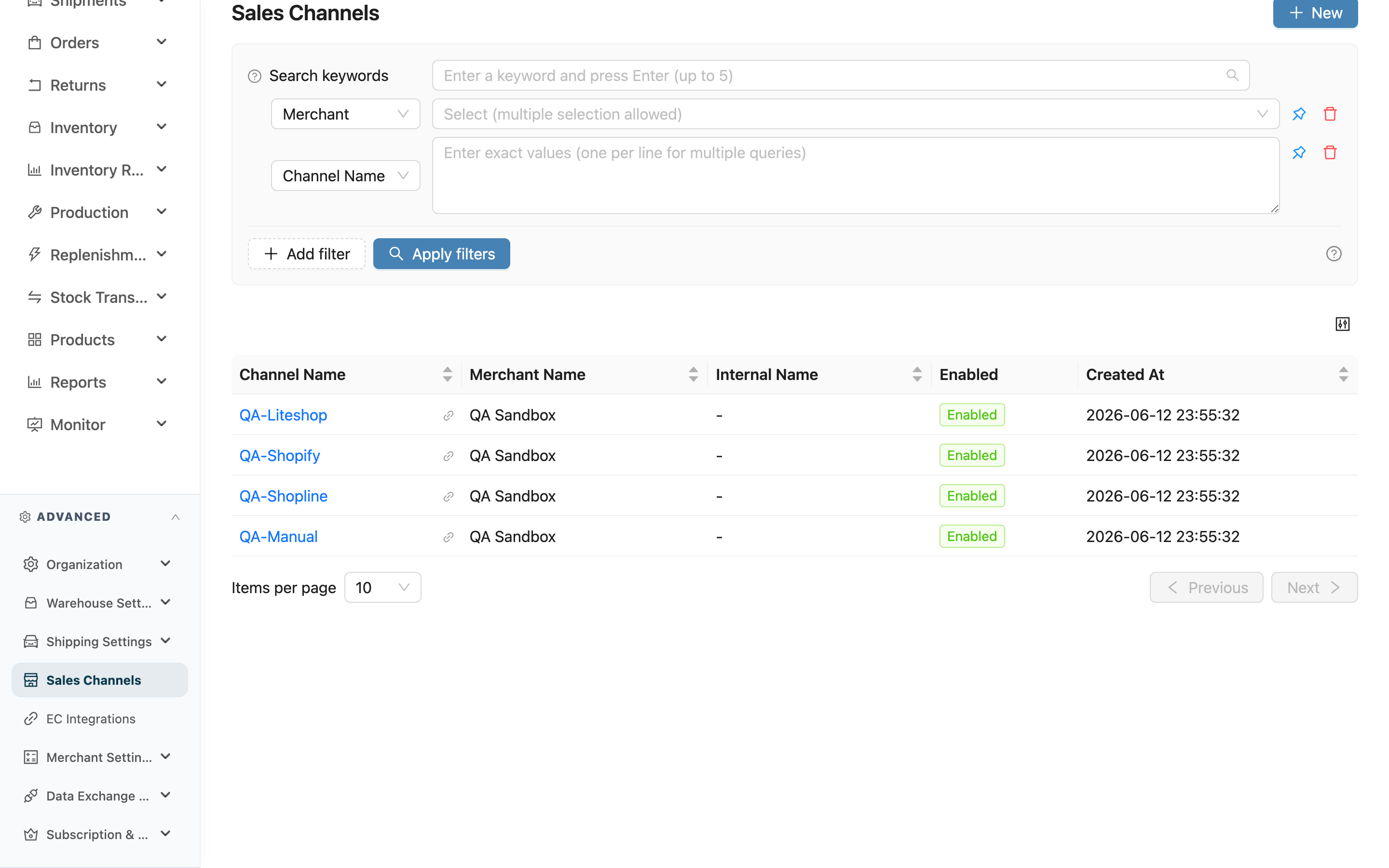
A sales channel is a "shipping rule book": it records, for a given merchant on a given sales platform (Shopee, Momo, website, PXMart…), which Channel Name to ship from, how much expiration must remain, how logistics is automatically converted, and the various order automation behaviors. When the system processes an order, it automatically applies the rules of the corresponding channel based on the order's source. This page is the entry point to all your channels: here you can search and filter the channels of each merchant, click into the detail to adjust rules, or create a new channel.
Quick jump: Search and Filter | List Columns
2.1 Search and Filter
The search box at the top of the page does a fuzzy match against "Channel Name" and "Channel Code"; enter a fragment to find matching channels. The following filter conditions are also available:
| Filter | How to use |
|---|---|
| Merchant Name | Multi-select to filter channels of specific merchants (shown only when you can manage more than one merchant) |
| Channel Name | Match against several channel names at once |
| Channel Code | Match against several codes at once |
| Enabled | Choose Enabled or Disabled to pull up channels in a specific state |
2.2 List Columns
The list does not filter by status by default — both enabled and disabled channels are listed together; use the status filter when needed. The columns are explained below:
| Column | Description |
|---|---|
| Channel Name | The code the system uses to classify orders; click to open the channel detail; the icon next to it opens the detail in a new tab |
| Merchant Name | Which merchant this channel belongs to (shown only when you can manage more than one merchant; hidden in single-merchant mode) |
| Channel Code | The external identifier; required and unique within the merchant. Import files use it to select the channel, and exports carry it out |
| Enabled | Shown as a tag, either Enabled or Disabled; a disabled channel no longer receives newly imported orders |
| Created At | The time the channel was created |
Channel Name is what warehouse staff read; use stable, recognizable naming. Channel Code is the external identifier — set it to your ERP's customer code when you need to integrate.
Click the New button at the top right to create a new channel for a merchant; see Create Sales Channel.
3. FAQ
3.1 FAQ
▪ What happens after I disable a channel?
After disabling a channel, existing imported orders are unaffected and continue to be processed; however, new orders will no longer be imported into this channel. This suits situations such as a temporary platform delisting or seasonal pause. To restore it, simply set it back to Enabled.
▪ Why can't a channel be deleted?
A channel usually already has e-commerce accounts bound to it and has accumulated a batch of orders classified under it; deleting it directly would leave those orders without a home and their rules untraceable, so the system does not allow deleting channels. If a channel is no longer used, temporarily or permanently, disable it instead (turn off the Enabled) — this keeps the historical records while blocking new order imports.
▪ Does the list hide disabled channels by default?
No. This list does not filter by status by default; both Enabled and Disabled channels are listed. If you want to see only one of them, use the Enabled filter.
3.2 Notes
⚠️ Important Reminders
- Channels cannot be deleted: Once created, a channel cannot be deleted, only disabled. Confirm the naming and settings beforehand to avoid leaving behind unused channels that cannot be cleared.
- A channel must exist before orders are imported: Orders are often imported automatically from e-commerce platforms, and at the moment of import they must map to a channel in order to be processed. The correct flow is to create the channel first, bind the e-commerce account, and then let orders be classified automatically; if you connect a platform before the channel exists, the orders cannot be processed properly.
💡 Tip: Channel Name is for people; Channel Code is for the system and external files. After you change a code, exports carry the new value — remember to update your export templates and any integration settings.
4. Related Features
| Feature | Description | Link |
|---|---|---|
| Orders | View orders processed according to channel rules | Go |
| Inventory Types | The primary/secondary inventory sources specified by a channel | Go |
| Shipping Types | The logistics referenced by a channel's automatic logistics conversion rules | Go |
| Create Sales Channel | Create a new channel for a merchant | Go |
| Sales Channel Detail | View and adjust the complete rules of a single channel | Go |