
Label Templates
Table of Contents
1. Feature Overview
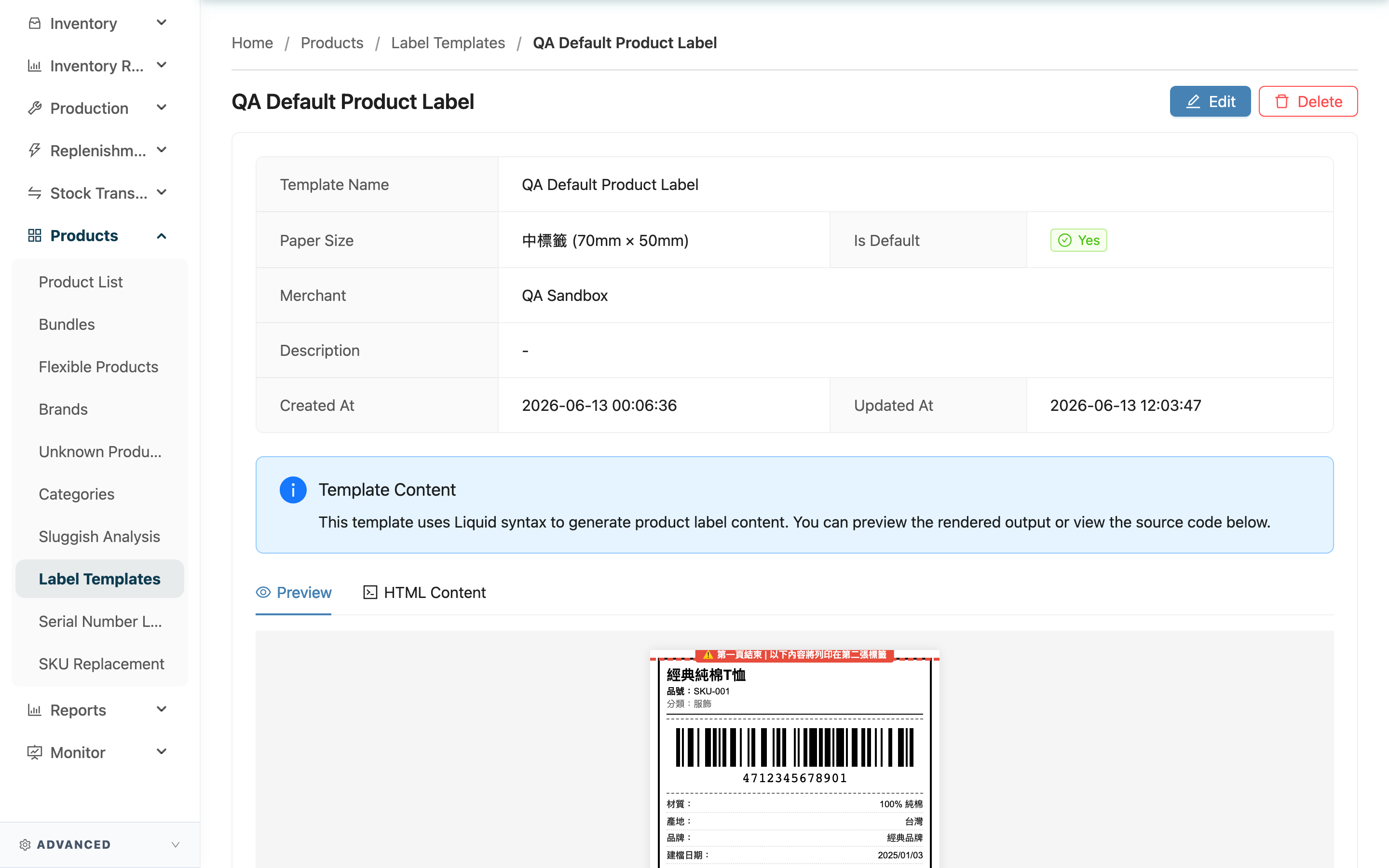
The detail page shows a label template's full content: basic information, paper size, whether it is the default, plus a layout preview and the raw template content. From here you can confirm what the labels printed by this template look like, and enter edit or delete.
Quick jump: Basic information | Content and preview | Edit and delete
1.1 Basic information
| Field | Description |
|---|---|
| Template Name | Template name |
| Paper Size | The paper size used (with actual width and height) |
| Is Default | Whether it is the merchant's default template |
| Merchant | The merchant the template belongs to; hidden for single-merchant operation |
| Description | Notes on the template's purpose |
| Created At / Updated At | When the template was created and last updated |
1.2 Content and preview
The tabs below switch between "Preview" and "HTML Content". The preview uses a set of sample product data and renders the label by this template's paper size, showing how it will actually print; the raw content shows the template's layout syntax.
1.3 Edit and delete
At the top right are "Edit" and "Delete". Click edit to enter the edit page and adjust the layout and settings; click delete for a confirmation, after which the template is removed from the list.
2. FAQ
2.1 FAQ
▪ Is the product data in the preview real?
No. The detail-page preview uses a fixed set of sample product data to illustrate the layout and does not represent any real product. To see the effect on a real product, go to the edit page and load an actual product with "Load Product Data".
▪ Can I print labels directly here?
No. The detail page is only for viewing and managing the template. Printing is done on the product: go to the Product List, open the product, choose a template, enter a quantity, and submit.
▪ What happens when I delete a template?
After confirmation the template is removed from the list and cannot be recovered. If it was the merchant's default, the merchant will then have no default, and later printing without a chosen template falls back to the built-in standard template.
▪ Does editing a template affect already-printed labels?
No. A printed or downloaded PDF is a file generated at that moment and is separate from the template. Edits only affect labels printed with this template afterward.
2.2 Notices
⚠️ Important
- After deletion the template is removed from the list and cannot be recovered.
- After deleting a template that was set as the default, the merchant will have no default template.
💡 Tip: If you might still need a template later but want to stop it being applied, go to the edit page and unmark the default instead of deleting, keeping the template on standby.
3. Related Features
| Feature | Description | Link |
|---|---|---|
| Edit Label Template | Adjust this template's layout and settings | Go |
| Product List | Choose a template on a product and print labels | Go |